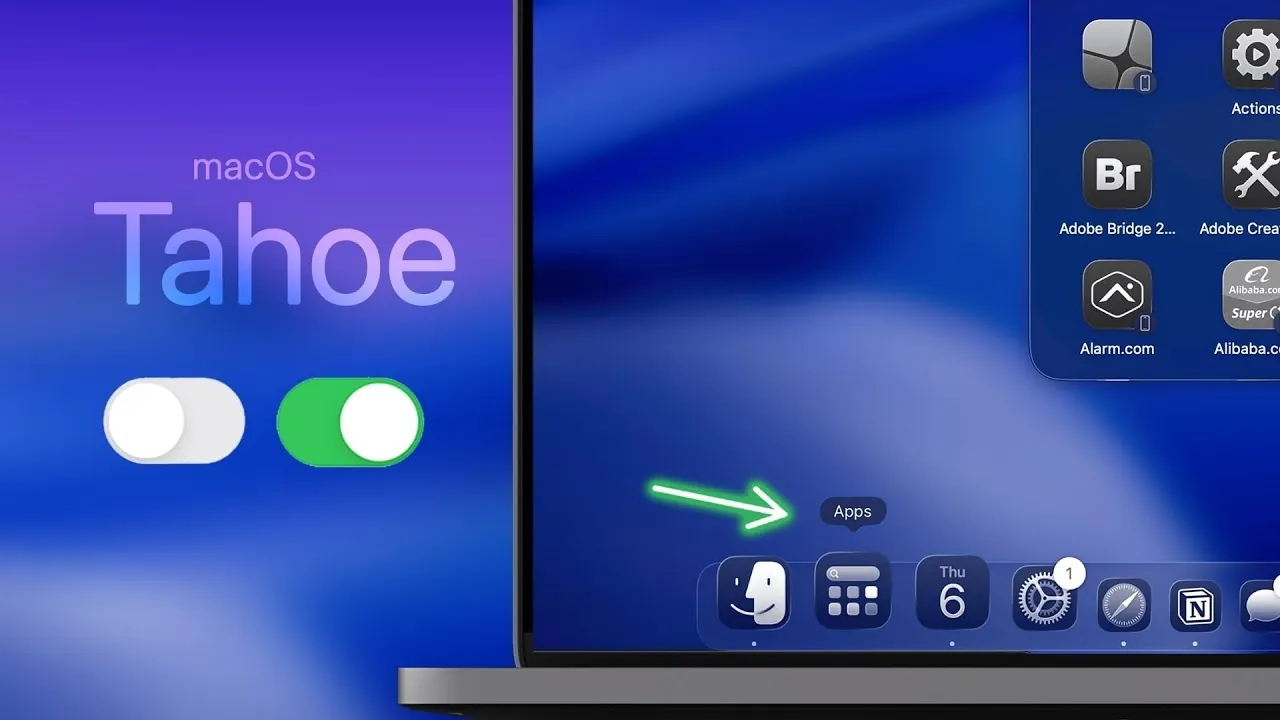
macOS 26 Tahoe brings a wealth of new features and customization options designed to enhance productivity, accessibility, and personalization. With over 100 updates, the video below from Brandon Butch focuses on 22 key settings that can transform how you use your Mac. By tailoring these settings to your preferences, you can create a more efficient, user-friendly, and enjoyable experience.

Streamline Your Menu Bar
The menu bar remains a central element of macOS, and Tahoe introduces new ways to refine it for better functionality. You can now:
- Disable unnecessary menu bar controls to reduce visual clutter and distractions.
- Rearrange or add controls to both the menu bar and the control center, making sure quicker access to essential tools.
These updates allow you to create a cleaner and more efficient workspace, making it easier to focus on your tasks.
Enhanced Dark Mode
Dark mode in macOS 26 Tahoe has been expanded to include PDFs, offering a consistent viewing experience across various apps. This enhancement is particularly useful for users who frequently work in low-light environments, as it helps to reduce eye strain during extended periods of use. Whether you’re reading documents or browsing the web, the improved dark mode ensures a more comfortable experience.
Magnifier App Integration
The Magnifier app now integrates seamlessly with macOS, allowing you to use your iPhone as a camera for zooming in on physical materials or presentations. This feature is especially beneficial for professionals, students, or anyone who requires detailed visual assistance. By bridging the gap between devices, this tool enhances accessibility and convenience.
Spotlight Search Upgrades
Spotlight search has received significant enhancements in macOS 26 Tahoe, making it a more powerful tool for everyday use. Key improvements include:
- Customizable filters to exclude specific categories, such as iPhone apps, making sure more relevant search results.
- A clipboard history feature that stores copied items for up to eight hours, allowing you to retrieve past content effortlessly.
- Quick keys for repetitive tasks like creating reminders or sending messages, saving time and effort.
These upgrades streamline your workflow and make Spotlight an indispensable feature for productivity.
Control Center Customization
The control center in macOS 26 Tahoe is now more customizable than ever. You can:
- Modify the layout to better suit your workflow and preferences.
- Create additional pages for quick access to frequently used settings and tools.
This level of personalization ensures that your control center is tailored to your specific needs, improving efficiency and usability.
Live Activities on Your Desktop
Live activities from your iPhone can now sync directly with your Mac, providing real-time updates on your desktop. Whether you’re tracking a delivery, monitoring a sports score, or following a live event, this feature keeps you informed without the need to switch devices. It’s a seamless way to stay updated on the go.
Personalize Folders and Lock Screen
macOS 26 Tahoe emphasizes personalization with enhanced options for customizing your folders and lock screen. You can:
- Change folder colors and icons, including the ability to use emojis for a unique and creative touch.
- Adjust lock screen settings, such as fonts, weights, and clock displays, to better match your style.
These features allow you to make your Mac truly your own, reflecting your personality and preferences.
Accessibility Tools for Inclusivity
Accessibility remains a priority in macOS 26 Tahoe, with new tools designed to make the system more inclusive and user-friendly. These include:
- Vehicle motion cues to reduce motion sickness for users sensitive to screen movement.
- A systemwide reader that provides distraction-free content viewing for improved focus.
- Hover text for enlarged previews, enhancing readability for users with visual impairments.
These updates ensure that macOS Tahoe is accessible to a wider range of users, promoting inclusivity and ease of use.
Smarter Reminders App
The Reminders app in macOS 26 Tahoe now uses Apple’s intelligence to automatically categorize tasks. This feature helps you stay organized without the need for manual sorting, making it easier to manage your schedule and prioritize your responsibilities. Whether for work or personal use, this enhancement simplifies task management.
Improved Password Management
Security has been further strengthened in macOS 26 Tahoe with updates to password management. You can now:
- View your password history for better oversight and tracking of changes.
- Clear past entries to minimize the risk of unauthorized access and enhance security.
These features provide greater control over your credentials, making sure a safer and more secure experience.
Updates to Music and Photos
Entertainment and organization receive notable improvements in macOS 26 Tahoe:
- Apple Music now includes an automix feature, creating seamless transitions between songs for uninterrupted listening sessions.
- The Photos app allows you to reorder photo collections, giving you more control over how your memories are displayed.
These updates enhance how you enjoy and manage your media, making it easier to curate your favorite content.
Optimize Your macOS 26 Tahoe Experience
macOS 26 Tahoe is designed to deliver a more personalized, efficient, and accessible user experience. By adjusting these 22 essential settings, you can unlock the full potential of your Mac. Whether you’re a professional seeking advanced tools or a casual user exploring customization options, these updates ensure that macOS Tahoe adapts to your unique needs and preferences.
Explore further guides and articles from our vast library that you may find relevant to your interests in macOS 26 Tahoe.
Source & Image Credit: Brandon Butch
Filed Under: Apple, Guides, Laptops
Latest Geeky Gadgets Deals
Disclosure: Some of our articles include affiliate links. If you buy something through one of these links, Geeky Gadgets may earn an affiliate commission. Learn about our Disclosure Policy.
Credit: Source link