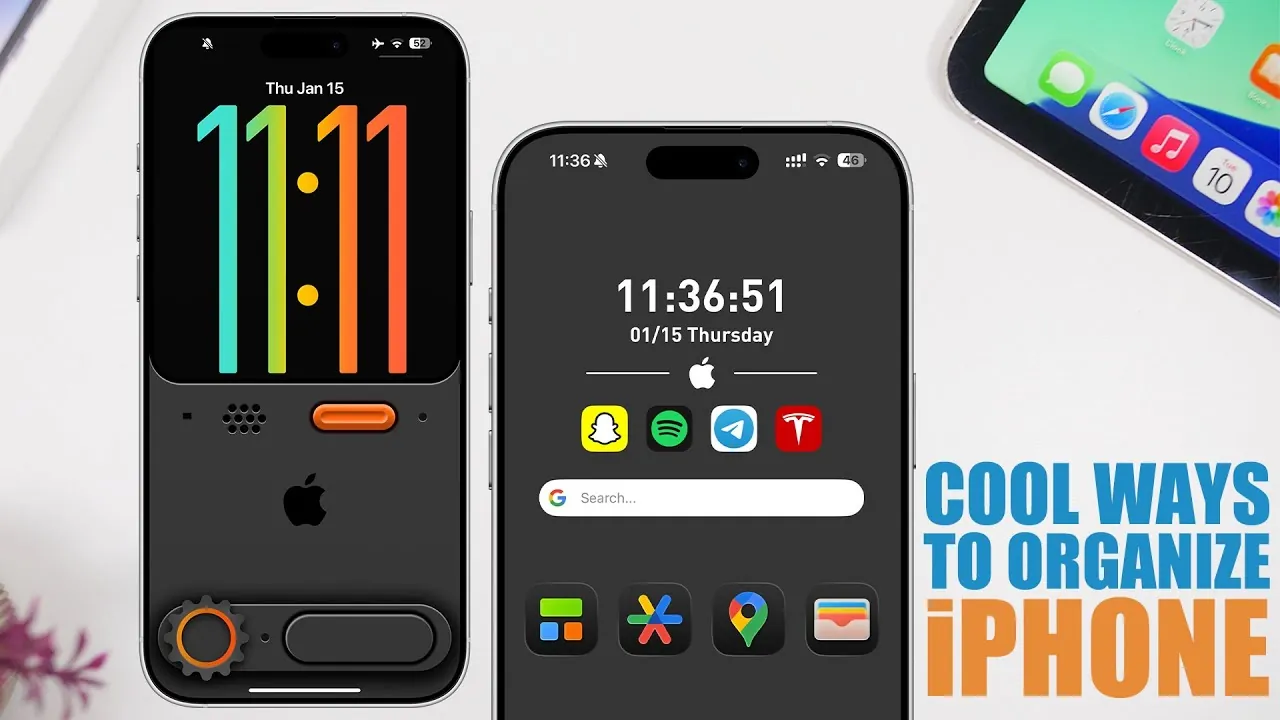
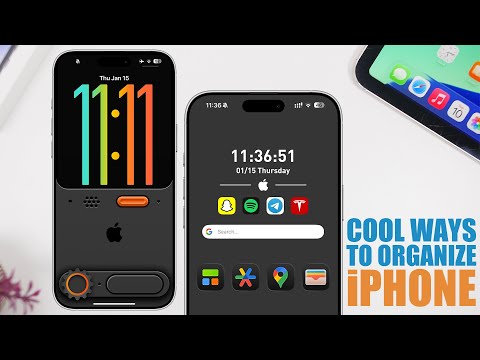
With the release of iOS 26, organizing your iPhone has become more intuitive and visually engaging than ever before. Apple’s latest update introduces advanced customization tools that allow you to balance functionality with style. Whether you’re aiming for a sleek, minimalist design or a highly organized layout, these five strategies will help you optimize your home screen for both efficiency and aesthetics. The video below from iReviews gives us more details on how to organize your iPhone.
1. Use Folders to Declutter Your Screen
Grouping apps into folders remains one of the most effective ways to tidy up your home screen. With iOS 26, this feature has been enhanced with greater customization options, allowing you to create folders that are both practical and visually cohesive.
- Organize apps into categories such as social media, productivity, or entertainment for quick and easy access.
- Pair folders with widgets that complement their purpose. For instance, a fitness folder could include a step tracker widget, while a productivity folder might feature a calendar or task manager widget.
- Enable dark mode to create a polished, modern look that ties your folders and widgets together seamlessly.
This approach not only reduces clutter but also makes navigation faster and more intuitive, allowing you to focus on what matters most.
2. Adopt a Minimalist Layout
For those who prefer a clean, distraction-free interface, a minimalist layout is an excellent choice. iOS 26 provides tools to help you achieve this streamlined look without compromising functionality.
- Arrange apps around wallpapers with subtle grids or designs that guide placement, making sure a balanced and organized appearance.
- Remove app labels for a cleaner aesthetic and customize icon colors to match your chosen theme, creating a cohesive visual experience.
- Place widgets on the side panel to keep the main screen uncluttered while still providing essential information at a glance.
This layout reduces visual noise, helping you focus on your tasks and enjoy a more serene digital environment.
3. Match Wallpapers for a Unified Theme
A cohesive design can elevate your iPhone’s appearance, and iOS 26 makes this easier with dynamic wallpaper themes. These wallpapers adapt to your chosen aesthetic, whether you prefer nature-inspired visuals, sleek modern designs, or vibrant patterns.
- Customize app icons and widgets to align with your wallpaper theme. For example, a weather widget can seamlessly blend into a nature-themed background, enhancing the overall design.
- Experiment with monochrome or gradient designs for a minimalist and professional look that feels both elegant and functional.
By matching wallpapers and customizing elements, you can create a home screen that feels thoughtfully designed and visually harmonious.
4. Organize with Split Wallpapers
Split wallpapers are a standout feature in iOS 26, allowing you to divide your screen into distinct sections for apps and widgets. This innovative design not only enhances organization but also adds a unique visual element to your home screen.
- Use the top half of your screen for widgets like reminders, weather updates, or news, and reserve the bottom half for frequently used apps.
- Combine dark mode with larger icons to improve visibility and create a bold, modern aesthetic that is both functional and stylish.
This setup is particularly useful for users who want to balance functionality with a creative, personalized design, making it easier to access information at a glance.
5. Simplify with Dumb Phone Mode
For those seeking to minimize distractions, iOS 26 introduces “Dumb Phone Mode.” This feature simplifies your home screen by displaying only essential apps, helping you focus on productivity or reduce screen time.
- Customize the home screen to include only the apps and widgets you need, such as messaging, calendar, and weather, making sure a distraction-free experience.
- Rearrange app order and widget placement to suit your workflow or daily habits, making your phone a tool for intentional use.
This minimalist setup aligns with the growing trend of digital well-being, encouraging users to engage with their devices more mindfully and purposefully.
Transform Your iPhone Experience
Organizing your iPhone in 2026 is about more than just aesthetics—it’s about creating a personalized, functional experience that aligns with your lifestyle. Whether you prefer categorized folders, minimalist layouts, cohesive themes, split wallpapers, or distraction-free modes, iOS 26 provides the tools to make your device work for you. By using these features, you can design a home screen that reflects your preferences while maintaining its role as a powerful tool for everyday tasks.
Below are more guides on iOS 26 Features from our extensive range of articles.
Source & Image Credit: iReviews
Filed Under: Apple, Apple iPad, Guides
Latest Geeky Gadgets Deals
Disclosure: Some of our articles include affiliate links. If you buy something through one of these links, Geeky Gadgets may earn an affiliate commission. Learn about our Disclosure Policy.
Credit: Source link