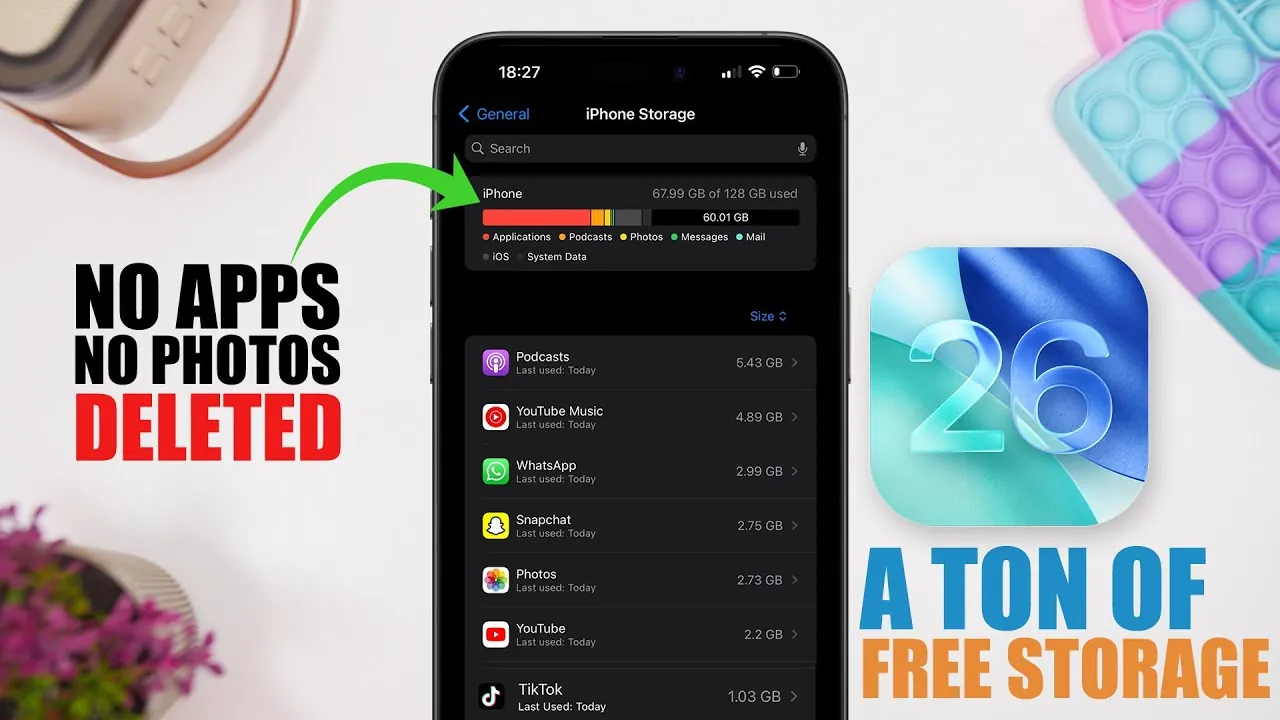
Running out of storage on your iPhone can be a common challenge, especially when you want to preserve your cherished photos, videos, and essential apps. Fortunately, iOS 26 provides several practical tools and strategies to help you reclaim storage space without compromising your personal files. By targeting overlooked data and optimizing settings, you can ensure your device runs efficiently. Here are seven effective methods to manage your iPhone’s storage more effectively in a new video from iReviews.
1. Clear App Cache
Apps like Spotify, TikTok, and Snapchat often accumulate cached data over time, which can take up a significant amount of storage. Clearing these caches not only frees up space but also enhances app performance.
– Open the app’s settings (e.g., in Spotify, navigate to Settings > Storage) and locate the option to clear cached files.
– Repeat this process for other apps that store large amounts of temporary data.
By regularly clearing app caches, you can reclaim valuable storage space while making sure your apps continue to function smoothly.
2. Manage Downloaded Files
The Files app on your iPhone is a central hub for documents, PDFs, and other downloads. These files can quietly accumulate over time, taking up unnecessary space.
– Open the Files app and navigate to the Downloads folder.
– Review the stored files and delete any that are no longer needed.
This simple habit helps you maintain an organized digital environment while keeping essential files easily accessible.
3. Remove Unused Siri Voices
Siri voice files, especially those in multiple languages or accents, can occupy a surprising amount of storage. If you’ve experimented with different voices in the past, it’s worth reviewing and removing the ones you no longer use.
– Navigate to Settings > Accessibility > VoiceOver > Speech.
– Review the list of downloaded voices and delete any unnecessary options.
This step is particularly useful for users who have customized Siri’s voice but no longer need the additional language or accent options.
4. Review iMessage Attachments
Old iMessage conversations often contain large attachments such as photos, videos, and documents that you may have forgotten about. These attachments can take up a significant amount of space over time.
– Open a conversation in the Messages app.
– Tap the contact’s name, select Info, and review the list of attachments.
– Delete any files that are no longer needed.
This targeted cleanup allows you to free up storage space while preserving the conversations themselves.
5. Optimize Podcasts and Music Downloads
Offline downloads for podcasts and music can quickly consume your device’s storage, especially if you subscribe to multiple shows or save entire playlists.
– Disable automatic downloads for podcasts by navigating to Settings > Podcasts and toggling off Automatically Download.
– In the Music app, go to Downloaded Music and remove songs or albums you no longer listen to.
– Enable the Optimize Storage feature in Music settings to automatically delete played downloads when storage is low.
These steps ensure that your device only retains the content you actively use, freeing up space for other important files.
6. Clear Browser Data
Web browsers like Safari and Chrome store cached data, cookies, and browsing history, which can accumulate over time and take up storage space.
– For Safari, go to Settings > Safari > Clear History and Website Data.
– For Chrome, open the app, navigate to Settings > Privacy > Clear Browsing Data, and select the data you want to remove.
Clearing browser data not only saves storage space but also enhances your privacy by removing unnecessary browsing history and cookies.
7. Empty the Recently Deleted Album
When you delete photos or videos, they aren’t immediately removed from your device. Instead, they are moved to the Recently Deleted album, where they remain for 30 days before being permanently deleted.
– Open the Photos app, navigate to the Recently Deleted album, and select Delete All.
This ensures that deleted files no longer occupy storage, freeing up space instantly and efficiently.
By implementing these seven strategies, you can optimize your iPhone’s storage without sacrificing important files or apps. Regularly reviewing and managing your device’s storage not only helps you reclaim space but also ensures your iPhone continues to run smoothly and efficiently.
Here are more guides from our previous articles and guides related to iPhone storage optimization that you may find helpful.
Source & Image Credit: iReviews
Filed Under: Apple, Apple iPhone, Guides, Top News
Latest Geeky Gadgets Deals
Disclosure: Some of our articles include affiliate links. If you buy something through one of these links, Geeky Gadgets may earn an affiliate commission. Learn about our Disclosure Policy.
Credit: Source link