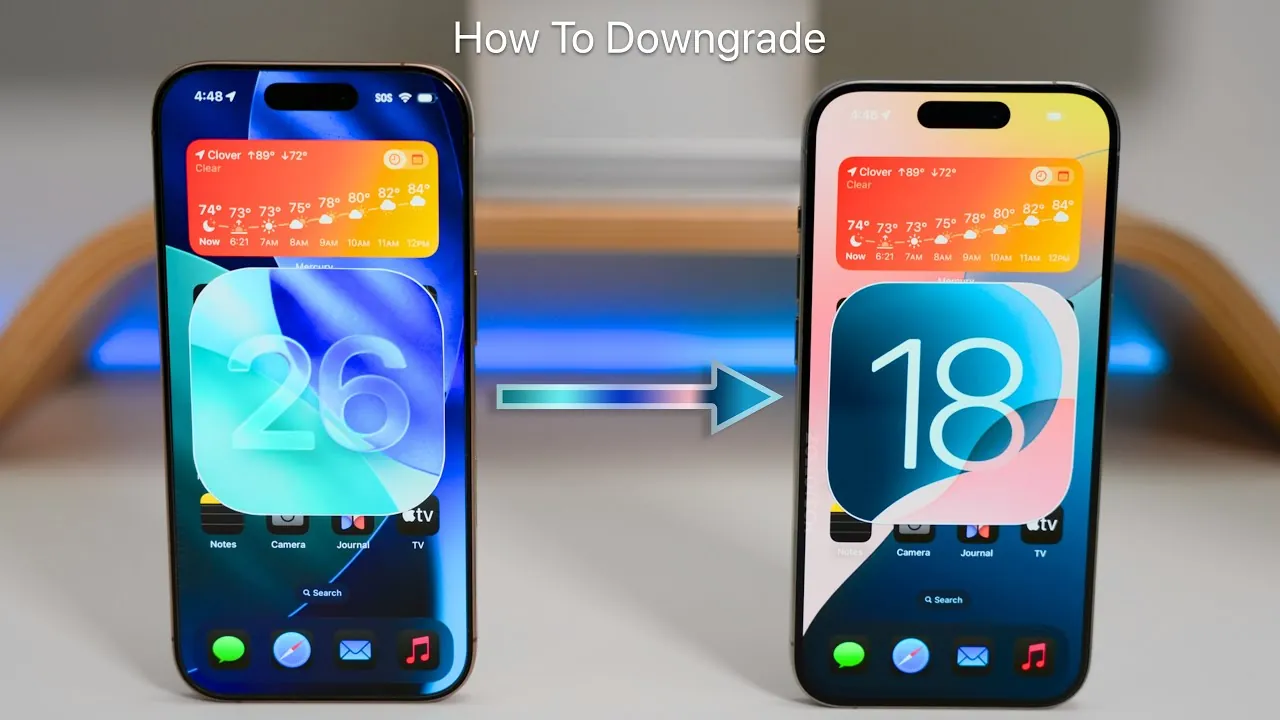
Downgrading your iPhone from iOS 26 to iOS 18 can be a meticulous process, but with the right approach, it is entirely achievable without compromising your data. The video below from Zollotech provides a step-by-step walkthrough, covering preparation, the downgrade process, and post-downgrade actions to ensure a seamless transition while safeguarding your information.

Step 1: Prepare Your Device
Proper preparation is essential for a successful downgrade. Before proceeding, take the following steps to secure your data and ensure you have the necessary tools:
- Back Up Your Data: Create a complete backup of your iPhone using iCloud or a computer. This ensures that your photos, messages, app data, and settings are preserved. If using iCloud, verify that you have sufficient storage space. For computer backups, ensure your device has enough local storage available to save the backup file.
- Download the Right Tools: Use Finder (on macOS) or iTunes (on Windows) to manage the downgrade process. Confirm that your computer is running the latest version of the software to avoid compatibility issues during the downgrade.
- Check Your Internet Connection: A stable and fast internet connection is crucial for downloading the iOS 18 software. Slow or unreliable connections can significantly delay the process.
- Obtain the iOS 18 Firmware: Download the correct iOS 18 firmware file (IPSW) for your specific iPhone model from a trusted source. Ensure the file is compatible with your device to avoid errors during installation.
Step 2: Begin the Downgrade Process
Once your device is prepared, you can proceed with the downgrade. This involves entering recovery mode and restoring your iPhone to iOS 18.
- Enter Recovery Mode: Connect your iPhone to your computer using a Lightning cable. Follow the button sequence specific to your iPhone model to enter recovery mode. For newer models, press and release the volume up button, then the volume down button, and hold the side button until the recovery mode screen appears. For older models, the sequence may vary, so consult Apple’s support documentation if needed.
- Restore Your iPhone: Open Finder (macOS) or iTunes (Windows) on your computer. Select your iPhone from the device list and choose the “Restore” option. When prompted, locate and select the iOS 18 firmware file (IPSW) you downloaded earlier. Agree to the terms and conditions to proceed.
- Install iOS 18: Allow the software to install on your device. The installation process may take some time, depending on the size of the firmware file and your internet speed. Avoid disconnecting your iPhone during this step to prevent errors.
Step 3: Restore Your Data
After successfully downgrading to iOS 18, you’ll need to recover your data and reconfigure your device settings. Follow these steps to restore your iPhone to its previous state:
- Restore from Backup: Once the iOS 18 installation is complete, you’ll be prompted to restore your data. Choose the backup you created earlier, either from iCloud or your computer. This will reinstate your apps, photos, messages, and other data, making sure continuity.
- Reconfigure Device Settings: Depending on your iPhone model, you may need to set up features like Face ID, Touch ID, or eSIM again. Follow the on-screen instructions to complete these configurations and ensure your device is fully operational.
- Log In to Apps: Some apps may require you to re-enter passwords or log in again. Verify that all your apps are functioning correctly and that your settings are as expected.
Important Considerations
While the downgrade process is straightforward, there are several additional factors to keep in mind to ensure a smooth experience:
- Time Commitment: The entire process, including backups, firmware downloads, and software installation, can take anywhere from 1 to 8 hours. The duration depends on your internet speed, the size of your backup, and the performance of your computer.
- Signed iOS Versions: Apple only allows downgrades to signed versions of iOS. Before starting, confirm that iOS 18 is still being signed by Apple. You can check this information on Apple’s official website or through third-party tools that track iOS signing status.
- Apple Support: If you encounter issues during the downgrade or don’t have access to a computer, consider reaching out to your local Apple Store or Apple Support. They may be able to assist with the process or provide alternative solutions.
- Data Integrity: While backups are designed to preserve your data, it’s always a good idea to double-check that your most important files, such as photos and documents, are safely stored in multiple locations before proceeding.
Check out more relevant guides from our extensive collection on iOS downgrade that you might find useful.
Source & Image Credit: zollotech
Filed Under: Apple, Apple iPhone, Guides
Latest Geeky Gadgets Deals
Disclosure: Some of our articles include affiliate links. If you buy something through one of these links, Geeky Gadgets may earn an affiliate commission. Learn about our Disclosure Policy.
Credit: Source link