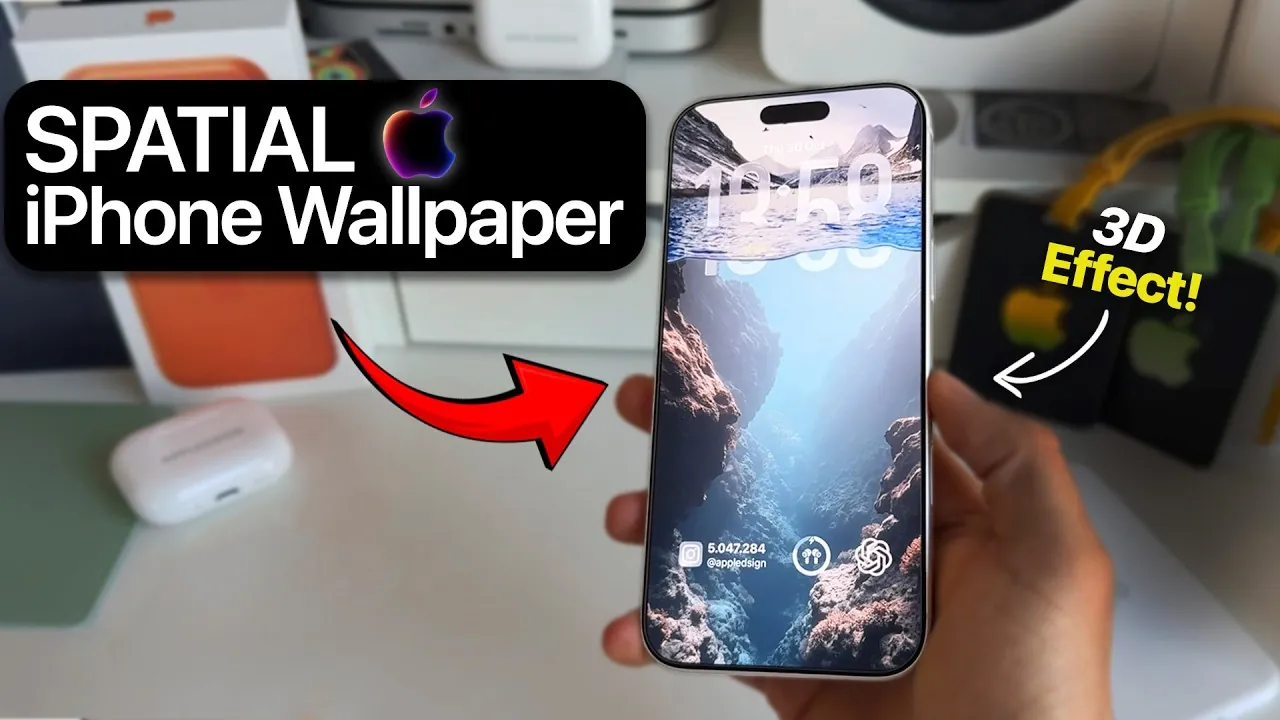
The iPhone’s clock depth water effect wallpaper has captured the imagination of users worldwide, offering a visually striking and immersive home screen experience. This innovative feature combines iOS’s advanced depth effect technology with artistic visuals, creating a layered, three-dimensional design that makes your device stand out. If you’re eager to replicate this trend, the video below from AppleDsign will provide detailed instructions, address potential challenges, and inspire creative variations to help you personalize your iPhone like never before.

What Is the Clock Depth Water Effect?
The clock depth water effect is a unique wallpaper design that uses iOS’s spatial scene and depth effect technologies to create a dynamic, layered appearance. The clock appears to float seamlessly over a water-inspired background, giving the illusion of depth and movement. This feature is available on devices running iOS 26.0.1 or later, which supports advanced customization tools. By allowing the depth effect, you can achieve this stunning visual, but it requires careful adjustments to ensure the elements align perfectly. This effect not only enhances the aesthetic appeal of your home screen but also showcases the capabilities of modern iOS technology.
Step-by-Step Guide to Setting Up the Wallpaper
To create the clock depth water effect wallpaper on your iPhone, follow these steps carefully:
- Update Your iOS: Verify that your iPhone is running iOS 26.0.1 or a later version. This update is essential as it includes the depth effect and spatial scene features required for this design.
- Download the Wallpaper: Obtain a high-resolution version of the clock depth water effect wallpaper. Ensure the image matches your screen dimensions for the best visual results.
- Apply the Wallpaper: Navigate to Settings, select Wallpaper, and choose the downloaded image. Enable the depth effect toggle to activate the 3D layering feature.
- Enable the Spatial Scene: Within the wallpaper settings, turn on the spatial scene option. This step enhances the depth effect and ensures the clock integrates seamlessly with the background.
- Position the Clock: Use the customization tools to align the clock with the water effect. Precise placement is crucial to achieving the desired visual impact.
- Organize Widgets: Add widgets to the lower portion of the screen, making sure they do not interfere with the clock or the depth effect. Proper alignment will maintain a clean and cohesive design.
By following these steps, you can bring the clock depth water effect to life on your iPhone, creating a home screen that is both functional and visually captivating.
Common Challenges and How to Overcome Them
While the clock depth water effect is undeniably impressive, achieving the perfect look can present some challenges. Here are common issues you might encounter and practical solutions to address them:
- Image Composition: Not all wallpapers are suitable for the depth effect. Opt for images with clear focal points and minimal visual clutter to enhance the 3D appearance.
- Resolution Issues: Using low-resolution images can distort the effect and reduce its impact. Always choose high-quality wallpapers optimized for your screen size.
- Clock Alignment: Misaligned clocks can disrupt the overall aesthetic. Take your time to adjust the clock’s position until it integrates seamlessly with the background.
- Widget Placement: Poorly positioned widgets can interfere with the design. Experiment with different layouts to find the best balance between functionality and style.
Patience and attention to detail are essential when addressing these challenges. Small adjustments can significantly enhance the final result, making sure your home screen looks polished and professional.
Creative Variations to Explore
To make your iPhone truly unique, consider experimenting with creative variations of the clock depth water effect. Nature-inspired themes, such as cascading waterfalls, tranquil ocean waves, or serene forest landscapes, can beautifully complement the depth effect. These designs not only elevate your phone’s visual appeal but also create a calming and personalized atmosphere. Additionally, abstract art, futuristic patterns, or even minimalist designs can add a modern and sophisticated touch to your display. By exploring different themes and styles, you can keep your home screen fresh and reflective of your personality.
Join the Creative Community
The clock depth water effect has sparked a vibrant community of iPhone customization enthusiasts. By sharing your designs and experimenting with new ideas, you can connect with others who share your passion for creativity. Platforms like social media and design forums are excellent places to showcase your work, gain inspiration, and exchange tips. Whether your designs are inspired by nature, abstract concepts, or innovative technology, your contributions can help shape the future of iPhone customization trends.
The clock depth water effect wallpaper is more than just a visual enhancement—it’s an opportunity to express your creativity and make your device truly your own. By following this guide and exploring new possibilities, you can transform your iPhone into a canvas for your unique style.
Explore further guides and articles from our vast library that you may find relevant to your interests in iPhone depth effect wallpaper.
Source & Image Credit: AppleDsign
Filed Under: Apple, Apple iPhone, Guides, Mobile Phone News
Latest Geeky Gadgets Deals
Disclosure: Some of our articles include affiliate links. If you buy something through one of these links, Geeky Gadgets may earn an affiliate commission. Learn about our Disclosure Policy.
Credit: Source link