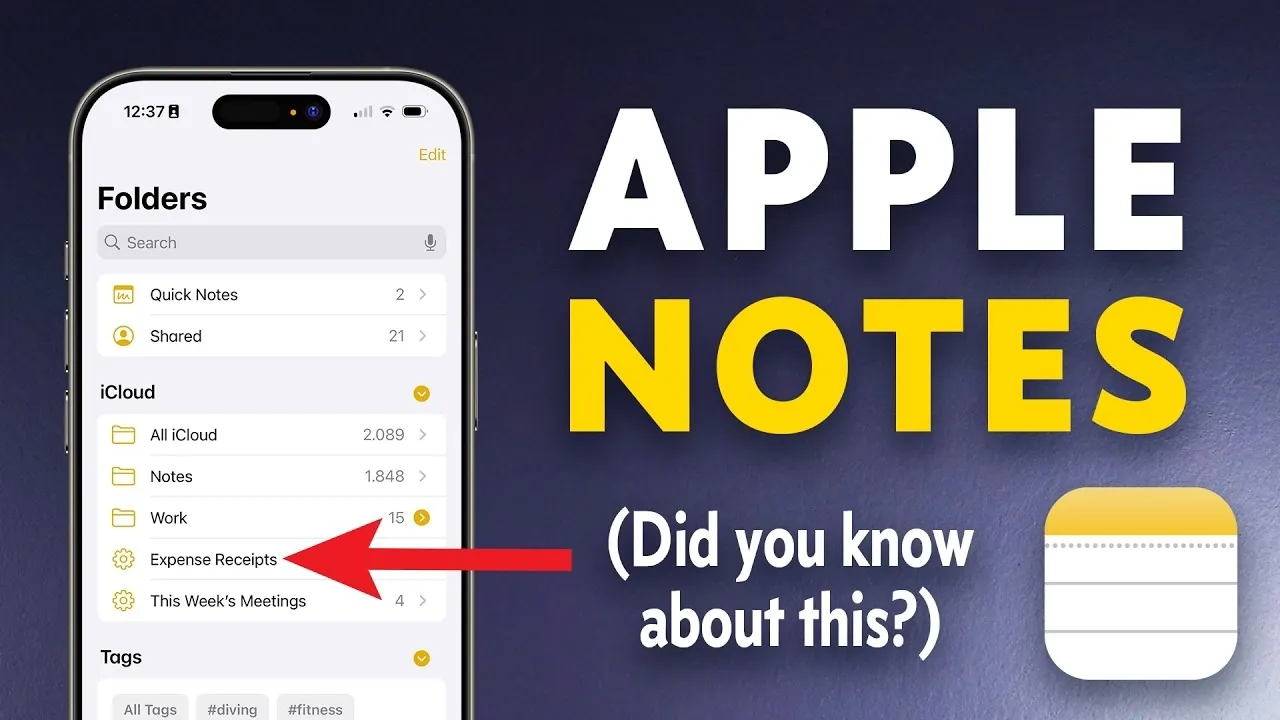
Have you ever felt like your digital notes are more chaos than clarity? Between juggling work tasks, personal reminders, and creative ideas, it’s easy for your notes to spiral into an unmanageable mess. But what if your note-taking app could do the heavy lifting for you, organizing, categorizing, and even automating your workflow? Enter Apple Notes, a deceptively simple tool that hides a treasure trove of features designed to save you time and boost your productivity. From smart folders that organize themselves to tags that make searching effortless, Apple Notes is more than just a digital notebook, it’s a fantastic option for anyone looking to streamline their life.
In this feature, Peter Akkies uncovers some of the most powerful yet underutilized tricks Apple Notes has to offer. You’ll learn how to set up dynamic systems that organize your notes automatically, combine tags and folders for ultimate efficiency, and even use hidden tools like voice memos and currency conversion to supercharge your workflow. Whether you’re a student managing assignments, a professional tracking projects, or simply someone trying to keep life in order, these tips will transform how you use Apple Notes. Ready to discover how a few simple tweaks can save you hours?
Apple Notes Productivity Guide
TL;DR Key Takeaways :
- Apple Notes is a versatile tool for organization and productivity, offering features like smart folders, tags, and traditional folders to streamline task management across Apple devices.
- Smart folders automate organization by dynamically grouping notes based on criteria like tags, attachments, or checklist status, saving time and effort.
- Tags enhance categorization and search functionality, allowing users to group and locate notes efficiently, especially when combined with smart folders.
- Additional features such as voice memos, currency conversion, note security, and gallery mode boost productivity and enhance the user experience.
- Apple Notes is ideal for both personal and professional use, supporting applications like project management, task tracking, and organizing recurring activities with ease.
Smart Folders: Automate Your Organization
Smart folders are a powerful feature that allows you to automate the organization of your notes. These folders dynamically group notes based on specific criteria you define, such as tags, attachments, or checklist status. Once set up, smart folders update automatically, saving you time and effort.
For example, you can create a smart folder to track incomplete tasks by filtering notes with unchecked checklist items. Similarly, a folder for notes tagged with #expenses can help you consolidate all your scanned receipts in one place. To further refine your organization, you can combine smart folders with traditional folders. For instance, scanned receipts tagged with #expenses can be grouped within a broader “Work” folder, making sure both automation and structure.
Traditional Folders: Hands-On Control
While smart folders provide automation, traditional folders offer a more hands-on approach to organizing your notes. You can create folders for broad categories such as “Work” or “Personal” and then use subfolders to add more detailed organization. For instance, within a “Work” folder, you might create subfolders for specific projects, clients, or tasks.
Traditional folders also allow for visual prioritization. You can rearrange folders to place those related to ongoing projects at the top of your list, making sure quick access to what matters most. This manual organization complements the automation of smart folders, giving you the flexibility to tailor your system to your needs.
Apple Notes Trick to Saves You Hours
Browse through more resources below from our in-depth content covering more areas on Apple Notes.
Tags: Simplify and Enhance Categorization
Tags are an efficient way to categorize and locate your notes. By adding hashtags such as #meeting or #ideas, you can group related notes without needing to move them into specific folders. Tags also enhance search functionality, allowing you to combine multiple tags for more refined results. For example, searching for #meeting and #Q4 can instantly retrieve notes from quarterly planning sessions.
When used alongside smart folders, tags become even more powerful. You can create a smart folder that automatically collects notes tagged with #meeting and created within the last week, providing a dynamic view of your most recent discussions. This combination of tags and smart folders ensures your notes remain organized and easily accessible.
Search: Locate Information Quickly
The search functionality in Apple Notes is designed to help you find what you need with speed and precision. By using keywords, tags, or a combination of both, you can narrow your search to locate specific notes, regardless of where they are stored. For instance, searching for “budget” might bring up notes tagged #expenses or those containing the word in their content.
This feature is particularly valuable if you manage a large volume of notes. Whether you’re looking for a scanned document, a checklist, or a specific keyword, the search tool ensures you can quickly retrieve the information you need, saving you time and effort.
Additional Features: Boost Your Productivity
Apple Notes offers a variety of additional features that go beyond basic note-taking, enhancing both your efficiency and user experience:
- Currency Conversion: Quickly convert currencies by typing a value followed by an equal sign, making it easy to handle financial calculations.
- Voice Memos: Record and transcribe audio directly into your notes, ideal for capturing ideas, meetings, or reminders on the go.
- Note Security: Protect sensitive information by locking or hiding specific notes, making sure your private data remains secure.
- Gallery Mode: Browse notes in a visually rich layout, which is particularly useful for viewing images or multimedia content.
These features complement the core organizational tools, making Apple Notes a comprehensive platform for managing both personal and professional tasks.
Practical Applications: Real-World Scenarios
The versatility of Apple Notes makes it suitable for a wide range of real-world applications. Here are some practical ways to use it effectively:
- Work and Personal Notes: Keep your professional and personal life organized by creating separate folders or using distinct tags.
- Project Management: Use subfolders to organize tasks, invoices, and documents for specific projects, making sure everything is easily accessible.
- Task Tracking: Monitor incomplete to-dos by using checklist-based smart folders to stay on top of your responsibilities.
- Recurring Activities: Categorize repetitive tasks, such as meeting notes, using tags for quick retrieval and organization.
For instance, a freelance designer could create folders for each client, tag notes with #design or #feedback, and use smart folders to track pending tasks. This approach ensures that no detail is overlooked while maintaining a clear and organized workflow.
Maximize Your Productivity with Apple Notes
Apple Notes is a powerful tool that goes beyond simple note-taking to offer a comprehensive solution for organization and productivity. By using features such as smart folders, tags, and traditional folders, you can create a system that works for your unique needs. Whether you’re managing personal tasks, professional projects, or both, Apple Notes provides the flexibility and functionality to help you stay organized and efficient. With additional tools like voice memos, currency conversion, and note security, it’s a versatile platform that adapts to your lifestyle. Start exploring these features today to unlock the full potential of Apple Notes and take control of your workflow.
Media Credit: Peter Akkies
Filed Under: Apple, Guides
Latest Geeky Gadgets Deals
Disclosure: Some of our articles include affiliate links. If you buy something through one of these links, Geeky Gadgets may earn an affiliate commission. Learn about our Disclosure Policy.
Credit: Source link