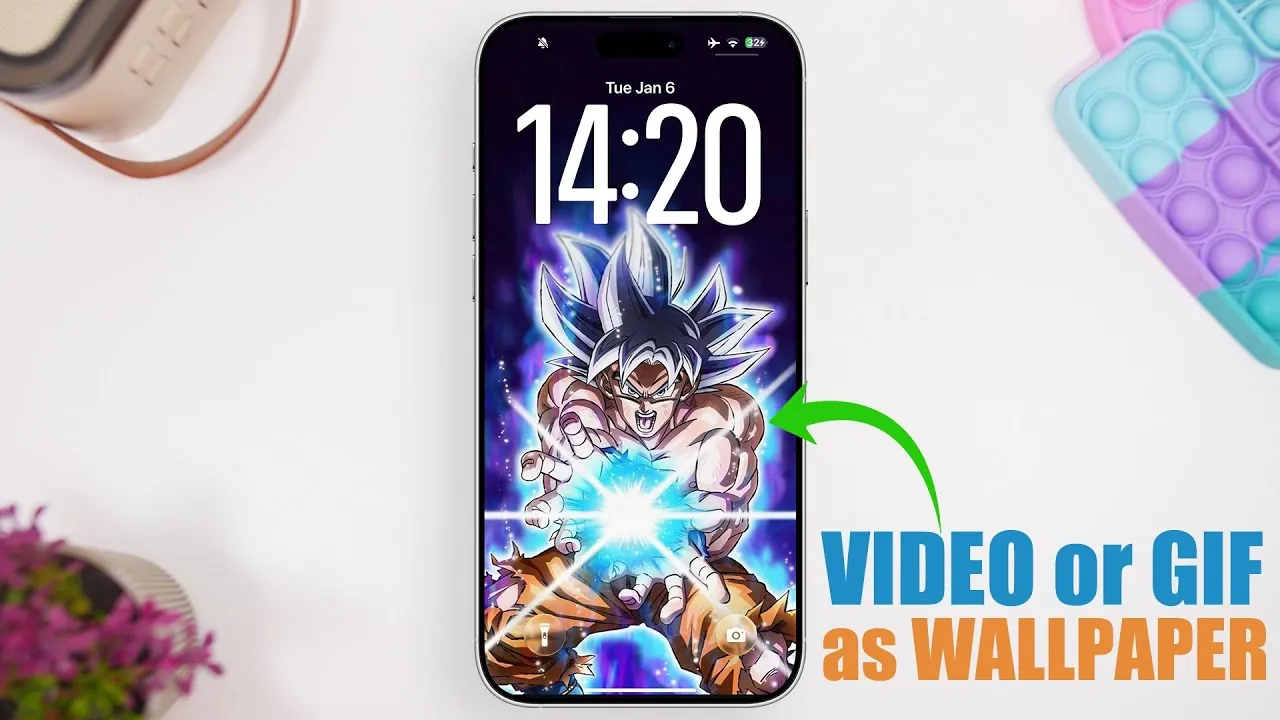
Customizing your iPhone lock screen with a dynamic video or GIF can transform your device into a more engaging and personalized experience. With the release of iOS 26.2 and the versatile Intive app, you can easily convert your favorite videos or GIFs into live wallpapers. The video below provides a detailed walkthrough, from selecting your media to applying it as a live wallpaper, making sure your lock screen reflects your unique style.

The Appeal of Live Wallpapers
Live wallpapers offer a distinctive way to enhance your iPhone’s lock screen. Unlike static images, they animate when you press and hold the screen, creating an interactive and visually captivating experience. Whether it’s a cherished memory, a creative animation, or a design that resonates with your personality, live wallpapers allow you to showcase your individuality. By adding movement and interactivity, they elevate your device’s aesthetic appeal and make everyday interactions with your phone more enjoyable.
Using the Intive App to Create Live Wallpapers
The Intive app is a powerful yet user-friendly tool designed to simplify the process of creating live wallpapers. It supports both video and GIF formats, allowing you to transform your favorite media into live photos compatible with iOS. Here’s how you can get started:
- Select Your Media: Open the Intive app and browse your photo gallery to choose a video or GIF. This ensures you can easily access the media you want to use as your live wallpaper.
- Edit Your Selection: Trim your chosen video or GIF to a 1-second segment, as iOS live wallpapers require short animations. Use the app’s cropping tools to focus on the most visually appealing portion of your media.
- Convert to Live Photo: Once you’ve edited your selection, convert it into a live photo. This step is essential for making sure compatibility with iOS live wallpaper functionality.
The Intive app’s intuitive interface makes these steps straightforward, even for users unfamiliar with media editing.
Applying Your Live Wallpaper
After creating your live photo, setting it as your lock screen wallpaper is a quick and simple process. Follow these steps to bring your lock screen to life:
- Open the Settings app on your iPhone.
- Navigate to Wallpaper and tap Choose a New Wallpaper.
- Locate your live photo in the gallery and select it.
- Ensure the Live Photo option is enabled, then set it as your lock screen wallpaper.
Once applied, pressing and holding your lock screen will activate the animation, adding a dynamic and interactive element to your device.
Advanced Customization Options
The Intive app offers a range of customization tools to help you fine-tune your live wallpaper. These features allow you to create a polished and personalized lock screen that aligns with your preferences:
- Zoom Adjustment: Resize the animation to ensure it fits your screen perfectly, avoiding any unwanted cropping or distortion.
- Repositioning: Move the image to highlight the most important or visually striking part of the animation.
- Animation Settings: Adjust playback speed and other settings to achieve the desired effect, making sure your live wallpaper looks exactly as you envision.
These tools provide flexibility, allowing you to create a lock screen that is both functional and visually appealing.
Compatibility and Accessibility
The Intive app is designed to work seamlessly with iOS 26.2 and earlier versions, making sure compatibility across a wide range of iPhone models. Whether you’re using the latest iPhone or an older device, you can enjoy the benefits of live wallpapers without worrying about software limitations. This broad compatibility makes the app accessible to a diverse user base, allowing everyone to personalize their lock screens with ease.
The Value of Personalization
Customizing your lock screen with a live wallpaper is more than just an aesthetic upgrade—it’s a way to make your device feel uniquely yours. By showcasing a favorite memory, a creative animation, or a design that reflects your personality, you can turn your iPhone into a personal expression of your style. Live wallpapers add a layer of interactivity and creativity to your device, making every glance at your lock screen a more enjoyable experience.
Take a look at other insightful guides from our broad collection that might capture your interest in Live Wallpaper.
Source & Image Credit: iReviews
Filed Under: Apple, Apple iPhone, Guides
Latest Geeky Gadgets Deals
Disclosure: Some of our articles include affiliate links. If you buy something through one of these links, Geeky Gadgets may earn an affiliate commission. Learn about our Disclosure Policy.
Credit: Source link