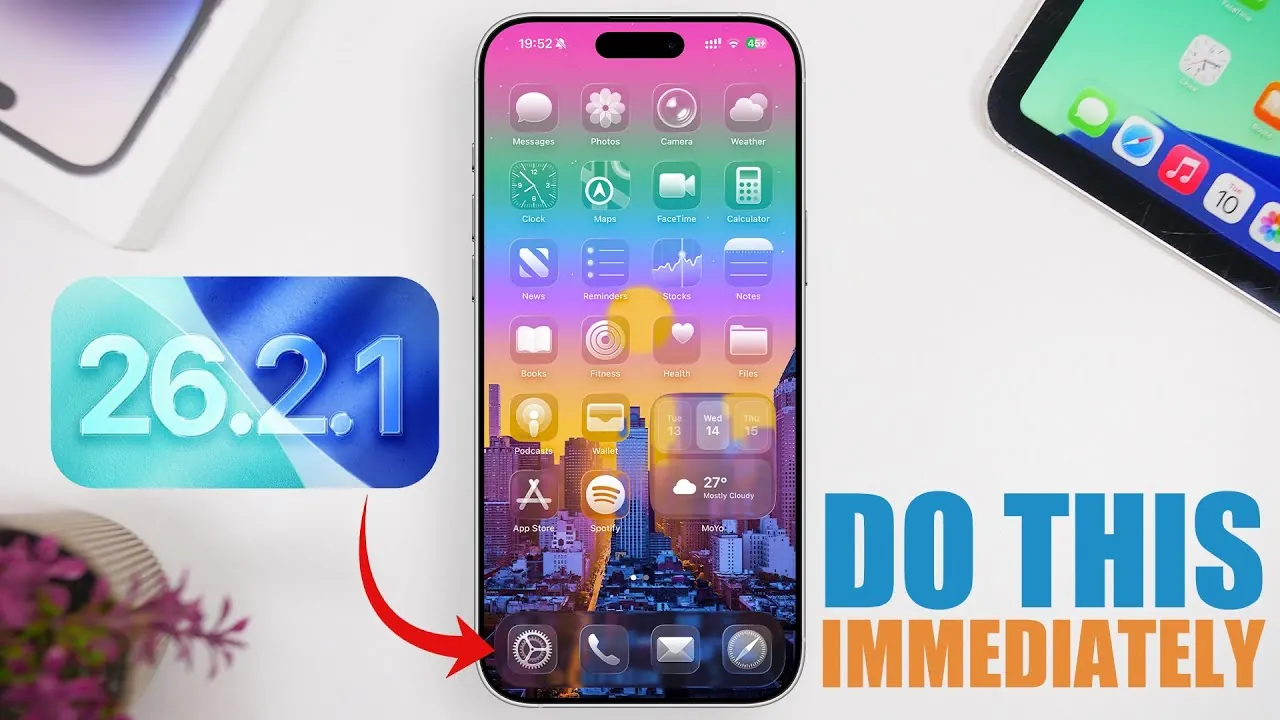
The release of iOS 26.2.1 brings critical bug fixes and security enhancements, making it an important update for iPhone and iPad users. While updating your device may seem straightforward, there are several key actions you should take immediately afterward to maximize performance, security, and overall usability. These steps ensure your device remains optimized and protected, allowing you to fully benefit from the latest iOS version. The video below from iReviews gives us more details on how to optimize your iPhone after the update.
1. Verify the Update Installation
After completing the iOS 26.2.1 installation, it is essential to confirm that the update was successfully applied. To do this, navigate to Settings > General > Software Update. If the screen displays iOS 26.2.1 as the installed version, your device is up to date. If not, restart your device and check again to ensure the update process was completed.
For added convenience and peace of mind, consider allowing automatic updates. This feature, found under Settings > General > Software Update, ensures your device automatically installs future updates. By allowing this option, you save time and ensure your device remains protected with the latest features and security patches.
2. Activate Background Security Updates
One of the most valuable features in recent iOS versions is the ability to receive background security updates. These updates deliver critical security patches between major iOS releases, safeguarding your device from emerging threats without requiring manual intervention.
To enable this feature, go to Settings > Privacy & Security and toggle on the option for background security updates. By activating this setting, you ensure your device remains protected against vulnerabilities as they are identified, reducing the risk of security breaches and keeping your data safe.
3. Assess Your Battery Health
After installing iOS 26.2.1, it is a good idea to check your device’s battery health. iOS updates often recalibrate battery metrics, providing a more accurate picture of your battery’s condition. To view this information, go to Settings > Battery > Battery Health.
Here, you can see your battery’s maximum capacity and peak performance capability. If the maximum capacity has fallen below 80%, it may be time to consider replacing the battery. Keeping an eye on battery health helps maintain optimal performance, prevents unexpected shutdowns, and ensures your device operates efficiently.
4. Update Your Apps
App compatibility is a critical factor following any iOS update. Developers frequently release updates to ensure their apps function seamlessly with the latest iOS version. To check for pending app updates, open the App Store and navigate to the Updates section.
For a more hands-off approach, enable automatic app updates by going to Settings > App Store and toggling on the automatic updates option. This ensures your apps remain up to date, secure, and fully compatible with iOS 26.2.1, providing a smoother user experience.
5. Check for Carrier Settings Updates
Carrier settings updates are often overlooked but play a crucial role in maintaining optimal network performance. These updates can improve cellular connectivity, enable new features, and resolve network-related issues.
To check for a carrier settings update, go to Settings > General > About. If an update is available, a prompt will appear to install it. Staying current with carrier settings ensures reliable communication, faster data speeds, and seamless network functionality.
Why These Steps Matter
Taking these actions after updating to iOS 26.2.1 is essential for maintaining your device’s performance, security, and longevity. Each step serves a specific purpose:
- Verifying the update: Confirms your device is running the latest software, making sure access to new features and critical security fixes.
- Allowing background security updates: Protects your device from emerging threats without requiring manual updates.
- Checking battery health: Helps you monitor your battery’s condition and address potential issues before they affect performance.
- Updating apps: Ensures compatibility and security for the apps you use daily, preventing crashes or vulnerabilities.
- Installing carrier settings updates: Optimizes network connectivity and enables new communication features.
By following these steps, you not only enhance your device’s performance but also extend its lifespan. Staying proactive after an update ensures a smoother, more secure user experience, allowing you to make the most of your iPhone or iPad. These measures are simple yet effective ways to keep your device running at its best, providing peace of mind and improved functionality.
Enhance your knowledge on iOS 26.2.1 update by exploring a selection of articles and guides on the subject.
Source & Image Credit: iReviews
Filed Under: Apple, Apple iPhone, Guides, Top News
Latest Geeky Gadgets Deals
Disclosure: Some of our articles include affiliate links. If you buy something through one of these links, Geeky Gadgets may earn an affiliate commission. Learn about our Disclosure Policy.
Credit: Source link