Imagine this: your desk is clutter-free, your ideas are neatly categorized, and your to-dos are effortlessly synced across all your devices. Sounds like a productivity dream, right? That’s exactly what Google Keep promises to deliver. Whether you’re juggling personal tasks or collaborating with a team, Google Keep offers a seamless way to capture, organize, and access your thoughts anytime, anywhere. And the best part? It’s designed to be as simple or as advanced as you need it to be.
In this guide, we’ll break down the essential features of Google Keep, from creating your first note to mastering advanced functions like location-based reminders and collaborative editing. You’ll discover how to customize your workspace with labels, colors, and pinned notes, making sure that everything you need is always within reach. Curious about how to declutter your digital space or set up a system that works for you? We’ll explore strategies to help you maximize efficiency and unlock the full potential of this versatile app. By the end, you might just find yourself wondering how you ever managed without it.
Google Keep Overview
TL;DR Key Takeaways :
- Google Keep is a versatile, user-friendly note-taking app that integrates seamlessly with other Google services, allowing efficient task management and collaboration.
- The app offers synchronization across devices, making sure your notes and reminders are always up-to-date and accessible from anywhere.
- Key organizational tools include labels for categorization, reminders for deadlines or locations, and an archive to declutter your workspace while keeping notes accessible.
- Advanced features like color customization, pinning important notes, and sharing for real-time collaboration enhance productivity and teamwork.
- Practical strategies, such as regular organization, label hierarchies, and location-based reminders, help maximize efficiency and streamline workflows.
Google Keep is a versatile and user-friendly note-taking application designed to help you stay organized and productive. As part of the Google ecosystem, it seamlessly integrates with other Google services, offering a range of tools for managing tasks, organizing ideas, and collaborating with others. Whether you’re managing personal projects or working with a team, understanding its features can help you create a workspace tailored to your needs.
Getting Started with Google Keep
Accessing Google Keep is straightforward and convenient. You can use it through your web browser or download the mobile app for on-the-go access. Simply log in with your Google account, and your notes and reminders will automatically sync across all your devices. This synchronization ensures that your data is always up-to-date and accessible, whether you’re at your desk or on the move.
To begin, explore the app’s basic functionality by creating your first note. The intuitive design makes it easy to start capturing ideas, tasks, or reminders immediately. With everything saved automatically, you can focus on organizing your thoughts without worrying about losing your work.
Navigating the Interface
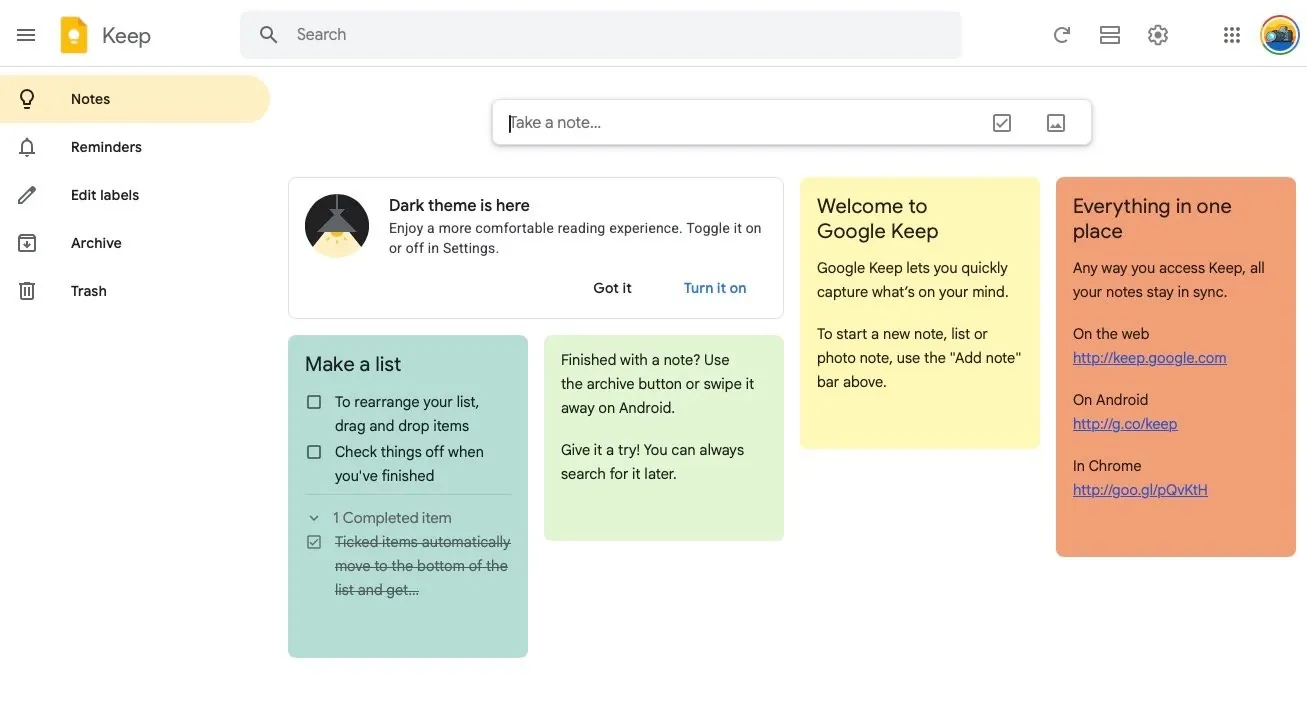
Google Keep’s interface is designed with simplicity and efficiency in mind, making it easy for users to navigate and use its features. Here’s an overview of the key components:
- Main Menu: Found on the left-hand side, this menu organizes your workspace into sections such as Notes, Reminders, Labels, Archive, and Trash, allowing for quick navigation.
- Search Bar: Located at the top, the search bar enables you to quickly locate specific notes, reminders, or labels by typing in keywords.
- Top-Right Controls: This area includes options for refreshing your workspace, switching between grid and list views, adjusting settings, and managing your Google account.
The clean and intuitive layout ensures that you can focus on your tasks without unnecessary distractions, making it an ideal tool for both beginners and experienced users.

Learn more about Google Apps by reading our previous articles, guides and features :
Organizing and Managing Your Notes
Google Keep offers a variety of tools to help you organize your notes effectively, making sure that your workspace remains structured and easy to navigate. Here are some of the key features:
- Notes Section: This is your primary workspace where you can create, view, and edit active notes. It serves as the central hub for all your ideas and tasks.
- Reminders: Use reminders to set alerts for specific dates, times, or even locations, helping you stay on top of deadlines and time-sensitive tasks.
- Labels: Categorize and group related notes using labels. This feature allows you to create a personalized system for organizing your content.
- Archive: Move less frequently used notes to the archive to declutter your workspace while keeping them accessible for future reference.
- Trash: Deleted notes are stored in the Trash section, where you can choose to restore or permanently delete them.
By using these tools, you can create a workspace that is both functional and tailored to your specific needs.
Creating and Enhancing Notes
Creating notes in Google Keep is simple and efficient. To start a new note, type directly into the text bar, and the app will automatically save your work. Beyond basic text, Google Keep offers several features to enhance your notes:
- Customization: Add background colors to your notes to visually differentiate them and make your workspace more organized.
- Pinning: Pin important notes to the top of your list for quick and easy access.
- Attachments: Include images or other media to provide additional context or visual references for your notes.
Collaboration is another standout feature of Google Keep. You can share notes with others, allowing real-time editing and teamwork. This functionality is particularly useful for group projects, shared task management, or brainstorming sessions.
Advanced Features for Enhanced Productivity
Google Keep includes several advanced tools that can help you boost your productivity and streamline your workflow. These features are designed to provide flexibility and control over your tasks:
- Reminders: Attach reminders to specific notes with precise times, dates, or even locations. This ensures you never miss an important task or deadline.
- Undo/Redo: Quickly correct mistakes or revert changes using the undo and redo buttons, making it easier to refine your notes.
- Archiving: Keep your workspace clutter-free by moving less critical notes to the archive, where they remain accessible when needed.
- Trash Management: Review deleted notes in the Trash section, with options to restore them or permanently delete them to free up space.
These advanced tools allow you to manage your workload more effectively, making sure that your tasks and ideas are always organized and accessible.
Strategies for Maximizing Efficiency
To fully use the potential of Google Keep, consider implementing these practical strategies:
- Regularly review and organize your notes, reminders, and labels to maintain a clean and efficient workspace.
- Experiment with label hierarchies to create a structured system for categorizing your notes, making them easier to locate and manage.
- Use location-based reminders for tasks that require specific actions in certain places, such as picking up groceries or attending meetings.
- Collaborate with colleagues, friends, or family members by sharing notes and working on tasks together in real time.
By adopting these strategies, you can streamline your workflow, stay organized, and ensure that no task or idea is overlooked.
Unlocking the Full Potential of Google Keep
Google Keep is more than just a note-taking app, it’s a comprehensive tool for managing tasks, organizing ideas, and fostering collaboration. Its user-friendly interface, combined with a wide range of features, makes it an invaluable resource for anyone looking to enhance their productivity. Whether you’re managing daily to-dos, planning long-term projects, or working with a team, Google Keep provides the tools you need to stay organized and achieve your goals. By exploring its features and implementing effective strategies, you can create a personalized workspace that adapts to your unique needs and helps you stay on top of your responsibilities.
Source: Google Media : Howfinity
Filed Under: Guides
Latest Geeky Gadgets Deals
Disclosure: Some of our articles include affiliate links. If you buy something through one of these links, Geeky Gadgets may earn an affiliate commission. Learn about our Disclosure Policy.
Credit: Source link