
Can an iPad truly replace your computer? For years, this question has sparked debates among tech enthusiasts and productivity seekers alike. With the release of Stage Manager in iPadOS 26, Apple may have finally delivered an answer. Below, Dan’s Tutorials takes you through how this innovative feature transforms the iPad’s multitasking capabilities, introducing desktop-like functionality that was once thought impossible on a tablet. Imagine seamlessly resizing app windows, grouping tasks into customizable workspaces, and navigating with enhanced gestures, all on a device that fits in your bag. For those who’ve felt constrained by the iPad’s previous multitasking limitations, Stage Manager promises a new era of efficiency and freedom.
This overview dives into the key features and benefits of Stage Manager, from app grouping for tailored workflows to resizable windows that adapt to your needs. You’ll also discover how to enable and customize this feature, unlocking a multitasking experience that feels intuitive and powerful. But is it perfect? Not quite, there are still some quirks and limitations to consider, especially for users of older iPad models. Whether you’re a student juggling assignments or a professional managing multiple projects, this overview will help you decide if Stage Manager is the upgrade your workflow has been waiting for.
Stage Manager Overview
TL;DR Key Takeaways :
- Stage Manager in iPadOS 26 transforms multitasking on the iPad, offering advanced window management, app organization, and user customization, making the device more like a traditional computer.
- Key features include app grouping for task-specific organization, resizable windows for flexible layouts, and an auto-hiding dock and recent apps for a clutter-free workspace.
- Enhanced navigation and gestures, such as quick access to recent apps and app group swiping, streamline multitasking and improve workflow efficiency.
- Customization options allow users to tailor their multitasking experience, including adjusting gesture settings, dock visibility, and menu bar preferences for a personalized interface.
- While Stage Manager offers significant productivity enhancements, limitations like unavailable features, a learning curve, and performance variability on older iPads should be considered.
How to Enable Stage Manager
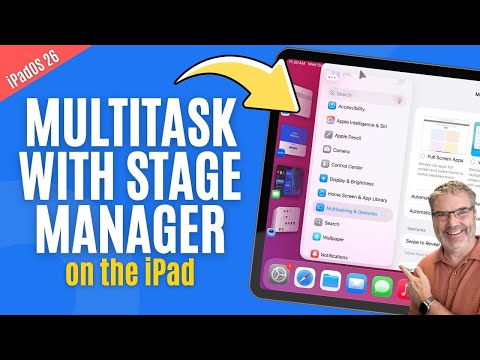
Activating Stage Manager is a simple process that ensures you can start multitasking with ease. Navigate to the Settings app, select the Multitasking and Gestures section, and toggle the Stage Manager feature on. Once enabled, you can seamlessly switch between three multitasking modes: full-screen apps, windowed mode, and Stage Manager. This flexibility allows you to adapt your multitasking setup to suit your workflow, whether you’re focusing on a single task or juggling multiple applications.
Key Features of Stage Manager
Stage Manager introduces a range of tools designed to enhance productivity and streamline multitasking. These features provide users with greater control and flexibility over their workspace:
- App Grouping: Create distinct groups of apps, or “stages,” tailored to specific tasks. For instance, you can group apps like Safari, Mail, and Notes for work-related activities, while keeping entertainment apps like YouTube and Spotify in a separate stage. Switching between these groups is intuitive and efficient, allowing you to stay organized.
- Resizable Windows: Adjust the size of app windows to fit your preferences using grab handles. Whether you want a single app to occupy the entire screen or prefer a split view for multitasking, resizing is responsive and straightforward.
- Auto-Hiding Dock and Recent Apps: Maximize your screen space by allowing the dock and recent apps to auto-hide when not in use. This feature ensures that your workspace remains uncluttered, helping you focus on your tasks.
These tools make it easier to manage multiple apps simultaneously, offering a more desktop-like experience on your iPad.
Multitask on Your iPad Like a Computer With Stage Manager
Browse through more resources below from our in-depth content covering more areas on Stage Manager.
Enhanced Navigation and Gestures
Stage Manager builds on the iPad’s existing gesture-based navigation system, introducing enhancements that make multitasking smoother and more intuitive. Key improvements include:
- Quick Access to Recent Apps: Swipe from the side of the screen to reveal recent apps or the dock, allowing you to switch between tasks effortlessly.
- App Group Swiping: Use four- or five-finger swipes to navigate between app groupings, streamlining your workflow and reducing the time spent searching for the right app.
- Familiar Gestures: Standard gestures, such as three-finger double-tap to undo and pinch-and-spread for copy-paste, remain available, making sure a seamless transition for users familiar with iPadOS.
These navigation improvements make multitasking feel natural and reduce the friction often associated with managing multiple apps.
Menu Bar and Window Controls
Stage Manager introduces a menu bar that enhances functionality and mirrors elements of the macOS experience. By swiping down in windowed mode, you can access app-specific options and familiar window controls, such as close, minimize, and full-screen buttons. This addition provides a more desktop-like interface, making it easier to manage your workspace.
For users who rely on external keyboards, Stage Manager supports a variety of keyboard shortcuts. These shortcuts allow you to perform tasks like switching between tabs, opening new windows, or managing app groupings without interrupting your workflow. This integration of keyboard functionality further bridges the gap between the iPad and traditional computers.
Customization for a Tailored Experience
One of the standout aspects of Stage Manager is its extensive customization options, allowing you to create a multitasking environment that suits your preferences. Key customization features include:
- Allowing or disabling the auto-hide function for the dock and recent apps to optimize screen space.
- Adjusting gesture settings to match your interaction style, providing a more personalized experience.
- Controlling the visibility of the menu bar for a cleaner or more detailed interface, depending on your needs.
These options empower users to tailor their iPad experience, making sure that Stage Manager adapts to their unique workflows and preferences.
Limitations to Consider
While Stage Manager offers a host of benefits, it is not without its limitations. Certain features, such as corner gestures for screenshots or Quick Notes, are unavailable when using Stage Manager. This may require users to switch back to traditional multitasking modes for specific tasks. Additionally, the learning curve for mastering new gestures and controls may pose a challenge for some users, particularly those accustomed to the previous multitasking system.
It’s also worth noting that Stage Manager’s performance may vary depending on the iPad model being used. Older devices may experience slower response times or reduced functionality, which could impact the overall user experience.
Is Stage Manager the Future of iPad Multitasking?
Stage Manager in iPadOS 26 represents a significant step forward in transforming the iPad into a more versatile productivity tool. With features like app grouping, resizable windows, enhanced gestures, and extensive customization options, the iPad now offers a multitasking experience that rivals traditional computers. While some limitations remain, such as the unavailability of certain features and a potential learning curve, Stage Manager significantly enhances the iPad’s potential as a device for both work and play.
Whether you’re managing multiple projects, organizing your workspace, or simply looking for a more efficient way to navigate your apps, Stage Manager is a feature that brings the iPad closer to being a true productivity powerhouse. For users seeking a more flexible and efficient multitasking experience, Stage Manager is a compelling addition worth exploring.
Media Credit: Dan’s Tutorials
Filed Under: Guides, Top News
Disclosure: Some of our articles include affiliate links. If you buy something through one of these links, Geeky Gadgets may earn an affiliate commission. Learn about our Disclosure Policy.
Credit: Source link