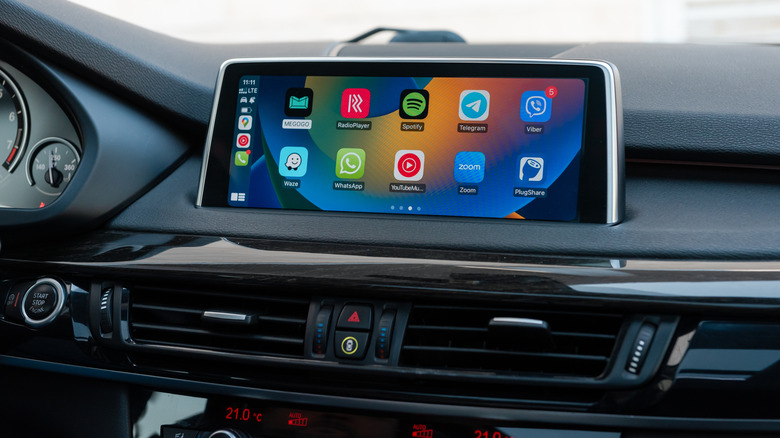
Screaming “HEY SIRI!” even louder isn’t fixing the problem, surprisingly.
CarPlay is happily running Maps and playing music, and then suddenly, Siri stops listening. Maybe it does hear you but won’t answer. Or it responds in a subdued tone, and you begin to think the voice assistant has made the decision to mumble for the duration of the drive.
The thing is, Siri itself may not be the problem. A failure can begin with the settings on the iPhone or the CarPlay connection or the car’s infotainment system, and finding out which one is misbehaving can save you from changing a dozen settings that were just fine to begin with.
You can activate Siri in CarPlay by holding the car’s voice-command button or pressing and holding the CarPlay Home button on the display. Some cars also allow you to use “Hey Siri.” If the button wakes Siri but the wake phrase does not, it may be that your car simply doesn’t support voice activation.
Don’t blame CarPlay if Siri doesn’t work on the iPhone
Begin with the phone. It’s the easier suspect to rule out.
Apple keeps Siri’s voice activation controls under Settings > Apple Intelligence & Siri (or Siri) > Talk & Type to Siri. Apple suggests turning “Siri” or “Hey Siri” off and on, and then repeating the voice-recognition setup if it’s not working.
There are a couple of not-so-obvious settings that can cause problems as well. Siri can be disabled when the iPhone is locked, which is quite a pain when the phone remains untouched in a pocket, bag or cupholder for an entire drive. CarPlay can also be turned off under Settings > Screen Time > Content & Privacy Restrictions > Allowed Apps.
Then there’s connectivity. CarPlay can stay fully visible on the dashboard while Siri struggles to respond to requests because Siri needs an internet connection. Apple also says that some VPN profiles may prevent Siri from working, but doesn’t detail which VPN configurations are likely to cause this issue.
The check is simple: just disconnect CarPlay and test Siri on the iPhone. If Siri still doesn’t listen or respond, it’s likely that poking around the car’s infotainment menus won’t work a miracle.
When Siri is working on the phone but not in the car
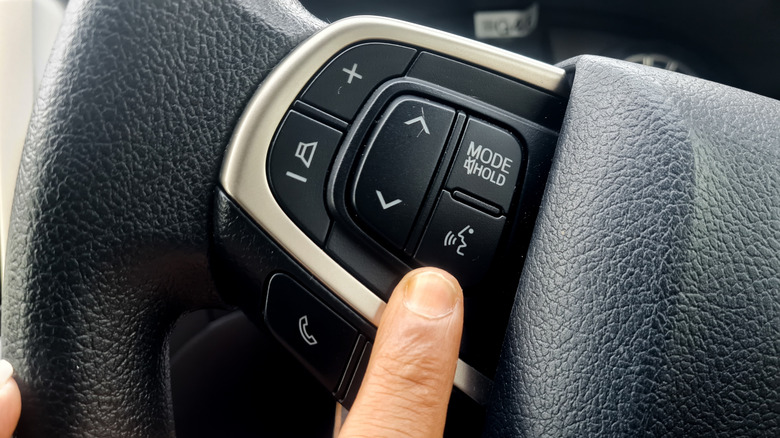
If Siri suddenly remembers how to do its job as soon as the phone leaves CarPlay, the connection becomes highly suspect.
For wired and wireless CarPlay, the potential connection problems are a little different. If you’re using wired CarPlay, Apple suggests using a different USB cable or a compatible USB port. Wireless CarPlay requires both Bluetooth and Wi-Fi, with Auto-Join turned on for the CarPlay network, so either connection can cause odd behavior even if the CarPlay interface appears to be working normally.
Apple’s troubleshooting list includes restarting the iPhone and the vehicle, forgetting the car under Settings > General > CarPlay and pairing it again. The company also suggests checking with the vehicle manufacturer for infotainment firmware updates (because restarting the car isn’t enough anymore).
If the entire CarPlay connection is acting up rather than Siri alone, broader CarPlay connection problems such as cables, pairing and vehicle compatibility are worth checking before spending another afternoon buried in Siri settings.
One issue that can be confused with a broken Siri is volume. If Siri hears your command and responds but you can barely hear the response, adjust the car’s volume while Siri is speaking or while you’re holding the button to activate it. If Siri is not talking at all, then there is a Prefer Spoken Responses option you can enable in Settings > Apple Intelligence & Siri > Siri Responses.
Credit: Source link