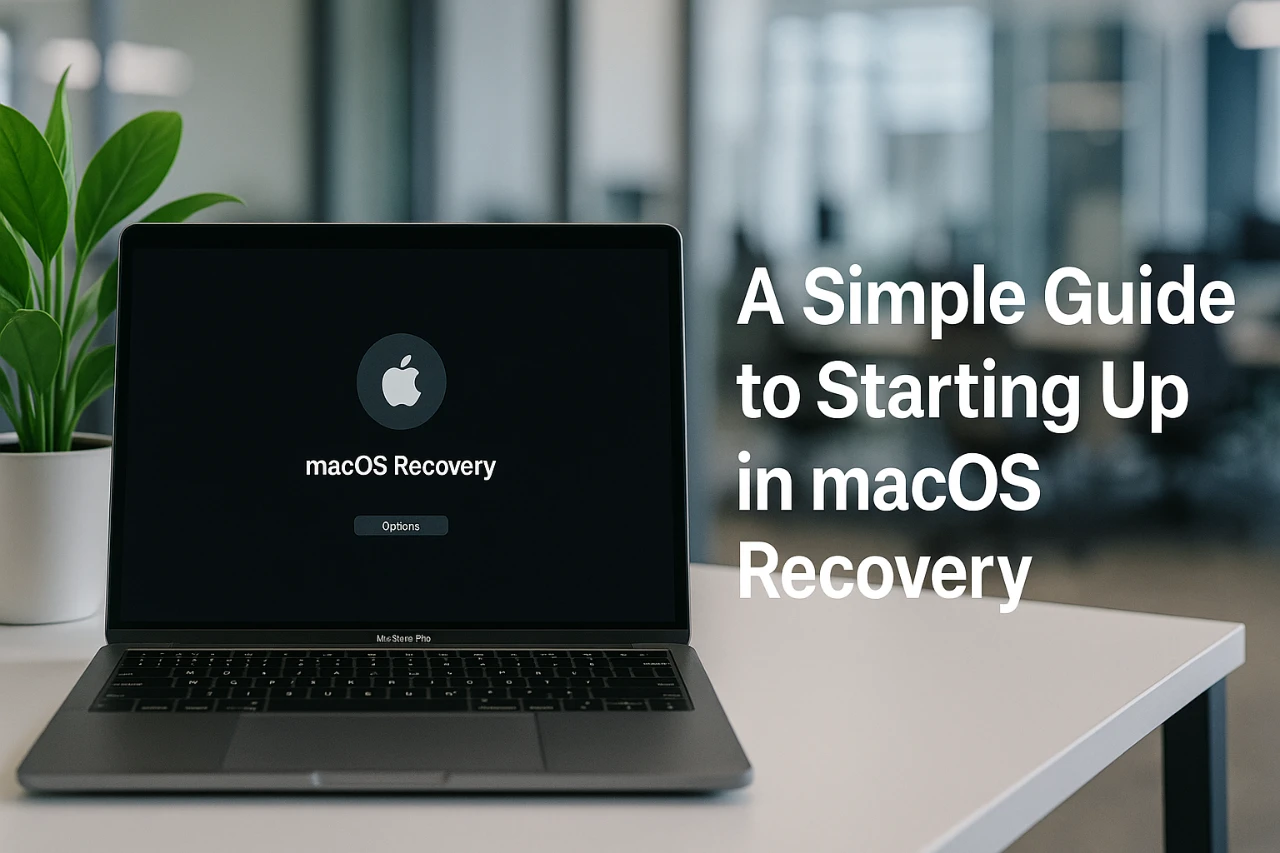
macOS Recovery is a built-in utility available on every Mac, designed to help you troubleshoot and resolve system-related issues effectively. Whether you need to reinstall macOS, repair or erase your startup disk, or restore data from a Time Machine backup, this tool provides the essential resources to get your system back on track. The method to access macOS Recovery varies depending on whether your Mac uses Apple Silicon (M series chips) or an Intel processor. Below is a detailed guide to help you access and use macOS Recovery based on your Mac’s hardware. The video below from Apple gives us more details.

Accessing macOS Recovery on Apple Silicon Macs
If your Mac is powered by Apple’s M series chips, accessing macOS Recovery is a simple and efficient process. Follow these steps to enter the recovery environment:
- Ensure your Mac is completely shut down.
- Press and hold the power button until the startup options screen or the “Options” icon appears.
- Select “Options” and click “Continue.”
- If prompted, choose your user account and enter the associated login credentials.
Once you complete these steps, you’ll enter the macOS Recovery environment. From here, you can access tools to reinstall macOS, repair your startup disk, or perform other recovery tasks. This streamlined process ensures that Apple Silicon Macs provide a user-friendly approach to system troubleshooting.
Accessing macOS Recovery on Intel-Based Macs
For Macs equipped with Intel processors, the process to access macOS Recovery differs slightly but remains straightforward. Follow these steps to start up from macOS Recovery:
- Shut down your Mac completely.
- Press the power button, then immediately press and hold the Command (⌘) + R keys.
- Release the keys when the Apple logo or a spinning globe appears on the screen.
- If prompted, connect to a Wi-Fi network to access the internet.
- Select your user account and enter the login credentials, if required.
After completing these steps, you’ll gain access to the macOS Recovery utilities. The process is designed to ensure that Intel-based Macs provide the same level of functionality and troubleshooting capabilities as their Apple Silicon counterparts.
Key macOS Recovery Utilities
Once inside macOS Recovery, you’ll have access to a range of tools designed to address various system issues. These utilities include:
- Reinstall macOS: Install a fresh copy of macOS while attempting to preserve your existing data, if possible.
- Disk Utility: Diagnose and repair issues with your startup disk, or erase it if necessary to resolve persistent problems.
- Restore from Time Machine Backup: Recover your data and system settings from a previously created backup, making sure minimal data loss.
- Erase Startup Disk: Format your startup disk to prepare it for a clean installation of macOS, ideal for resolving severe software issues.
Each of these utilities is tailored to specific troubleshooting needs, providing you with the tools necessary to restore your Mac to optimal performance. Whether you’re addressing software glitches, disk errors, or preparing for a clean installation, macOS Recovery offers a comprehensive solution.
Why macOS Recovery Matters
macOS Recovery is a critical feature for maintaining your Mac’s functionality and resolving technical challenges. It serves as a reliable safety net, allowing you to address issues such as software malfunctions, disk errors, or the need for a system reset. By understanding how to access macOS Recovery—whether on an Apple Silicon or Intel-based Mac—you can take proactive steps to troubleshoot problems and ensure your system remains in excellent condition.
This utility is particularly valuable for users who rely on their Macs for work, education, or personal projects. The ability to quickly access recovery tools minimizes downtime and ensures that you can restore your system with minimal disruption. By familiarizing yourself with the steps outlined above, you’ll be better prepared to handle unexpected issues and maintain your Mac’s performance over time.
Uncover more insights about macOS Recovery in the previous articles we have written.
Source & Image Credit: Apple Support
Filed Under: Apple, Guides, Laptops
Latest Geeky Gadgets Deals
Disclosure: Some of our articles include affiliate links. If you buy something through one of these links, Geeky Gadgets may earn an affiliate commission. Learn about our Disclosure Policy.
Credit: Source link