Counter-Strike 2 is built on the Source 2 engine, delivering improved lighting, volumetrics, and physics compared to CS:GO. While the visual upgrade looks impressive, it also demands more from your hardware. For players using older GPUs or budget laptops, performance can quickly become a problem.
The good news? With the best CS2 settings low-end PC configuration, you can significantly increase frame rate and reduce stuttering. This complete CS2 FPS boost guide will walk you through how to optimize CS2 performance, improve stability, and stay competitive – even on limited hardware.
Why FPS Matters More Than Graphics in CS2
In competitive shooters, smooth performance always beats visual quality. Higher FPS means lower input latency, smoother crosshair tracking, and faster reaction times. On a low-end PC, your goal isn’t cinematic visuals – it’s consistent frame pacing. Many players even choose to sell CS2 skins they no longer use in order to upgrade hardware and improve performance, prioritizing smoother gameplay over purely cosmetic value.
Many players mistakenly focus only on resolution. In reality, multiple hidden settings impact performance. Proper CS2 graphics settings for FPS can mean the difference between 45 FPS and a stable 120 FPS on the same system.
Step 1: Adjust Your Video Settings for Maximum FPS
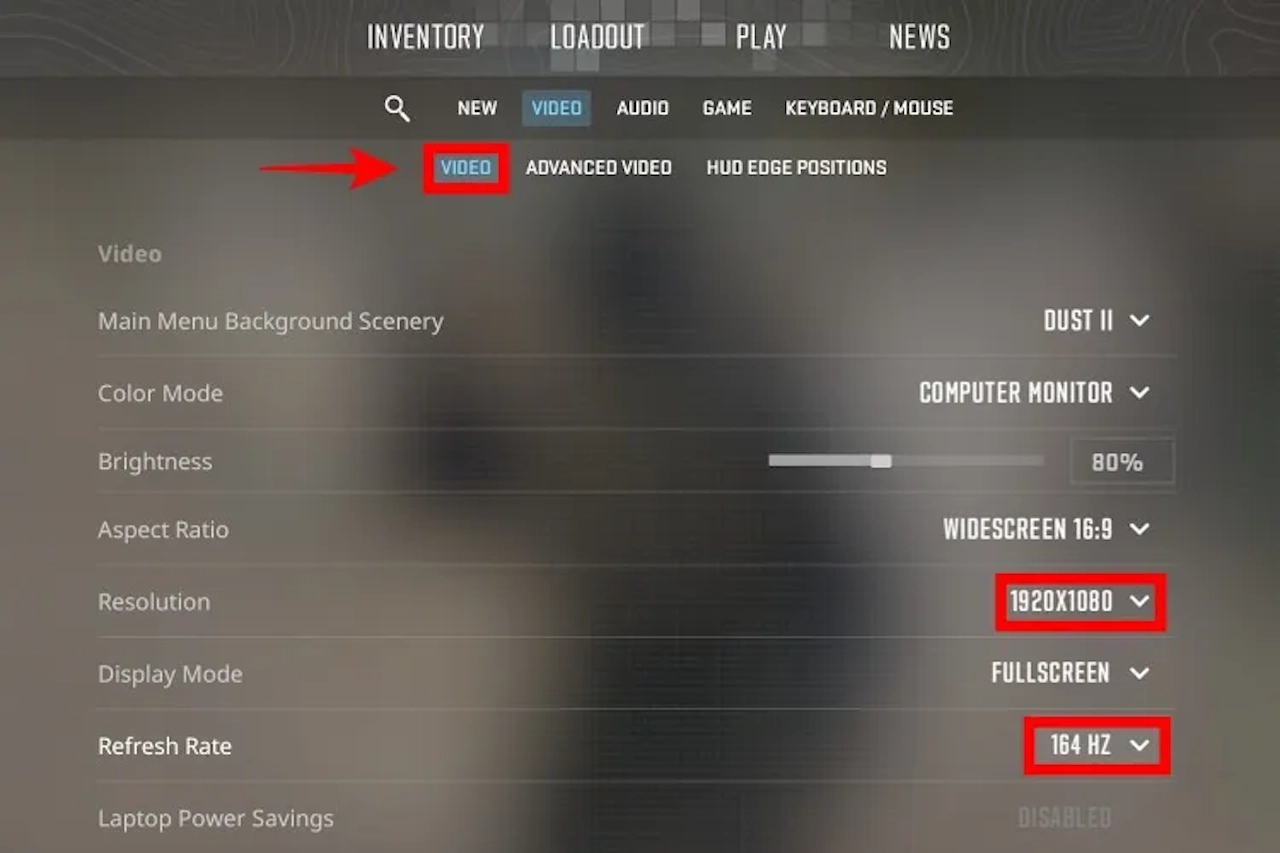
Let’s start with the most important CS2 low-end PC settings inside the Video tab.
Resolution
Lowering resolution has the biggest performance impact. If you’re struggling to maintain 60 FPS, try 1280×960 or 1024×768 (4:3 stretched is common among competitive players). Even 1280×720 can help extremely weak systems.
Display Mode
Use Fullscreen (not Borderless). Fullscreen allows better GPU utilization and reduces system overhead.
Boost Player Contrast
Keep this enabled. It improves visibility without significantly impacting performance.
Advanced Video Settings for FPS Boost
The Advanced Video tab is where serious optimization happens.
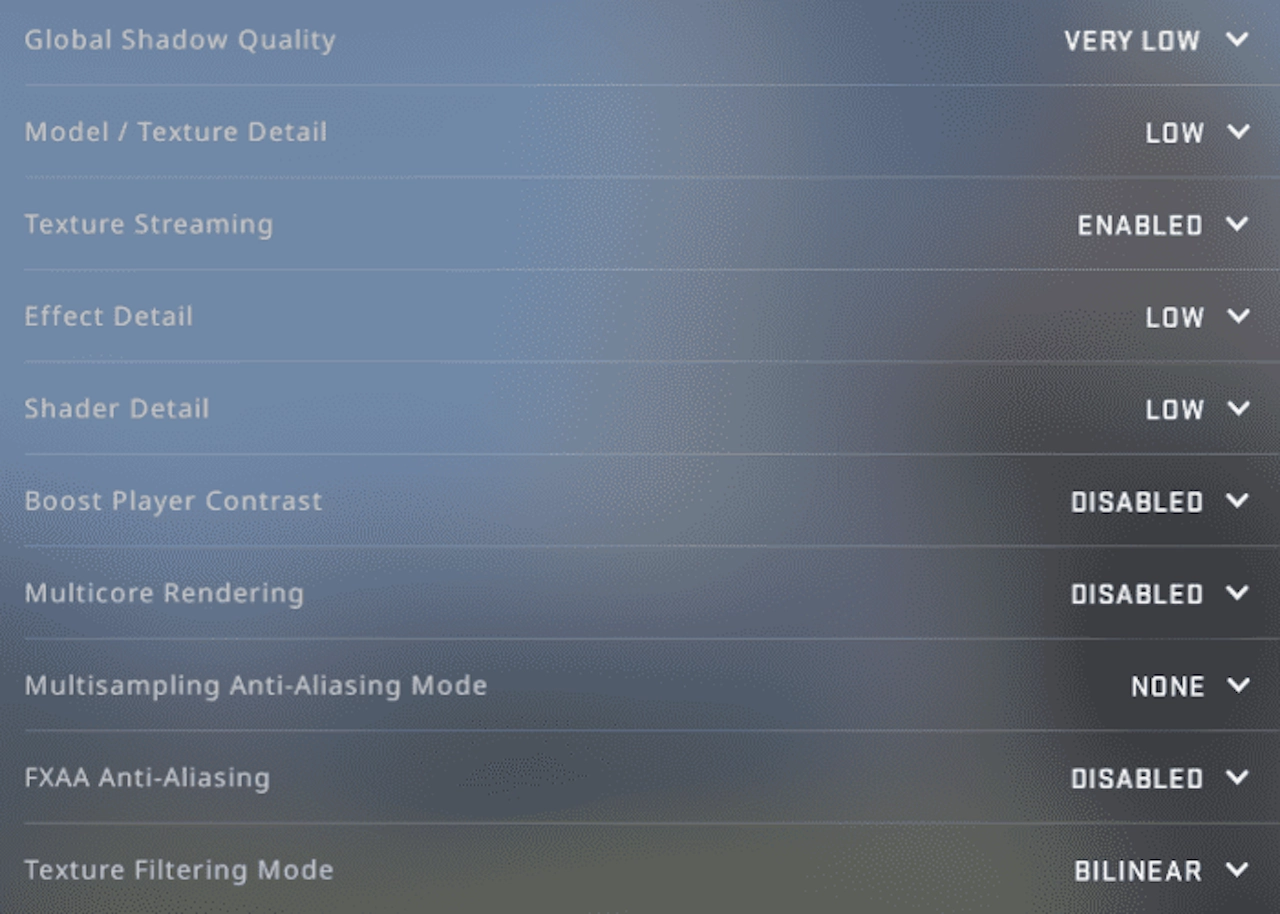
Set the following for the best CS2 settings low-end PC performance:
- Global Shadow Quality: Low
- Model / Texture Detail: Low
- Texture Filtering Mode: Bilinear
- Shader Detail: Low
- Particle Detail: Low
- Ambient Occlusion: Disabled
- High Dynamic Range: Performance
Lowering shadows and shaders provides immediate gains. Disabling Ambient Occlusion removes unnecessary lighting calculations, which helps older GPUs.
If you’re following a proper CS2 FPS boost guide, these changes alone can increase performance by 20–40%.
Disable Unnecessary Effects
Volumetric effects and dynamic lighting look great but consume GPU power. On low-end PCs, every resource matters.
Turn off:
- Motion Blur
- V-Sync
- NVIDIA Reflex (if unsupported)
- Anti-Aliasing (or keep at lowest setting)
Anti-aliasing can dramatically reduce FPS on older graphics cards. Sharpness matters less than smooth gameplay.
These adjustments help optimize CS2 performance without sacrificing gameplay clarity.
Launch Options for Extra Performance
Steam launch options can further stabilize your system. Add the following:
-novid -high +fps_max 0
-novid skips intro videos.
-high gives CS2 higher CPU priority.
+fps_max 0 removes FPS cap.
While launch options won’t magically double FPS, they contribute to smoother frame delivery in combination with proper CS2 graphics settings for FPS.
Windows Optimization Tips
Game settings aren’t everything. System-level adjustments can unlock additional performance.
Enable Game Mode in Windows.
Disable unnecessary startup programs.
Update GPU drivers.
Set Power Plan to High Performance.
If your PC has integrated graphics, make sure CS2 is using your dedicated GPU (if available). These background improvements are essential when trying to optimize CS2 performance on weaker machines.
Best In-Game Performance Tweaks
- Certain gameplay settings also affect performance.
- Lower your HUD scaling slightly.
- Disable animated avatars.
- Reduce radar detail.
These may seem minor, but every small reduction in rendering workload helps maintain stable FPS.
When combined with the correct CS2 low-end PC settings, you’ll notice smoother gameplay and fewer drops during smoke-heavy fights.
Network Settings for Stable Gameplay
- Performance isn’t only about FPS – network stability matters too.
- Set Max Acceptable Game Traffic Bandwidth to “Unrestricted” if your internet allows it.
- Lower packet buffering if experiencing latency spikes.
Smooth networking complements your CS2 FPS boost guide by reducing rubber-banding and stutter that can feel like frame drops.
Competitive Advantage Over Visual Quality
Many professional players use surprisingly low graphics settings. Even high-end systems often run optimized settings to reduce distractions and maximize clarity.
The goal isn’t making CS2 look cinematic – it’s ensuring consistent performance in firefights.
If you focus on practical CS2 graphics settings for FPS, you’ll gain a competitive edge regardless of hardware limitations.
Upgrading vs Optimizing
Before investing in new hardware, fully test optimized settings. Many players discover their system can maintain a stable 100+ FPS after proper adjustments.
However, if you’re consistently below 60 FPS even after following this CS2 FPS boost guide, upgrading RAM (to 16GB) or installing an SSD can provide noticeable improvements at relatively low cost. For players looking to enhance their gaming experience further and buy CS2 skins can also make matches more enjoyable without affecting performance, as cosmetics don’t impact FPS. Optimization should always come before hardware spending.
How Skin Trading Connects to Performance
You might wonder what performance has to do with skin trading. Interestingly, many players who upgrade hardware choose to fund it by trading skins.
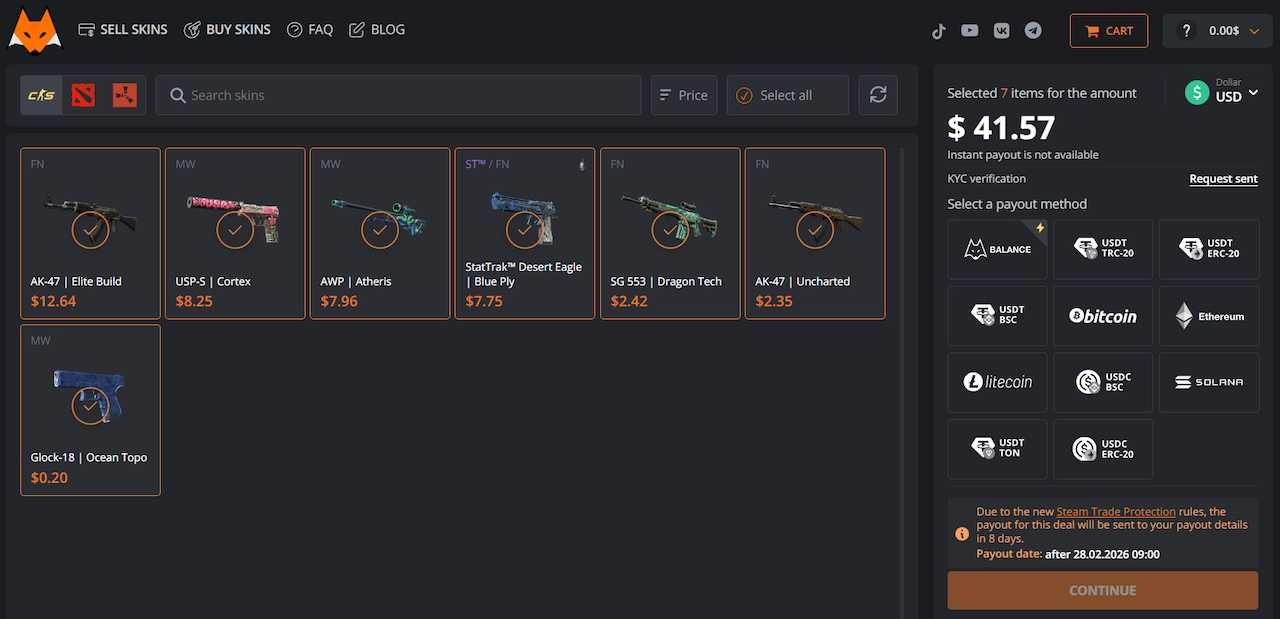
Platform LIS-SKINS is the best CS2 skins site that allows players to sell unused items and convert digital inventory into real money. Instead of letting skins sit idle, some users liquidate items to invest in RAM, SSDs, or GPU upgrades.
LIS-SKINS focuses on streamlined selling processes and competitive pricing, making it convenient for players looking to quickly free up funds. While improving CS2 low-end PC settings can dramatically boost performance, sometimes a small hardware upgrade makes the biggest difference – and skin trading can help finance that step.
Testing and Monitoring Your FPS
After applying new settings, monitor performance properly.
Use the in-game FPS counter or third-party monitoring software. Test on multiple maps, especially during smoke-heavy scenarios. Aim for stable frame pacing rather than chasing maximum peak FPS. Consistency wins games – not occasional spikes.
Filed Under: Gaming News, Guides
Disclosure: Some of our articles include affiliate links. If you buy something through one of these links, Geeky Gadgets may earn an affiliate commission. Learn about our Disclosure Policy.
Credit: Source link