
Customizing your iPhone home screen is more than just a creative outlet—it’s an opportunity to enhance both the functionality and aesthetic appeal of your device. With iOS 26 and earlier versions, Apple has introduced a variety of tools and features that allow you to design a home screen tailored to your preferences. The video below from iReviews provides more insights into five unique setups, each catering to different styles and needs, while also providing actionable tips to help you achieve a polished and personalized look.
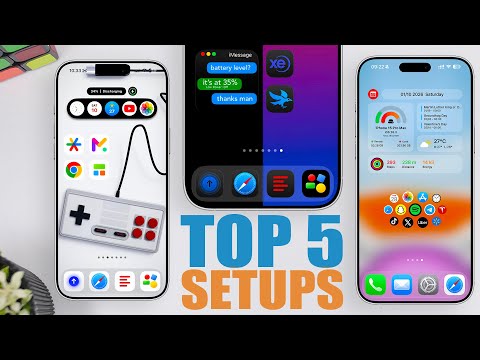
1. Minimalist Setup: Less Is More
For those who value simplicity and focus, a minimalist setup offers a clean and distraction-free interface. This design emphasizes essential functionality while eliminating unnecessary visual clutter. To create a minimalist home screen:
- Use apps like “Dumb Phone” or “Minimal Phone” to limit your home screen to only the most essential apps.
- Customize app icons with clean, uniform designs to establish a cohesive aesthetic.
- Adjust icon spacing and padding to ensure a balanced and organized layout.
- Reduce the dock to one or two icons—or remove it entirely for an ultra-minimal look.
This setup is ideal for users seeking a sleek, efficient interface that minimizes distractions and maximizes focus.
2. Widget-Based Setup: Functionality Meets Style
Widgets are a powerful tool for combining practicality with visual appeal. A widget-based setup allows you to access key information at a glance while maintaining a stylish design. To implement this setup:
- Use apps like “Mojo” to create transparent widgets that blend seamlessly with your wallpaper.
- Incorporate widgets for essential information, such as weather updates, calendar events, or fitness tracking, to keep important data easily accessible.
- Customize widget backgrounds and styles to align with your overall theme and color palette.
This approach is perfect for users who want quick access to information without the need to navigate through multiple apps, all while maintaining a visually appealing home screen.
3. Wallpaper-Centric Setup: Let Your Background Shine
A wallpaper-centric setup is perfect for those who want their background image to take center stage. This design prioritizes the visual impact of your wallpaper while making sure that icons and widgets complement, rather than compete with, the overall aesthetic. To achieve this look:
- Select a bold and striking wallpaper that reflects your personality or interests.
- Use transparent or label-free icons to allow the wallpaper to remain the focal point.
- Coordinate icon colors with the tones in your wallpaper to create a harmonious and cohesive appearance.
For instance, pairing a vibrant cityscape wallpaper with muted, monochromatic icons can create a modern and sophisticated aesthetic.
4. Split Wallpaper Setup: Dynamic and Creative
A split wallpaper setup offers a dynamic and visually engaging design by dividing your home screen into distinct sections. This approach allows for creative layouts that make your device stand out. To create this setup:
- Choose a wallpaper with contrasting sections, such as light and dark areas or complementary colors.
- Strategically place icons and widgets to align with the divisions in the wallpaper, enhancing the overall design.
- Incorporate transparent widgets and dark mode icons for a seamless and polished finish.
This setup is ideal for users who enjoy experimenting with bold and creative layouts that showcase their unique style.
5. Customization Tips for a Perfect Home Screen
Regardless of the setup you choose, there are several universal tips that can help you refine your design and make the most of your iPhone’s customization features:
- Use transparent widgets and icons to seamlessly integrate with your wallpaper and create a unified look.
- Experiment with icon placement and spacing to achieve a balanced and visually pleasing layout.
- Choose a color palette that complements both your wallpaper and icons for a cohesive design.
- Enable dark mode to give your home screen a sleek and modern appearance.
- Explore different apps and tools to discover the ones that best suit your preferences and design goals.
Customizing your iPhone home screen is an opportunity to blend functionality with personal style. Whether you prefer the clean lines of a minimalist setup, the practicality of widgets, or the bold visuals of a wallpaper-focused design, iOS 26 provides the flexibility to bring your vision to life. By experimenting with these setups and applying the customization tips, you can create a home screen that is not only visually appealing but also tailored to your daily needs.
Stay informed about the latest in iPhone home screen customization by exploring our other resources and articles.
Source & Image Credit: iReviews
Filed Under: Apple, Apple iPhone, Guides
Latest Geeky Gadgets Deals
Disclosure: Some of our articles include affiliate links. If you buy something through one of these links, Geeky Gadgets may earn an affiliate commission. Learn about our Disclosure Policy.
Credit: Source link