
Keyboard shortcuts can drastically improve your efficiency in Microsoft OneNote, helping you focus on your ideas rather than navigating menus. Mike Tholfsen highlights several shortcuts that simplify common tasks, such as using Ctrl + Alt + [1-4] to apply heading styles for better note organization or Ctrl + Shift + N to remove all formatting and start fresh. These practical commands can save significant time, especially when working on detailed projects or managing extensive notes.
This guide lets you learn new shortcuts, enabling you to enhance your workflow. You’ll learn how to quickly format text for professional-looking notes, streamline table creation with commands like Tab and Enter, and use tagging shortcuts to categorize and retrieve information efficiently. Whether you’re organizing pages, capturing ideas, or syncing notebooks across devices, these tips will help you make the most of OneNote’s capabilities.
OneNote Tips & Tricks for 2026
TL;DR Key Takeaways :
- Mastering OneNote keyboard shortcuts can significantly enhance productivity by streamlining workflows and reducing reliance on the mouse.
- Formatting shortcuts, such as adding bullet points, headings and resetting text, help create professional and organized notes effortlessly.
- Efficient table creation and management shortcuts allow for quick organization of data, including adding rows, columns and reorganizing content.
- OneNote offers powerful features like full-screen mode for focus, docking mode for multitasking and integration with Outlook for task management.
- Search, tagging and syncing shortcuts ensure easy retrieval, categorization and up-to-date access to notes across devices and collaborators.
Quick Formatting for Professional-Looking Notes
Effective formatting is essential for creating clear and organized notes. OneNote provides a variety of shortcuts to simplify this process, allowing you to focus on content creation without being bogged down by manual adjustments:
- Ctrl + .: Add bullet points to structure lists
- Ctrl + /: Add numbering for ordered lists
- Tab / Shift + Tab: Indent or outdent text for better hierarchy
- Ctrl + Alt + [1-4]: Apply heading styles for structured content
- Ctrl + Shift + N: Remove all formatting to reset text
- Ctrl + Shift + P: Adjust font size for emphasis or readability
These shortcuts ensure your notes maintain a polished and professional appearance, making them easier to read and share.
Effortless Table Creation and Management
Tables are a practical way to organize data in OneNote and creating them is straightforward with these shortcuts:
- Tab: Add new columns to your table
- Enter: Insert new rows
- Alt + Enter: Add rows without dividing lines
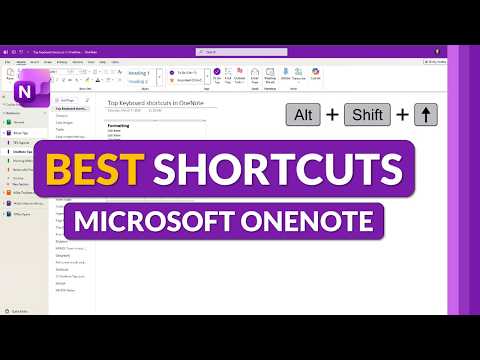
- Alt + Shift + Up/Down Arrow: Move rows or list items to reorganize content
These commands allow you to build and adjust tables quickly, making sure your data is presented in a clear and structured format.
Here is a selection of other guides from our extensive library of content you may find of interest on Microsoft OneNote.
Streamlined Text Selection
Efficient text selection is crucial for editing and formatting. With Ctrl + A, you can select text on a page. Repeatedly pressing this shortcut expands the selection to include the entire page or notebook. This is particularly useful when making large-scale changes or applying consistent formatting across multiple sections.
Full-Screen Mode for Better Focus
Distractions can hinder productivity, especially when working on detailed projects. Use F11 to toggle full-screen mode, which hides unnecessary interface elements and allows you to concentrate fully on your work. This feature is especially beneficial during presentations or when reviewing extensive notes.
Organizing Pages and Sections
Keeping your OneNote notebooks well-organized is essential for quick access to information. These shortcuts make managing pages and sections effortless:
- Ctrl + N: Add a new page
- Ctrl + Alt + N: Insert a page below the current one
- Ctrl + Alt + Shift + N: Create a subpage for better categorization
- Ctrl + Tab / Ctrl + Shift + Tab: Navigate between sections
- Ctrl + T: Create a new section
- Ctrl + Alt + M: Move or copy pages to reorganize content
These shortcuts help you maintain a structured notebook, making sure your notes are easy to navigate and retrieve.
Capture Ideas Instantly
OneNote is designed to help you capture ideas and visuals quickly. These shortcuts make it easy to save content or jot down thoughts on the go:
- Windows + Shift + S: Take a screen clipping to save visual content
- Ctrl + Shift + M: Open a sticky note for quick note-taking
These features are ideal for capturing inspiration or saving important information from other applications.
Docking Mode for Multitasking
For those who need to multitask, OneNote offers a docking mode. Use Ctrl + Alt + D to dock OneNote to the side of your screen. This allows you to take notes while working in other applications, making it particularly useful during meetings, research, or online learning sessions.
Search and Tagging for Easy Retrieval
Efficiently finding and categorizing information is crucial for staying organized. These shortcuts simplify the process:
- Ctrl + E: Open the search bar to locate specific content
- Add tags to categorize notes:
- Ctrl + 1: To-do
- Ctrl + 2: Important
- Ctrl + 3: Question
- Ctrl + 4: Highlight
- Ctrl + 0: Remove tags
Tags make it easy to organize your notes, while the search function ensures you can quickly retrieve specific information across your notebooks.
Task Management with Outlook Integration
OneNote integrates seamlessly with Microsoft Outlook, allowing you to manage tasks directly from your notes. Use these shortcuts to create tasks and keep them synchronized across platforms:
- Ctrl + Shift + 1: Create a task for today
- Ctrl + Shift + 2: Create a task for tomorrow
- Ctrl + Shift + 3: Create a task for this week
This integration ensures your tasks are organized and accessible, streamlining your workflow and improving productivity.
Insert Date and Time with Ease
Adding timestamps to your notes is simple and useful for tracking progress or recording events. Use these shortcuts to insert date and time stamps:
- Alt + Shift + D: Insert the current date
- Alt + Shift + T: Insert the current time
- Alt + Shift + F: Insert both date and time
These commands are particularly helpful for meeting notes, journal entries, or creating time-stamped records.
Keep Your Notes Synced
To ensure your notes are always up-to-date, use Shift + F9 to force a notebook sync. This is especially important for collaborative projects or when working across multiple devices, making sure everyone has access to the latest updates.
Media Credit: Mike Tholfsen
Filed Under: Guides
Disclosure: Some of our articles include affiliate links. If you buy something through one of these links, Geeky Gadgets may earn an affiliate commission. Learn about our Disclosure Policy.
Credit: Source link