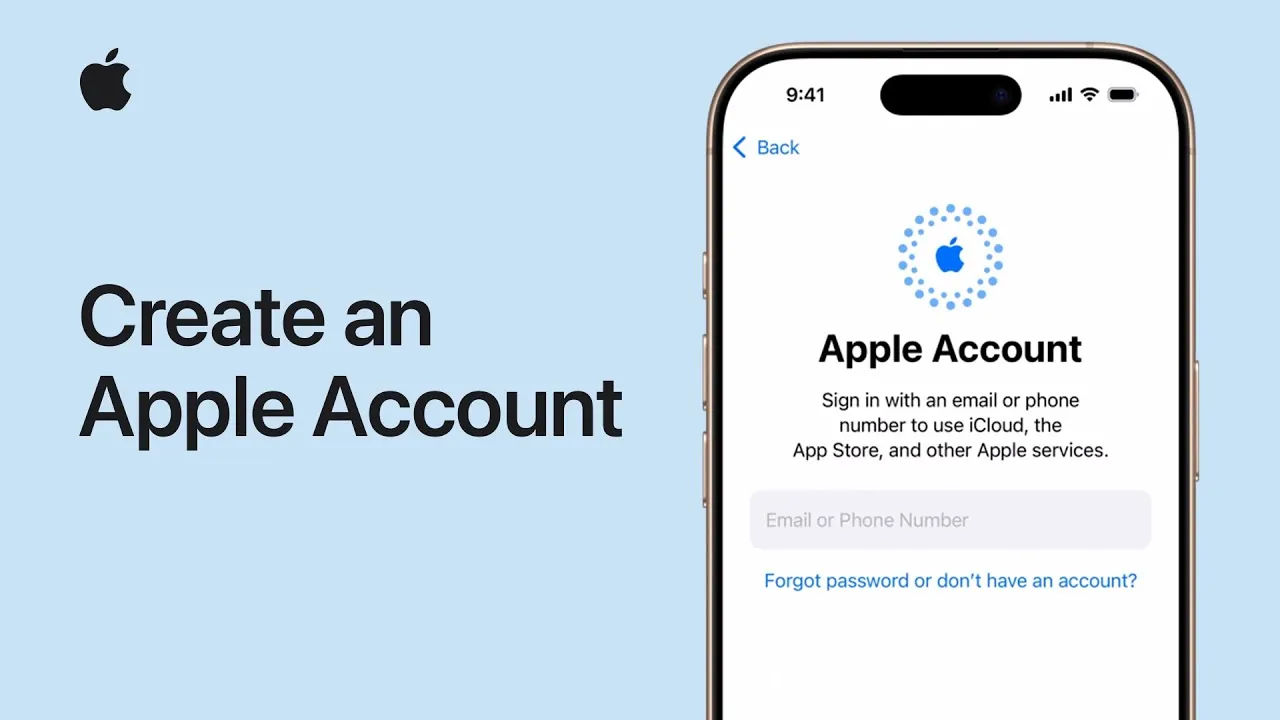
An Apple account serves as the cornerstone of your experience within Apple’s ecosystem, granting access to services like iCloud, the App Store, Apple Music, and Apple Vision Pro. Whether you’re setting up a new device, using a Mac, or accessing services online, creating an account is a straightforward yet crucial process. The video below from Apple gives us a detailed walkthrough to help you establish your Apple account, ensuring seamless integration across your devices and services.

Setting Up an Apple Account During Device Initialization
When you power on a new Apple device—such as an iPhone, iPad, or Apple Vision Pro—you’ll be prompted to create an Apple account. This step is essential for unlocking features like iCloud, downloading apps, and allowing device backups.
Here’s how to set up your account during device initialization:
- As you go through the setup process, you’ll encounter a screen asking for your Apple ID.
- If you don’t have one, select the option to create a new account.
- Enter your name, date of birth, and email address (or create a free iCloud email if you prefer).
- Follow the on-screen instructions to set a secure password and verify your email address.
Once your account is created, it will automatically link to your device. This enables features such as Find My iPhone, iCloud storage, and app downloads, making sure your device is fully functional and secure.
Creating an Apple Account on a Mac
If you’re using a Mac, you can create an Apple account directly through the System Settings. This method is particularly useful for those who prefer setting up their account on a larger screen or without relying on a mobile device.
Steps to create an account on a Mac:
- Ensure your Mac is updated to the latest macOS version to avoid compatibility issues.
- Open System Settings and navigate to the Apple ID section.
- If you don’t already have an account, click the option to create one.
- Provide your name, date of birth, and email address (or create a free iCloud email).
- Set a secure password and follow the prompts to verify your email address.
Once your account is set up, you’ll gain access to macOS features such as iCloud Drive, Handoff, and seamless integration with other Apple devices, enhancing your productivity and connectivity.
Using the App Store to Create an Apple Account
The App Store offers another convenient way to create an Apple account, especially if your primary goal is to download apps or make purchases. This method is quick and can be done directly from your device.
To create an account via the App Store:
- Open the App Store on your iPhone, iPad, or Mac.
- Navigate to the account section, usually represented by a profile icon in the top-right corner.
- Select the option to create a new Apple ID.
- Enter your details, including an existing email address, and verify it through the confirmation email sent to your inbox.
After completing these steps, your Apple account will be ready to use for downloading apps, subscribing to services, and making in-app purchases. This method is ideal for users who want to start exploring the App Store immediately.
Creating an Apple Account Through the Web
If you don’t have access to an Apple device, you can still create an Apple account online. This method is accessible from any device, including non-Apple platforms, making it a versatile option.
Here’s how to create an account via the web:
- Visit the Apple ID website at account.apple.com.
- Click the option to create a new account.
- Provide your name, date of birth, and an existing email address, which will serve as your Apple ID.
- Set a secure password and follow the prompts to verify your email address.
Once your account is created, you can use it to access Apple services like iCloud, Apple Music, and the App Store from any compatible device. This method ensures that even non-Apple users can prepare for a seamless transition into the Apple ecosystem.
Why You Need an Apple Account
An Apple ID is more than just a login—it’s the foundation of your experience with Apple devices and services. By creating an account, you unlock a range of features and benefits that enhance your digital life. With an Apple account, you can:
- Store and sync files, photos, and backups securely through iCloud.
- Download apps, games, and media from the App Store.
- Set up and manage Apple Vision Pro for immersive augmented reality experiences.
- Enable essential features like Find My iPhone, Apple Pay, and Family Sharing.
- Access subscription services like Apple Music, Apple TV+, and Apple Fitness+.
By establishing an Apple account, you ensure that your devices and services work together seamlessly, providing a unified and efficient user experience. Whether you’re a first-time Apple user or expanding your ecosystem, an Apple account is your gateway to convenience, security, and innovation.
Stay informed about the latest in Apple account creation by exploring our other resources and articles.
Source & Image Credit: Apple Support
Filed Under: Apple, Apple iPhone, Guides
Latest Geeky Gadgets Deals
Disclosure: Some of our articles include affiliate links. If you buy something through one of these links, Geeky Gadgets may earn an affiliate commission. Learn about our Disclosure Policy.
Credit: Source link