Have you ever felt like your internet provider knows too much about your online habits? Or worse, that they’re limiting what you can do with your own connection? Many Internet Service Providers (ISPs) impose frustrating restrictions, from blocking personal routers to monitoring your network activity. These tactics can leave you with less privacy, reduced flexibility, and a sense of lost control over your own internet. But here’s the good news: with a Raspberry Pi, a tiny, affordable computer, you can take back that control. By transforming it into a custom router, you can bypass ISP restrictions, protect your online activity, and create a network that works on your terms. It’s a powerful solution for anyone who values privacy and independence in an increasingly monitored digital world.
In this step-by-step tutorial from Spencer’s Desk, you’ll learn how to configure a Raspberry Pi as a fully functional router, complete with advanced features like VPN integration and firewall customization. Along the way, you’ll discover how to mask your devices from ISP tracking, secure your internet traffic, and even add hardware upgrades like an OLED display for real-time network stats. Whether you’re a tech enthusiast or just someone tired of ISP interference, this guide will empower you to build a network that prioritizes your needs and security. The possibilities are as flexible as the Raspberry Pi itself, so why settle for less when you can take control?
Build a Raspberry Pi Router
TL;DR Key Takeaways :
- ISPs often impose restrictions on personal routers and monitor network activity, limiting control and privacy; a Raspberry Pi router can bypass these limitations.
- Configuring a Raspberry Pi as a router enables essential networking tasks like NAT, DNS forwarding, and VPN integration, enhancing security and flexibility.
- Step-by-step setup includes installing a lightweight OS, configuring DNS Mask, allowing NAT with NF Tables, and setting up IP forwarding for seamless operation.
- Advanced features such as VPN integration, SSH access restrictions, and firewall rules improve privacy, security, and remote management capabilities.
- Hardware upgrades like custom cases, OLED displays, and additional network interfaces enhance usability, performance, and scalability for diverse networking needs.
The Challenge: ISP Restrictions and Network Monitoring
Many ISPs enforce policies that restrict the use of personal routers, particularly in shared environments such as apartment complexes or public Wi-Fi networks. They may detect and block devices that function as routers, leaving you unable to manage your network effectively or secure your internet activity. These restrictions can result in limited flexibility, reduced privacy, and a lack of control over your home network. However, a Raspberry Pi offers a practical solution. By configuring it as a router, you can bypass these limitations, maintain control over your network, and protect your online activity from unwanted monitoring.
The Solution: A Raspberry Pi Router
A Raspberry Pi is a versatile, cost-effective device that can be transformed into a fully functional router. With the right configuration, it can handle essential networking tasks such as NAT, DNS forwarding, and VPN integration. This setup allows you to connect multiple devices to the internet while masking their activity from your ISP. By using a Raspberry Pi as a router, you not only bypass ISP restrictions but also gain greater control over your network’s security and functionality. This approach is particularly beneficial for users who value privacy, flexibility, and the ability to customize their network setup.
Protect Your Privacy with a Raspberry Pi Router in 2025

Here are more guides from our previous articles and guides related to Raspberry Pi that you may find helpful.
Step-by-Step Configuration
To configure your Raspberry Pi as a custom router, follow these steps:
- Install a Lightweight Operating System: Begin by installing a lightweight OS, such as Raspberry Pi OS Lite, to ensure optimal performance. This operating system provides the foundation for your router setup and minimizes resource usage.
- Set Up Network Manager: Use Network Manager to connect your Raspberry Pi to your Wi-Fi network. Assign a static IP address to its Ethernet port to ensure consistent connectivity for devices connected to the router.
- Configure DNS Mask: Install and configure DNS Mask to handle DNS forwarding and act as a DHCP server. This enables the Raspberry Pi to assign IP addresses to connected devices and resolve domain names efficiently.
- Enable NAT with NF Tables: Use NF Tables to configure NAT, allowing IP address masquerading. This ensures that all devices connected to the Raspberry Pi appear as a single device to your ISP, effectively bypassing restrictions.
- Enable IP Forwarding: Modify the Linux kernel settings to enable IP forwarding. This step assists seamless data flow between the Wi-Fi and Ethernet interfaces, making sure smooth network operation.
Advanced Features for Security and Functionality
Once your Raspberry Pi is configured as a router, you can enhance its capabilities with additional features to improve security and functionality:
- Integrate a VPN: Install a VPN service, such as Tailscale or OpenVPN, to encrypt your internet traffic and protect your privacy. A VPN also enables secure remote access to your network, allowing you to manage it from anywhere.
- Restrict SSH Access: Configure SSH to accept connections only from specific devices or ports. This adds an extra layer of security by preventing unauthorized access to your Raspberry Pi and its network configuration.
- Implement Firewall Rules: Set up firewall rules to block unwanted traffic and restrict access to sensitive network resources. This step further enhances the security of your network.
Hardware Customization for Improved Usability
To optimize the performance and usability of your Raspberry Pi router, consider implementing the following hardware upgrades:
- Custom Case: Design or purchase a case for your Raspberry Pi that includes ventilation for cooling fans. This prevents overheating during extended use and ensures reliable performance.
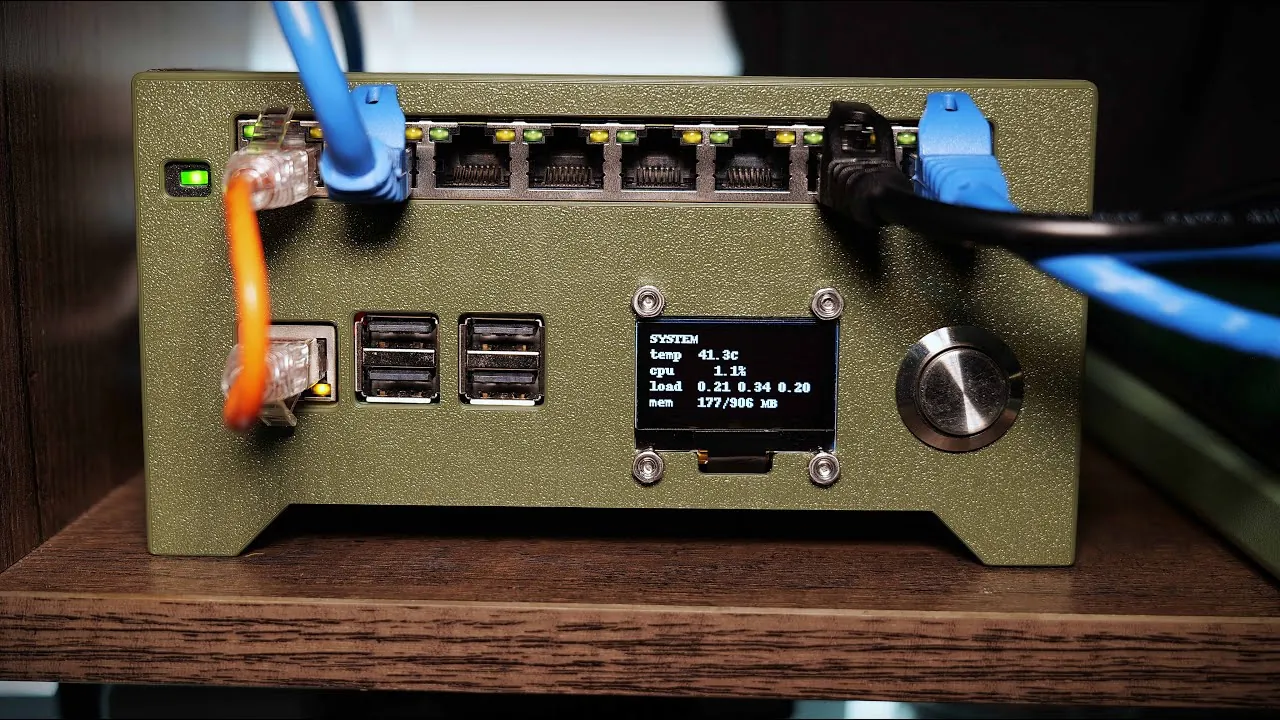
- OLED Display: Add an OLED screen to display real-time network statistics, such as connected devices, data usage, and IP addresses. This feature makes it easier to monitor your network at a glance.
- Physical Button and Screensaver: Install a physical button to toggle the OLED display and implement a screensaver to conserve power when the display is not in use. This combination improves both functionality and energy efficiency.
- Additional Network Interfaces: Add USB-to-Ethernet adapters to expand the number of available network interfaces. This allows you to connect more devices or create separate subnets for different purposes.
Performance and Benefits
A Raspberry Pi router offers a robust and customizable networking solution that meets the needs of modern internet users. Its lightweight operating system ensures smooth performance, even under heavy network loads. Hardware customizations, such as cooling mechanisms and an OLED display, enhance usability and reliability, making it a practical choice for long-term use. Advanced features like VPN integration, restricted SSH access, and firewall rules provide strong privacy and security measures, safeguarding your online activity from ISP monitoring and potential cyber threats. Additionally, the flexibility of the Raspberry Pi allows you to tailor your network setup to your specific requirements, whether for home use, small businesses, or educational projects.
By transforming a Raspberry Pi into a custom router, you gain the ability to bypass ISP restrictions, secure your internet connection, and take full control of your network. This project not only addresses common challenges but also highlights the versatility and potential of the Raspberry Pi for advanced networking applications. Whether you are looking to enhance your privacy, improve network management, or explore hardware customization, a Raspberry Pi router is a powerful and adaptable solution that enables you to achieve your goals.
Media Credit: Spencer’s Desk
Filed Under: DIY Projects, Guides, Hardware
Latest Geeky Gadgets Deals
Disclosure: Some of our articles include affiliate links. If you buy something through one of these links, Geeky Gadgets may earn an affiliate commission. Learn about our Disclosure Policy.
Credit: Source link