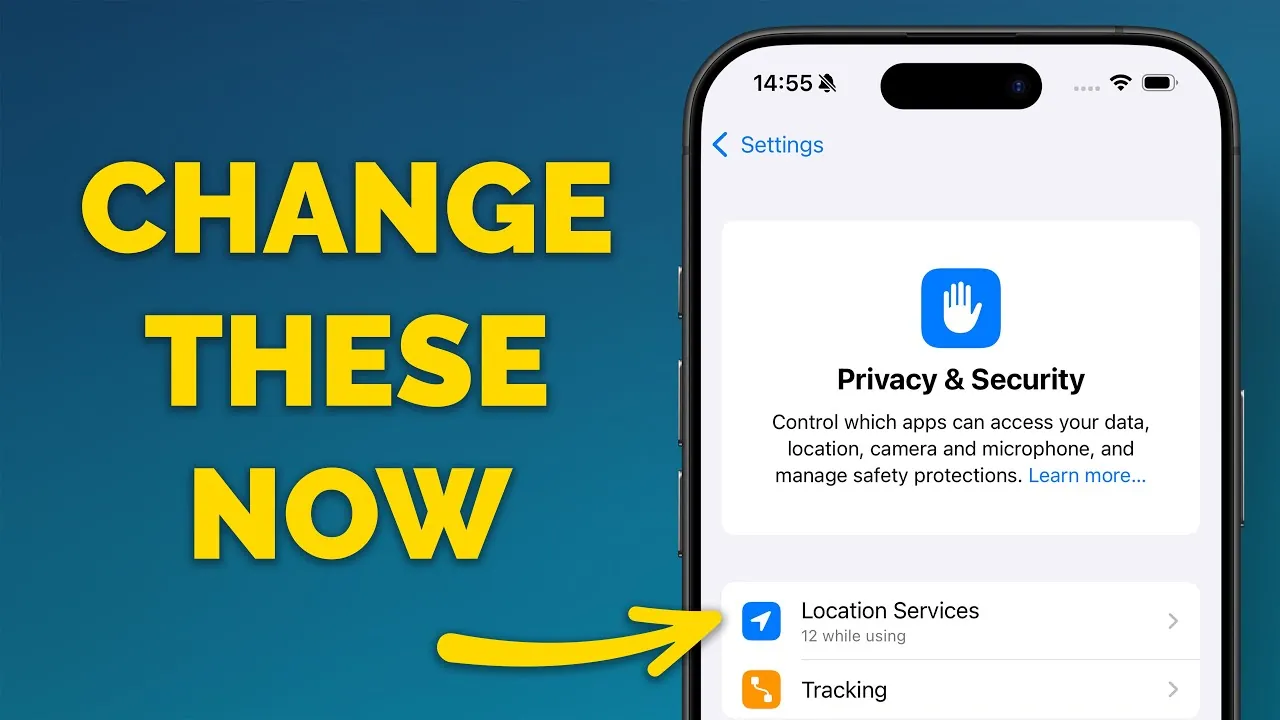
Your iPhone is a powerful tool, but its default settings may expose more of your personal data than you realize. Features such as location tracking, personalized advertising, and data sharing are often enabled by default, potentially compromising your privacy. By customizing these settings, you can take control of your data and limit unnecessary sharing with Apple, third-party apps, and advertisers. In the video below, Proper Honest Tech explores the most critical privacy settings you should review and adjust to safeguard your personal information.

Photo Metadata: Safeguarding Hidden Information in Your Images
Every photo you take with your iPhone contains metadata, such as the exact location where it was captured. While this information can help organize your photos, it also poses a privacy risk when sharing images online or with others. To protect your privacy:
- Disable location sharing for photos by navigating to Settings > Privacy & Security > Location Services > Camera and selecting “Never.”
- Remove location data from individual photos before sharing them by using the “Remove Location” option in the Photos app.
By following these steps, you can ensure your photos don’t inadvertently reveal sensitive details about your whereabouts.
AI Features: Controlling Siri and Apple Intelligence
Apple’s AI-driven features, such as Siri suggestions and personalized recommendations, rely on data collected from your device. While these tools enhance usability, they may also share your data with Apple. To reduce data sharing while still benefiting from these features:
- Go to Settings > Siri & Search and disable options like “Suggestions in Search” and “Suggestions on Lock Screen.”
- Review and adjust settings for Siri and other AI-related tools to limit unnecessary data collection.
Customizing these options allows you to enjoy the convenience of AI features without compromising your privacy.
Analytics Sharing: Minimizing Data Sent to Apple
Your iPhone collects usage and location data to improve Apple’s services, but sharing this data is optional. To stop sharing analytics data:
- Open Settings > Privacy & Security > Analytics & Improvements and toggle off all options, including “Share iPhone Analytics” and “Share with App Developers.”
Disabling analytics not only enhances your privacy but may also slightly improve your device’s battery life by reducing background activity.
Personalized Advertising: Reducing Targeted Ads
Apple uses your app activity and browsing habits to deliver personalized ads. While these ads are less invasive than those from other platforms, you can still opt out to maintain greater control over your data:
- Go to Settings > Privacy & Security > Apple Advertising and turn off “Personalized Ads.”
This ensures that the ads you see are generic and not based on your personal data, offering a more private browsing experience.
Location Services: Managing Access to Your Location
Many apps and system services request access to your precise location, often unnecessarily. To manage and limit location tracking:
- Navigate to Settings > Privacy & Security > Location Services and review each app’s permissions.
- Set location access to “While Using the App” or “Never” for apps that don’t require it.
Additionally, disable system services like “Significant Locations” under System Services to prevent your device from tracking your movements unnecessarily. These adjustments help reduce the risk of your location data being misused.
Safety Check: A Comprehensive Privacy Audit Tool
Apple’s Safety Check feature is designed to help you reset sharing permissions and review access granted to others. This tool is particularly useful if you suspect your privacy has been compromised or want to ensure your data is secure. To use Safety Check:
- Go to Settings > Privacy & Security > Safety Check and follow the guided steps to reset permissions or review shared data.
This feature enables you to regain control over your data and ensure that only trusted individuals or apps have access to your information.
App Tracking Transparency: Blocking Unnecessary Tracking
Apple’s App Tracking Transparency feature gives you control over whether apps can track your activity across other apps and websites. To enable this privacy feature:
- Go to Settings > Privacy & Security > Tracking and toggle off “Allow Apps to Request to Track.”
This prevents apps from even requesting tracking permissions, offering a significant boost to your privacy and reducing the likelihood of targeted advertising.
Safari Privacy Settings: Strengthening Your Browsing Security
Safari includes several privacy features designed to protect your online activity. To maximize these protections:
- Enable “Prevent Cross-Site Tracking” and “Hide IP Address” under Settings > Safari > Privacy & Security.
- Turn on “Fraudulent Website Warning” to avoid malicious sites.
- Clear cookies and cache regularly by going to Settings > Safari > Clear History and Website Data.
These settings help ensure your browsing activity remains private and secure, reducing the risk of data breaches or tracking by third parties.
Take Control of Your iPhone Privacy
Adjusting your iPhone’s privacy settings is a proactive step toward protecting your personal data. From disabling photo metadata and managing location services to opting out of personalized ads and blocking app tracking, each adjustment enhances your privacy and limits unnecessary data sharing. Regularly reviewing these settings ensures that your device remains secure as technology evolves, empowering you to maintain control over your digital footprint.
Advance your skills in iPhone Privacy Settings by reading more of our detailed content.
Source & Image Credit: Proper Honest Tech
Filed Under: Apple, Apple iPhone, Guides
Latest Geeky Gadgets Deals
Disclosure: Some of our articles include affiliate links. If you buy something through one of these links, Geeky Gadgets may earn an affiliate commission. Learn about our Disclosure Policy.
Credit: Source link