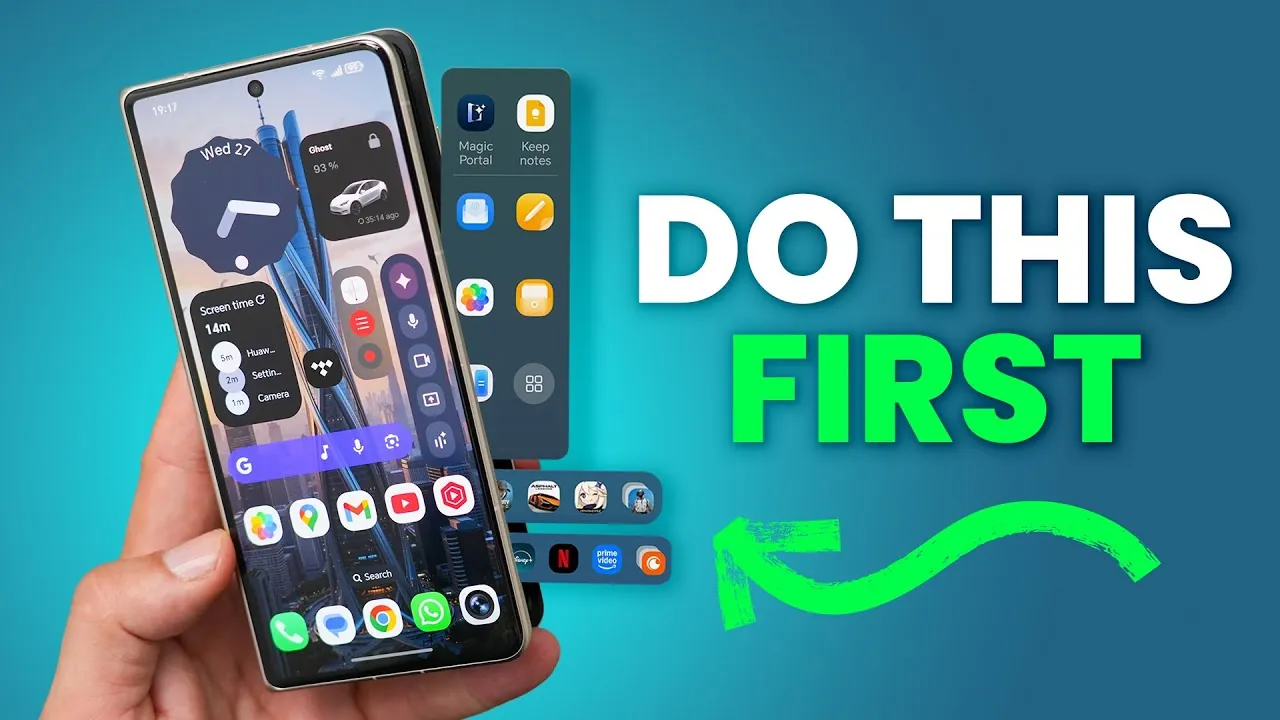
The HONOR Magic V5 foldable phone represents a blend of innovative technology and user-centric design, offering a versatile and dynamic experience for both tech enthusiasts and casual users. This guide provides a comprehensive overview of essential steps, tips, and tricks to help you unlock the full potential of your device. Whether you’re transitioning to a foldable phone for the first time or upgrading from a previous model, these insights will ensure a seamless, personalized, and efficient experience. The video below from WhatGear gives us more details.

Setting Up Your HONOR Magic V5 for Optimal Performance
Proper setup is the foundation for a smooth and efficient experience with your HONOR Magic V5. Follow these steps to get started:
- Update Pre-installed Apps: Open the Google Play Store and update all pre-installed apps, especially AI-powered tools. Regular updates improve functionality, security, and compatibility with the latest features.
- Selective Data Transfer: Transfer only essential files, apps, and settings from your old device. This approach minimizes clutter and ensures a fresh start, allowing you to fully explore the capabilities of your new phone.
- Account Synchronization: Log into your Google account to sync contacts, calendars, and other important data. This ensures continuity and convenience across devices.
Customizing Your Device for a Personalized Experience
The HONOR Magic V5 offers extensive customization options to tailor the device to your preferences. Explore these features to make your phone uniquely yours:
- Home Screen Layout: Adjust the grid size, app icon sizes, and styles to create a clean and organized interface. Experiment with layouts like 5×6 for optimal use of screen space.
- Wallpapers and Themes: Choose from a variety of stock themes, personal photos, or AI-enhanced images to customize your device’s appearance. Enable the always-on display to showcase dynamic themes or custom images, adding a touch of personalization.
- Lock Screen Customization: Modify clock fonts, colors, and shortcuts to enhance both functionality and aesthetics. This ensures quick access to essential features while reflecting your style.
Streamlining Organization and Navigation
Efficient organization is key to maximizing usability and minimizing distractions. Use these strategies to streamline your interface:
- Widgets: Add and resize widgets on your home screen to access important information, such as weather updates or calendar events, at a glance.
- Folders: Group similar apps into folders and arrange them in a logical order. This keeps your home screen tidy and simplifies navigation, especially when managing a large number of apps.
- Google Search Bar: Personalize the search bar by adjusting its color, transparency, and shortcuts. A customized search bar not only enhances usability but also complements your home screen’s design.
Optimizing Display and Audio Settings
The HONOR Magic V5 is equipped with advanced display and audio features that can be fine-tuned for an immersive experience:
- Dark Mode: Activate dark mode to reduce eye strain during nighttime use and extend battery life. This feature is particularly useful for prolonged usage.
- Color Mode: Switch to “Normal” mode for accurate color representation, making sure a consistent viewing experience across various lighting conditions.
- HONOR Spatial Audio: Enable this feature to enjoy 3D sound effects, creating a more immersive audio experience for music, movies, and games.
- Audio Profiles: Use the 10-band equalizer to customize sound quality according to your preferences, whether you’re listening to podcasts, music, or watching videos.
Enhancing Productivity and Focus
The HONOR Magic V5 includes features designed to help you stay productive and focused. Use these tools to optimize your workflow:
- Do Not Disturb Mode: Configure this mode to allow calls and messages from favorite contacts while blocking unnecessary interruptions. This ensures you remain connected to important people without distractions.
- Quick Settings Panel: Rearrange shortcuts in the quick settings panel to prioritize frequently used features, such as screen brightness, Do Not Disturb mode, and Google Wallet. A well-organized panel saves time and simplifies navigation.
- Voice Recorder with Transcription: Use the built-in voice recorder app to capture audio and convert speech into text. Enable volume button shortcuts for instant access, making it a valuable tool for meetings, lectures, or personal notes.
Unlocking the Full Potential of the Camera
The HONOR Magic V5’s camera system is designed to cater to both casual users and photography enthusiasts. Maximize its capabilities with these tips:
- 4K Video Recording: Enable this feature to capture high-resolution videos with stunning detail and clarity.
- Photo Composition Tools: Use grid lines and level tools to improve framing and composition, making sure professional-quality photos.
- High-Resolution Mode: Access this mode to capture images with maximum detail, ideal for landscapes or intricate subjects.
Securing Your Digital Life
Protecting your data and online accounts is essential. The HONOR Magic V5 offers robust tools to enhance security and simplify account management:
- Google Password Manager: Set this as your default password manager to securely store and sync credentials across devices. This ensures hassle-free logins and reduces the risk of password-related security breaches.
- Biometric Security: Enable fingerprint or facial recognition for quick and secure access to your device, adding an extra layer of protection to your personal information.
Making the Most of Your HONOR Magic V5
The HONOR Magic V5 foldable phone is a feature-rich device that can be tailored to suit your needs and preferences. By following these tips and exploring its advanced capabilities, you can create a personalized and efficient user experience. From initial setup to advanced customization, this guide equips you with the tools to unlock the full potential of your device, making sure a seamless and enjoyable journey with your HONOR Magic V5.
Dive deeper into Foldable Display with other articles and guides we have written below.
Source & Image Credit: WhatGear
Filed Under: Android News, Guides, Mobile Phone News
Latest Geeky Gadgets Deals
Disclosure: Some of our articles include affiliate links. If you buy something through one of these links, Geeky Gadgets may earn an affiliate commission. Learn about our Disclosure Policy.
Credit: Source link