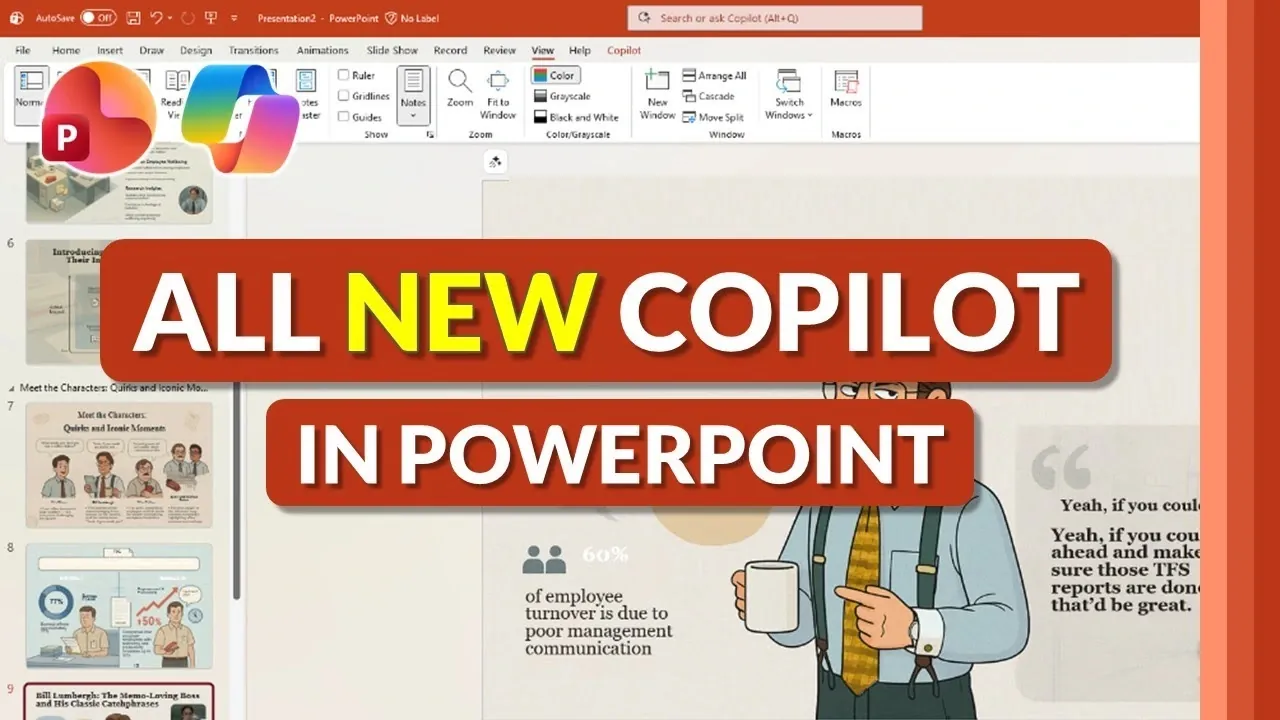
What if creating a stunning, professional presentation was as simple as having a conversation? With Microsoft PowerPoint’s Copilot, that vision is now a reality. This new AI-powered assistant is transforming how presentations are designed, making tedious tasks like slide formatting and content structuring a thing of the past. Imagine specifying your presentation’s tone, dynamic, formal, or creative, and having a polished deck ready in minutes. Whether you’re a seasoned professional or someone who dreads PowerPoint, Copilot promises to redefine your workflow, blending efficiency and creativity in ways that feel almost magical.
In this comprehensive guide, Mike Tholfsen explains the innovative features that make Copilot a fantastic option for presentation design. From its ability to generate entire slide decks based on your input to tools like the “Magic Pencil” that refine your content with precision, you’ll discover how AI can elevate your storytelling. Curious about how Copilot’s AI-generated visuals or multilingual capabilities can enhance your message? Or how it seamlessly integrates branding for a professional finish? By the end, you’ll see why Copilot isn’t just an upgrade, it’s a bold step into the future of communication.
PowerPoint Copilot Features
TL;DR Key Takeaways :
- Microsoft PowerPoint’s Copilot introduces AI-driven features to enhance efficiency, creativity, and accessibility in presentation creation.
- The “Create with Copilot” feature allows users to generate complete presentation outlines and slides, tailored to specific styles and objectives, saving time and effort.
- Copilot offers robust customization tools, including editing outlines, generating speaker notes, and incorporating organizational branding for a polished and professional look.
- Standout features include AI-generated visuals and multilingual translation capabilities, making sure presentations are visually appealing and accessible to global audiences.
- The “Magic Pencil” tool refines content by rewriting, condensing, or professionalizing text, while allowing the creation of new slides based on prompts or reference documents.
Effortless Presentation Creation
Central to Copilot’s updates is the “Create with Copilot” feature, which allows users to generate complete presentation outlines and slides with minimal effort. This feature works seamlessly by:
- Allowing you to specify the length and style of your presentation, with options like “creative” for dynamic designs or “default” for traditional layouts.
- Integrating with reference files to pull relevant content directly into your slides, making sure accuracy and alignment with your objectives.
This functionality not only saves time but also ensures that your presentations are tailored to your specific needs. Whether you’re preparing a detailed analysis or a high-level overview, Copilot adapts to your requirements, streamlining the creation process.
Enhanced Customization and Personalization
Once your presentation is generated, Copilot offers a robust set of tools to refine and personalize your content. These tools empower you to:
- Edit outlines and rearrange topics to better align with your goals.
- Modify individual slides for a personalized touch that resonates with your audience.
- Automatically generate speaker notes, providing a polished script to accompany your delivery.
- Incorporate organizational branding through preloaded templates and design suggestions, making sure a professional and cohesive appearance.
These customization options make it easy to adapt your presentation for different audiences while maintaining a consistent and polished look. Whether you’re addressing a small team or a large audience, Copilot ensures your message is clear and visually appealing.
New PowerPoint AI Features & Massive Workflow Improvements

Explore further guides and articles from our vast library that you may find relevant to your interests in Microsoft Copilot.
AI-Generated Visuals and Multilingual Capabilities
One of Copilot’s standout features is its ability to create AI-generated visuals. Users can customize these images by selecting styles such as flat design, whimsical illustrations, or other creative options, adding a unique flair to their slides. These visuals not only enhance the aesthetic appeal of your presentation but also help convey complex ideas more effectively.
Additionally, Copilot supports automatic translation of presentations into multiple languages. This feature is particularly valuable for global teams and multilingual audiences, making sure your message is accessible and impactful across diverse regions. By breaking down language barriers, Copilot enables seamless communication in an increasingly interconnected world.
Refining Content with Precision
The “Magic Pencil” tool is another powerful addition to Copilot’s capabilities, designed to help you refine and enhance your content effortlessly. This tool allows you to:
- Rewrite, condense, or professionalize text on any slide to suit different audiences or purposes.
- Generate new slides based on specific prompts or reference documents, making sure your presentation remains comprehensive and relevant.
Whether you’re fine-tuning your message or expanding your content, the Magic Pencil tool simplifies the process, allowing you to adapt your presentation without starting from scratch. This ensures that your slides are always polished and aligned with your objectives.
Streamlined Workflow and Professional Results
Copilot’s enhancements are designed with efficiency and quality in mind. With minimal input, you can quickly generate professional-looking slides that incorporate your organization’s branding and templates. The seamless integration of these features ensures a smooth workflow, allowing you to focus on crafting compelling content rather than getting bogged down in design details.
By automating repetitive tasks and providing intuitive tools for customization, Copilot enables you to create presentations that are both visually appealing and strategically effective. This combination of automation and personalization makes it an invaluable tool for professionals across industries.
Shaping the Future of Presentation Design
Microsoft PowerPoint’s Copilot is transforming the way presentations are created, offering a powerful blend of AI-driven tools and user-friendly customization options. From generating outlines and slides to refining content and integrating branding, these features cater to both creative and professional needs. By streamlining the process and enhancing the quality of your presentations, Copilot enables you to communicate your ideas with clarity, efficiency, and confidence. As technology continues to evolve, tools like Copilot are setting new standards for productivity and creativity in presentation design.
Media Credit: Mike Tholfsen
Filed Under: AI, Guides
Latest Geeky Gadgets Deals
Disclosure: Some of our articles include affiliate links. If you buy something through one of these links, Geeky Gadgets may earn an affiliate commission. Learn about our Disclosure Policy.
Credit: Source link