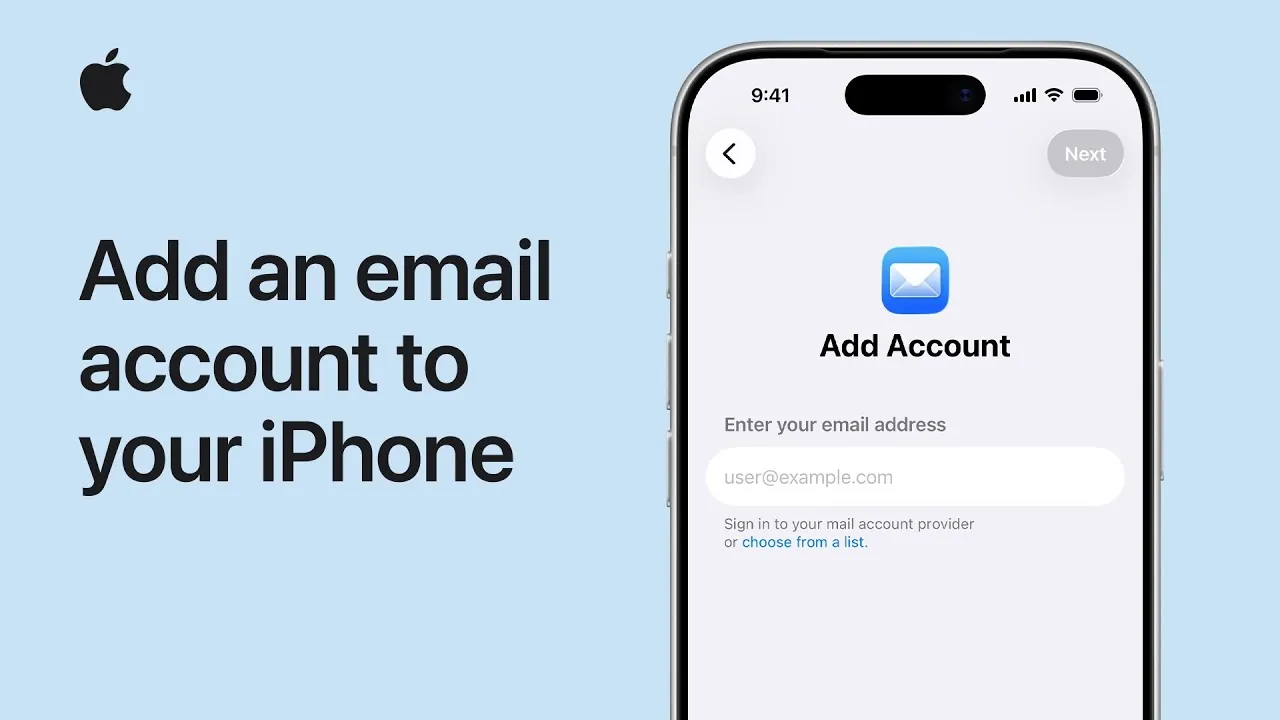
Setting up an email account on your iPhone is a straightforward process that ensures you stay connected and organized. Whether you use a Google account, Yahoo, Outlook, or another provider, configuring your email on your iPhone allows seamless communication and synchronization across your devices. The video below from Apple provides a detailed, step-by-step walkthrough to help you set up your email account and troubleshoot any potential issues.
Step 1: Access the Mail Settings
Begin by opening your iPhone’s settings. Locate the gear-shaped icon on your home screen and tap it to enter the Settings menu. Once inside, scroll down until you find the “Mail” option. This section is dedicated to managing all email-related configurations, including adding and modifying accounts. Tapping on “Mail” will take you to the settings where you can proceed with the setup process.
Step 2: Add a New Email Account
Within the “Mail” settings, tap on “Accounts” to view a list of any existing email accounts already configured on your device. To add a new account, select the “Add Account” option. A list of popular email providers will appear, including Google, Yahoo, Outlook, and others. If your email provider is listed, tap on it to continue. For providers not listed, select “Other” to manually configure your account by entering additional details such as server settings.
Step 3: Input Your Email Credentials
After selecting your email provider, you’ll be prompted to enter your email address. Carefully type in your address and tap “Next.” Depending on your provider, you may also need to enter your password or complete additional security steps, such as two-factor authentication. For example, Google accounts often require you to verify your identity by entering a code sent to your phone or email. Ensure all credentials are accurate to avoid errors during the setup process.
Step 4: Select Apps to Sync with Your Account
Once your email account is verified, you’ll see a list of apps that can sync with your email account. These typically include:
- Mail: Syncs your emails to the iPhone’s Mail app, allowing you to send and receive messages directly from your device.
- Contacts: Integrates your email’s address book with your iPhone, making it easier to access saved contacts.
- Calendars: Syncs calendar events from your email account with the iPhone’s Calendar app, making sure you never miss an appointment.
- Notes: Links notes associated with your email account to the iPhone’s Notes app for easy access and organization.
Toggle the switches next to the apps you want to sync. For example, allowing “Mail” ensures your emails appear in the Mail app, while selecting “Calendars” integrates your schedule across devices. Once you’ve made your selections, tap “Save” to finalize the setup.
Step 5: Access Your Email Account
After saving your settings, your email account will be successfully added to your iPhone. To access it, open the Mail app, where you’ll find your inbox ready for use. From here, you can send and receive emails, organize your messages, and manage your account effortlessly. If you’ve synced additional apps like Contacts or Calendars, their data will also be available in the corresponding apps on your device.
Troubleshooting Common Setup Issues
While adding an email account to your iPhone is usually straightforward, you may encounter occasional issues. Here are some common problems and solutions:
- Incorrect Credentials: Double-check your email address and password for accuracy. Even a small typo can prevent successful setup.
- Internet Connection: Ensure your iPhone is connected to a stable Wi-Fi or cellular network, as a reliable connection is essential for account setup and synchronization.
- Two-Factor Authentication: If your email provider uses two-factor authentication, confirm that you’ve entered the verification code correctly. You may need to request a new code if the original one expires.
- Sync Settings: Revisit the “Accounts” section in the Mail settings to confirm that the apps you want to sync are enabled. If necessary, toggle the switches off and back on to refresh the sync process.
If these steps don’t resolve the issue, consult your email provider’s support documentation or contact their customer service for further assistance.
Enhancing Your Productivity
Adding an email account to your iPhone is more than just a convenience—it’s a vital step in staying connected and organized. By following these steps, you can ensure your emails, contacts, calendars, and notes are always accessible, no matter where you are. Whether you’re managing personal correspondence or professional communications, having your email configured on your iPhone streamlines your workflow and enhances your productivity.
Here is a selection of other guides from our extensive library of content you may find of interest on iPhone email setup.
Source & Image Credit: Apple Support
Filed Under: Apple, Apple iPhone, Guides
Latest Geeky Gadgets Deals
Disclosure: Some of our articles include affiliate links. If you buy something through one of these links, Geeky Gadgets may earn an affiliate commission. Learn about our Disclosure Policy.
Credit: Source link