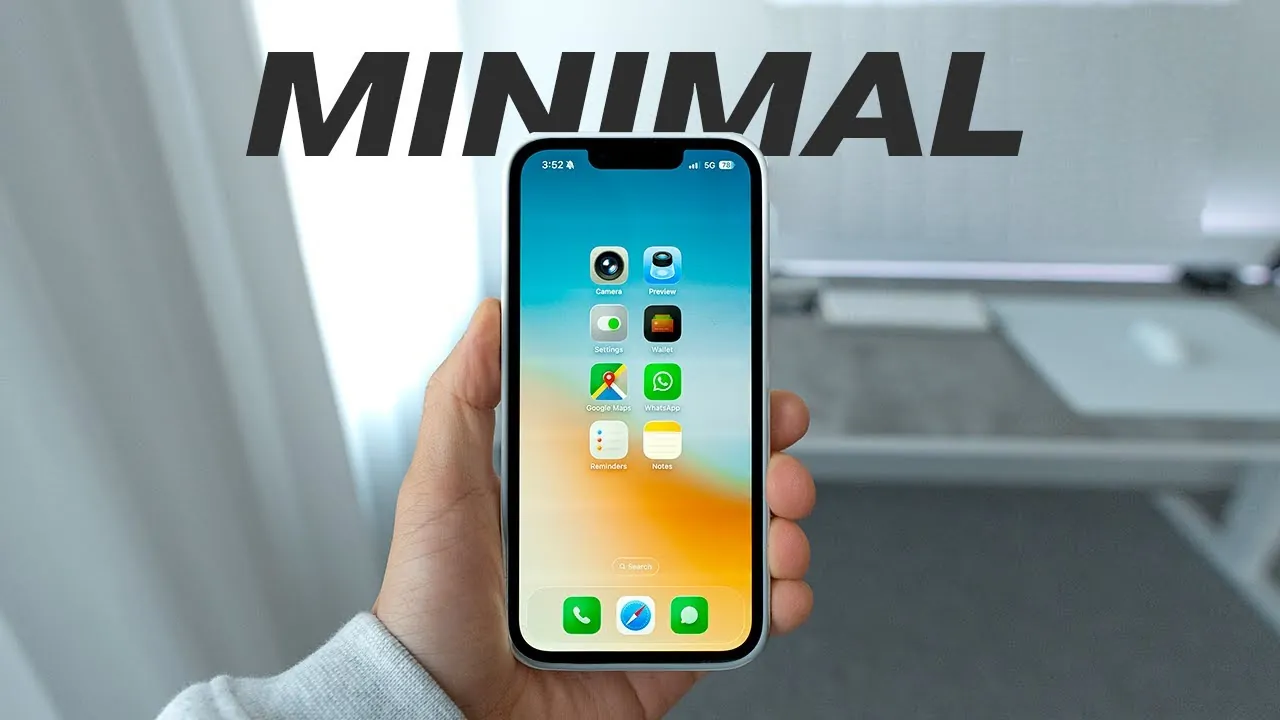
A minimalist iPhone setup can transform the way you interact with your device, allowing you to reduce distractions and enhance productivity. With the release of iOS 26, Apple introduces a range of features designed to simplify your digital experience and encourage a healthier relationship with technology. By effectively managing screen time, customizing notifications, and decluttering your interface, you can create a more focused and efficient daily routine. The video below from Andrew Ethan Zeng shows us how we can optimize our iPhone to align with our priorities and foster a distraction-free lifestyle.

Take Control with Screen Time Management
The “Screen Time” feature in iOS 26 is a robust tool that provides detailed insights into your app usage, helping you monitor and manage your interaction with your device. You can set daily limits for specific apps, such as social media or games, to prevent excessive usage. For example, limiting Instagram to 30 minutes per day can help you avoid hours of unproductive scrolling.
Additionally, the “Downtime” feature allows you to block access to non-essential apps during specific hours, such as during work or bedtime. This ensures that your device supports your schedule rather than disrupting it. By using these tools, you can cultivate a more balanced and intentional relationship with your iPhone, prioritizing activities that matter most.
Reduce Interruptions with Notification Customization
Notifications are one of the most common sources of distraction, but iOS 26 offers advanced customization options to help you manage them effectively. You can silence unknown callers and filter messages from unknown senders, significantly reducing unnecessary interruptions. Turning off non-essential notifications and hiding notification badges can also create a cleaner, less overwhelming interface.
Focus Modes, such as Work, Personal, or Sleep, allow you to tailor your notifications based on your current activity or time of day. For example:
- During work hours, you can limit notifications to essential emails and calendar alerts to maintain productivity.
- In Sleep Mode, you can block all but emergency calls to ensure uninterrupted rest.
These features empower you to stay in control of your attention and time, making sure that your device complements your goals rather than detracting from them.
Simplify Your Interface for Better Usability
A clutter-free interface not only enhances the aesthetic appeal of your device but also reduces cognitive load, making it easier to navigate. Begin by allowing the “Reduce Motion” setting to minimize animations, creating a smoother and faster user experience. Next, declutter your home screen by removing unnecessary apps and organizing the essentials into folders.
Widgets can further improve usability by providing quick access to important information. Consider adding widgets for:
- Weather updates to plan your day effectively.
- Calendar events to stay on top of your schedule.
- Reminders or to-do lists to keep track of tasks.
These small adjustments can make your iPhone feel more organized and purposeful, helping you focus on what truly matters.
Explore New iOS 26 Features
iOS 26 introduces several innovative features designed to enhance your phone’s functionality and efficiency. These updates adapt to your needs while reducing unnecessary distractions:
- Live Call Screening: Transcribes incoming calls in real time, allowing you to decide whether to answer unknown numbers.
- Screen Unknown Senders: Filters spam messages, keeping your inbox clean and organized.
- Adaptive Battery Mode: Optimizes power usage based on your habits, extending battery life and making sure your device is ready when you need it.
These features work together to create a smarter, more intuitive user experience, allowing your iPhone to seamlessly integrate into your daily life.
Declutter with Purposeful Apps
Decluttering your iPhone isn’t just about organizing your interface—it’s also about removing apps that no longer serve a purpose. Conduct an app audit by deleting those you haven’t used in months. This not only frees up storage space but also reduces the mental clutter associated with an overcrowded home screen.
For added focus, consider installing apps designed to curb distractions and promote mindfulness. Examples include:
- One Sec: Encourages you to pause before opening social media apps, helping you reflect on whether the action aligns with your goals.
- Headspace or Calm: Mindfulness apps that support relaxation and focus, allowing you to stay centered throughout the day.
These tools can help you create a more intentional and productive phone experience, aligning your device usage with your personal and professional objectives.
Optimize Your Home and Lock Screens
Your home and lock screens are the first things you see when you pick up your phone, making them critical areas for optimization. Start by removing notification badges and live activities to create a distraction-free environment. Customize lock screens for different Focus Modes, adding widgets that align with your goals, such as fitness trackers, calendar events, or to-do lists.
Choosing clean, minimalistic wallpapers can further reduce visual clutter, enhancing the overall aesthetic of your device. A well-organized home and lock screen not only improves usability but also sets the tone for a more focused and intentional day.
Foster a Healthier Digital Lifestyle
Adopting a minimalist iPhone setup with iOS 26 allows you to take control of your digital habits, fostering a healthier and more intentional relationship with your device. By managing screen time, customizing notifications, and simplifying your interface, you can reduce distractions and focus on what truly matters. Whether you’re using Focus Modes to enhance productivity or decluttering your apps to free up mental space, these strategies empower you to use your iPhone as a tool for achieving your goals. Start optimizing your device today and enjoy a more efficient, distraction-free experience that aligns with your priorities.
Dive deeper into the Minimalist iPhone setup with other articles and guides we have written below.
Source & Image Credit: Andrew Ethan Zeng
Filed Under: Apple, Apple iPhone, Guides
Latest Geeky Gadgets Deals
Disclosure: Some of our articles include affiliate links. If you buy something through one of these links, Geeky Gadgets may earn an affiliate commission. Learn about our Disclosure Policy.
Credit: Source link