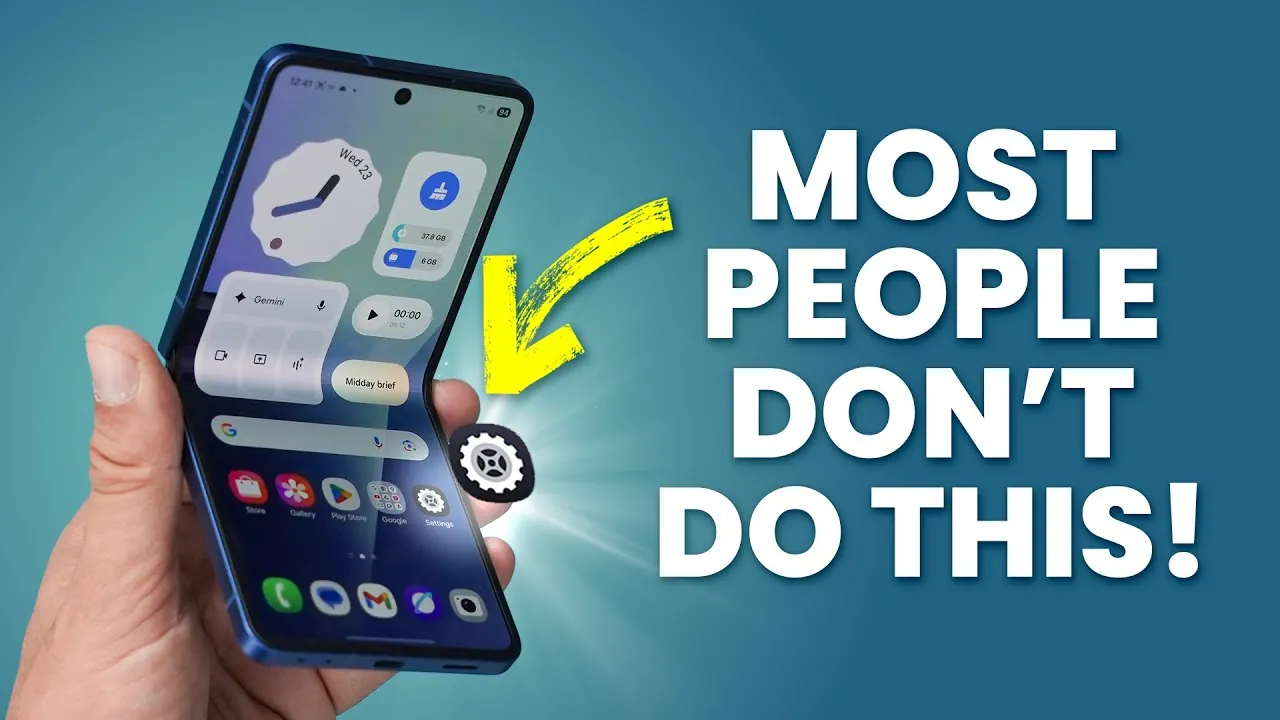
The Samsung Galaxy Z Flip 7 combines a sleek, foldable design with robust functionality, offering users a unique smartphone experience. To fully harness its capabilities, it’s essential to set up the device properly and explore its wide array of features. This guide provides 17 essential tips and tricks to help you personalize and optimize your Galaxy Z Flip 7, making sure you get the most out of your device from the very first day. The video below from WhatGear gives us a look at a range of tips and tricks for the Samsung Galaxy Z Flip 7.

1. Start with Software Updates
Keeping your Galaxy Z Flip 7 up to date is critical for maintaining optimal performance and security. Begin by updating all Google system apps through the Play Store. Next, update Samsung-exclusive apps and One UI features via the Galaxy Store. These updates often include important bug fixes, performance enhancements, and new functionalities. Additionally, ensure you install the latest security patches to safeguard your device against vulnerabilities. Staying current with updates ensures your phone operates smoothly and securely.
2. Secure Your Device
Protecting your personal data is a top priority. Enable Samsung’s built-in app protection to scan for potential threats and malware. Set up biometric authentication, such as fingerprint or facial recognition, for fast and secure access to your device. Additionally, activate Samsung’s “Find My” feature, which allows you to locate, lock, or erase your device remotely in case it’s lost or stolen. These steps provide peace of mind and ensure your data remains secure.
3. Enable Gesture Navigation
Switching to gesture navigation can enhance your overall user experience. By replacing traditional navigation buttons with swipe gestures, you’ll maximize screen space and enjoy smoother, more intuitive navigation. This feature is especially useful on the Galaxy Z Flip 7’s expansive display, allowing you to interact with your device more fluidly and efficiently.
4. Customize Display Settings
Tailor your display settings to match your preferences and daily needs. Enable adaptive brightness to automatically adjust screen brightness based on your environment. Turn on motion smoothness for fluid scrolling and animations, and activate dark mode to reduce eye strain while conserving battery life. Additionally, customize your home screen by resizing the app grid and organizing apps into folders for a cleaner, more organized interface. These adjustments ensure your display is both functional and visually appealing.
5. Personalize Quick Settings
The quick settings panel is a powerful tool for accessing essential features with minimal effort. Rearrange shortcuts for frequently used functions such as Wi-Fi, Bluetooth, and power-saving modes. By customizing this panel, you can streamline your workflow and reduce the time spent navigating through menus.
6. Add Widgets for Convenience
Widgets can significantly enhance your home screen’s functionality. Add widgets for weather updates, device care, or digital well-being stats to access important information at a glance. You can also customize the cover screen with widgets and wallpapers, allowing you to check notifications or control music playback without unfolding the device. This feature adds both convenience and a personal touch to your Galaxy Z Flip 7.
7. Master the Edge Panel
The edge panel is a versatile multitasking feature that can improve your productivity. Customize it to include your most-used apps, tools, and shortcuts for quick access. Use the edge panel to enable split-screen mode or floating windows, allowing you to multitask efficiently. For example, you can browse the web while taking notes or watch a video while replying to messages. This feature makes multitasking seamless and intuitive.
8. Explore Camera Features
The Galaxy Z Flip 7’s camera system offers impressive versatility and quality. Switch between 12MP and 50MP modes depending on your photography needs. Enable motion photo mode to capture animated moments, and use the cover screen as a viewfinder for selfies or group shots. These features make it easy to capture high-quality photos and videos, whether you’re documenting everyday moments or special occasions.
9. Use AI Tools
Samsung’s AI-powered tools can enhance your productivity and simplify daily tasks. Use the Samsung Internet browser to summarize or translate web pages in real-time. The keyboard offers grammar checks and writing suggestions, while the voice recorder app can transcribe lengthy recordings into text for easy reference. These tools are designed to save time and improve efficiency.
10. Simplify Call Management
Managing calls on the Galaxy Z Flip 7 is intuitive and convenient. Enable the “open phone to answer calls” feature, which allows you to answer calls simply by unfolding the device. Additionally, explore advanced call recording and transcription options to keep track of important conversations. These features make call handling more seamless and efficient.
11. Organize Your Apps
A clutter-free home screen improves usability and aesthetics. Organize your apps into folders and customize folder colors and transparency for a visually appealing interface. Save app pairs to launch two frequently used apps in split-screen mode with a single tap, making multitasking faster and more efficient.
12. Customize the Cover Screen
The cover screen is one of the Galaxy Z Flip 7’s standout features. Personalize it with widgets, wallpapers, and shortcuts to access essential functions without opening the device. This not only saves time but also helps conserve battery life by reducing the need to unfold the phone for basic tasks.
13. Optimize Battery Life
Extend your Galaxy Z Flip 7’s battery life by allowing power-saving modes and adaptive battery settings. These features limit background activity for less frequently used apps, making sure your device lasts longer throughout the day. Additionally, monitor battery usage in the settings menu to identify and manage power-hungry apps.
14. Use Flex Mode
Flex Mode takes full advantage of the Galaxy Z Flip 7’s foldable design. This feature splits the screen into two functional halves, making it easier to multitask. For instance, you can watch a video on the top half while taking notes on the bottom half. Flex Mode enhances usability and provides a unique way to interact with your device.
15. Explore Advanced Multitasking
The Galaxy Z Flip 7 is designed for multitasking. Use split-screen mode and floating windows to work on multiple tasks simultaneously. Save frequently used app combinations for quick access, allowing you to switch between tasks effortlessly. These features are ideal for users who need to stay productive on the go.
16. Protect Your Privacy
Samsung’s privacy dashboard provides a clear overview of app permissions and data usage. Enable this feature to monitor which apps access sensitive information, such as your location or camera. Adjust permissions as needed to maintain control over your personal data and ensure your privacy is protected.
17. Explore Accessibility Features
The Galaxy Z Flip 7 includes a range of accessibility features designed to improve usability for all users. Enable high-contrast text, magnification, or voice assistants to tailor the device to your specific needs. These features ensure the device is accessible and user-friendly for everyone.
Unlock the Full Potential of Your Galaxy Z Flip 7
By following these 17 tips and tricks, you can maximize the functionality and personalization of your Galaxy Z Flip 7. From initial setup and security enhancements to advanced multitasking and customization, these steps ensure a seamless and enjoyable user experience. Take the time to explore these features and make your foldable smartphone work for you.
Dive deeper into Galaxy Z Flip 7 setup with other articles and guides we have written below.
- Samsung Galaxy Z Fold 7: Features, Pricing, and Release Date
- Samsung Galaxy Z Flip 7: Release Date, Features, and Price
- Samsung Galaxy Z Flip7: Specs, Camera, and Performance
- Samsung Galaxy Z Flip 7: Features, Specs, and More
- Samsung Galaxy Z Flip 7: Features, Specs, and More
Source & Image Credit: WhatGear
Filed Under: Android News, Guides, Mobile Phone News, Top News
Latest Geeky Gadgets Deals
Disclosure: Some of our articles include affiliate links. If you buy something through one of these links, Geeky Gadgets may earn an affiliate commission. Learn about our Disclosure Policy.
Credit: Source link