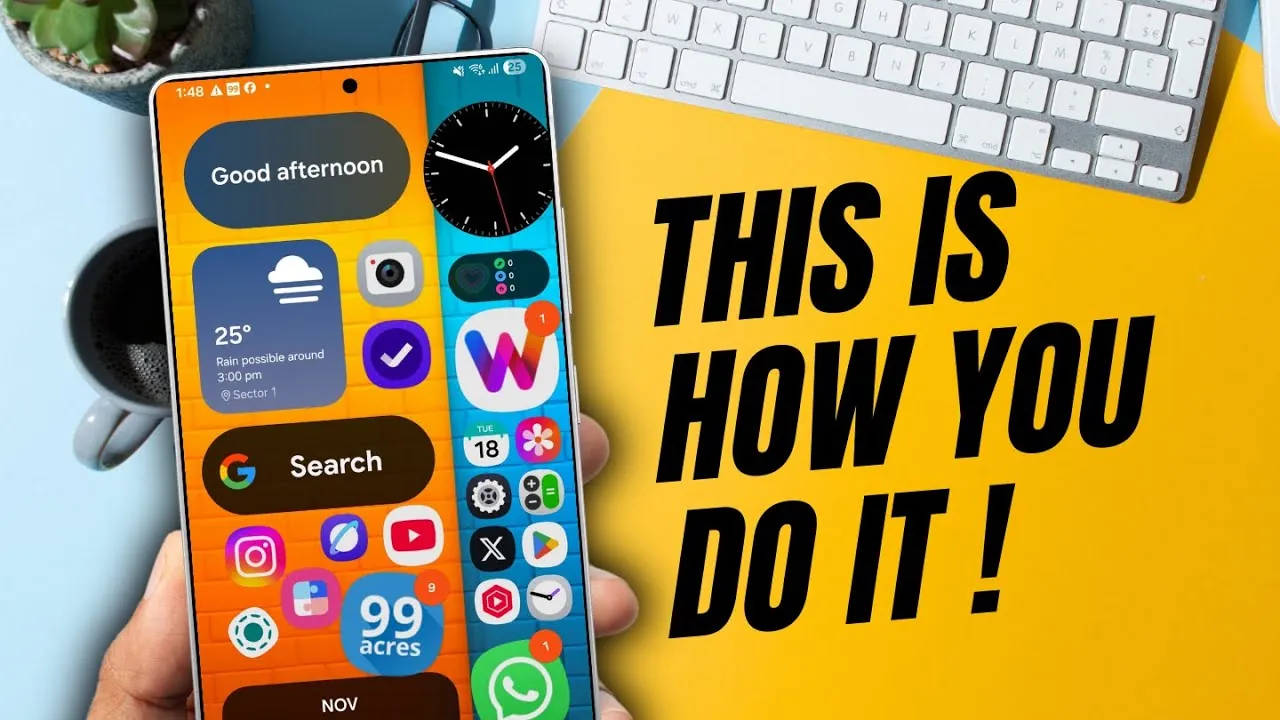
Customizing your Samsung Galaxy phone’s home screen can transform it into a personalized, efficient, and visually appealing workspace. With tools like Samsung’s Good Lock suite, particularly the Home Up module, you gain access to advanced features that go beyond the default settings. Whether you’re adjusting layouts, integrating widgets, or experimenting with wallpapers, the awesome video below from AppX will help you craft a home screen that reflects your style and enhances your daily workflow.

Getting Started: Good Lock and Home Up Module
To unlock advanced customization options, begin by downloading the Good Lock app from the Galaxy Store. This official Samsung tool is designed for users seeking greater control over their device’s interface. Within Good Lock, the Home Up module focuses specifically on home screen enhancements. Once installed, enable Home Up to access a wide range of features that allow you to fine-tune your home screen to suit your preferences.
The Home Up module is particularly useful for those who want to go beyond basic customization. It provides tools to adjust layouts, modify icon sizes, and personalize folders, giving you the freedom to create a home screen that is both functional and visually appealing.
Key Features of the Home Up Module
The Home Up module offers a variety of tools to help you customize your home screen in detail. Here are some of its standout features:
- Adjust Grid Sizes: Customize the number of icons displayed per row and column to fit more or fewer items on each page.
- Resize Icons: Modify icon sizes to match your aesthetic preferences or improve visibility.
- Widget Placement: Add, resize, and reposition widgets to create a functional and dynamic layout.
- Folder Customization: Personalize folder styles, including background colors and layouts, for a cohesive look.
- Favorites Bar Tweaks: Adjust the favorites bar to prioritize your most-used apps for quicker access.
Additionally, the module’s Do-It-Yourself (DIY) feature allows you to explore deeper customization options, giving you control over nearly every aspect of your home screen. This level of flexibility ensures that your device feels uniquely tailored to your needs.
Optimizing Widgets and Icons
Widgets and icons are central to both the functionality and design of your home screen. With the Home Up module, you can:
- Add and Resize Widgets: Tailor widget sizes to fit your layout and maximize usability.
- Rotate and Overlap Widgets: Create unique, layered designs for a dynamic appearance.
- Group and Resize Icons: Organize icons into groups or resize them in bulk to streamline your workflow.
- Integrate Third-Party Widgets: Expand functionality by incorporating widgets from other apps.
These features allow you to create a home screen that is not only visually appealing but also optimized for your daily tasks. By experimenting with widget placement and icon organization, you can design a layout that enhances both productivity and aesthetics.
Choosing the Right Wallpaper
A carefully chosen wallpaper can unify your home screen design and elevate its overall appearance. Consider these tips when selecting a background:
- Complement Your Layout: Choose wallpapers that enhance your widget and icon placements without overwhelming the design.
- Opt for Minimalism: Abstract or simple patterns work well as they provide a clean backdrop for your home screen elements.
- Experiment with Styles: Test different wallpapers to find one that aligns with your personalized setup and preferences.
The right wallpaper can tie together all elements of your home screen, creating a polished and harmonious look. By experimenting with different styles, you can find a background that complements your overall design while reflecting your personal taste.
Adding a Personal Touch
For a truly unique home screen, explore these additional personalization options:
- Icon Stickers: Add stickers to your icons for a playful or thematic touch that reflects your personality.
- Custom Layouts: Experiment with unconventional arrangements to make your home screen stand out.
- Dynamic Designs: Combine overlapping widgets, custom folders, and cohesive wallpapers for a one-of-a-kind interface.
The flexibility provided by the Home Up module ensures that your home screen can be as distinctive as you want it to be. By combining these elements, you can create a design that is both functional and visually striking.
Time and Effort: What to Expect
Creating a fully customized home screen requires time, patience, and a willingness to experiment. The extensive options provided by the Good Lock suite mean you’ll need to explore features and test different configurations to find what works best for you. However, the effort is well worth it. A thoughtfully designed home screen not only enhances your device’s functionality but also makes it feel like a true extension of yourself.
Dedicate some time to learning the tools and experimenting with the features available in the Home Up module. With persistence, you’ll unlock the full potential of your Samsung Galaxy phone and create a home screen that is uniquely yours.
Browse through more resources below from our in-depth content covering more areas on Samsung Galaxy home screen customization.
Source & Image Credit: AppX
Filed Under: Android News, Mobile Phone News, Top News
Latest Geeky Gadgets Deals
Disclosure: Some of our articles include affiliate links. If you buy something through one of these links, Geeky Gadgets may earn an affiliate commission. Learn about our Disclosure Policy.
Credit: Source link