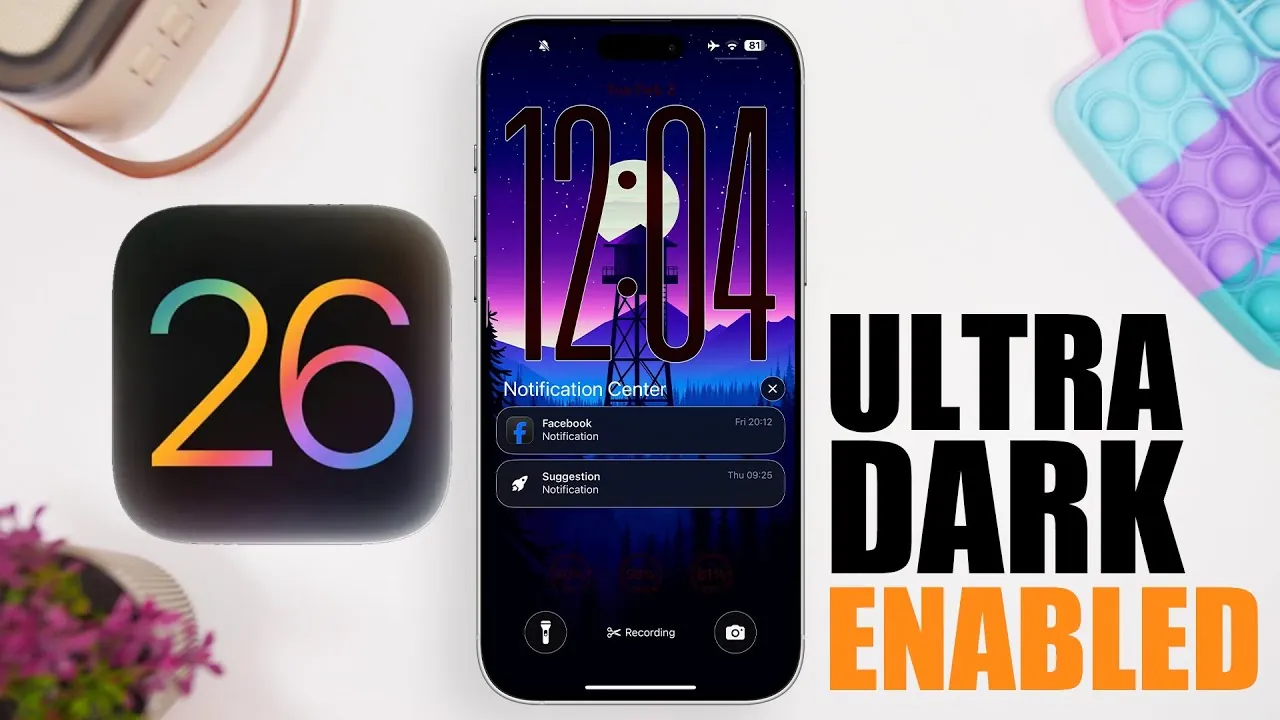
iOS 26 introduces a significant enhancement to its user interface with the addition of ultra-dark mode. This feature is designed to improve your device’s aesthetics, enhance battery efficiency, and reduce eye strain. By using advanced display technologies and offering extensive customization options, ultra-dark mode provides a seamless and immersive dark theme across your device. Whether you’re using your iPhone in dim lighting or prefer a sleek, modern look, this feature offers practical benefits and a visually appealing experience. Below, you’ll find a detailed guide on how to enable and optimize ultra-dark mode to make the most of your iPhone. The video below from iReviews shows us how to enable ultra dark mode.
Getting Started: System-Wide Dark Mode
The foundation of ultra-dark mode lies in the system-wide dark mode, which transforms your device’s interface by replacing bright backgrounds with darker tones. This not only creates a visually pleasing experience but also improves energy efficiency. On OLED displays, commonly found in newer iPhones, dark mode reduces power consumption by turning off individual pixels in black areas, significantly extending battery life.
To activate dark mode:
- Navigate to Settings > Display & Brightness.
- Enable dark mode manually or set it to activate automatically based on the time of day, such as from sunset to sunrise.
This flexibility ensures that your device adapts to your environment, providing an optimal viewing experience whether you’re in bright daylight or a dimly lit room.
Enhance Your Look with Wallpaper Customization
A cohesive ultra-dark mode experience begins with the right wallpaper. Dark wallpapers not only complement the system theme but also help reduce screen brightness and conserve energy. iOS 26 introduces enhanced wallpaper customization options, allowing you to apply a darker tint for reduced glare and improved visibility.
For a more dynamic experience, consider using dynamic wallpapers that automatically adjust to dark mode settings. These wallpapers seamlessly integrate with the system theme, creating a unified and immersive aesthetic for your device.
To customize your wallpaper:
- Go to Settings > Wallpaper > Customize and select a dark or dynamic wallpaper.
This simple adjustment enhances the overall appearance of your device while contributing to energy efficiency.
Refining the Interface: Icon Adjustments
To maintain a consistent visual experience, iOS 26 includes an option to adjust app icons for dark mode. This ensures that app icons align with the system theme, eliminating visual inconsistencies when switching between light and dark modes.
To enable this feature:
- Navigate to Settings > Display & Brightness > Icon Dark Mode.
This subtle yet impactful adjustment creates a polished and unified interface, enhancing the overall usability and aesthetic of your device.
Advanced Display Features: Liquid Glass and Tinted Mode
iOS 26 introduces two advanced display features to elevate your ultra-dark mode experience:
- Liquid Glass: Available in iOS 26.2, this feature adds a subtle, reflective sheen to the interface, giving it a sleek and modern appearance.
- Tinted Mode: This option deepens the dark effect by applying a soft, customizable tint across the display, allowing you to personalize the intensity of the dark theme.
To explore these features:
- Go to Settings > Display & Brightness > Advanced Display Options and experiment with the settings to find your preferred balance between aesthetics and functionality.
These features provide additional layers of customization, making sure that your device’s display meets your specific preferences.
Accessibility Enhancements for a Tailored Experience
iOS 26 includes a range of accessibility tools to further refine your dark mode experience. These features are particularly beneficial for users who require clearer visual boundaries or reduced eye strain in low-light environments. Key options include:
- Reduce Transparency: Simplifies the interface by minimizing visual effects, making it easier to focus on content.
- Increase Contrast: Enhances the visibility of UI elements, making sure clarity in all lighting conditions.
- Reduce White Point: Dims bright colors for a softer and more comfortable display.
- Show Border: Highlights interactive elements, improving navigation and usability.
To enable these features:
- Go to Settings > Accessibility > Display & Text Size and adjust the settings based on your preferences.
These tools allow you to customize your device for a more comfortable and accessible user experience.
Customizing Your Lock Screen
The lock screen is a central part of your device’s interface, and iOS 26 ensures it integrates seamlessly with ultra-dark mode. You can personalize your lock screen to align with the dark theme by:
- Adjusting the clock’s appearance to use dark colors or the Liquid Glass effect for a modern look.
- Setting a dark-themed wallpaper specifically for the lock screen to maintain consistency.
These customization options ensure that your lock screen complements the overall aesthetic of your device, creating a cohesive and visually appealing experience.
Why Use Ultra-Dark Mode? Key Benefits
Allowing and optimizing ultra-dark mode in iOS 26 offers several practical advantages:
- Improved Battery Life: OLED displays consume less power when displaying black, helping your device last longer on a single charge.
- Enhanced Visual Appeal: A cohesive dark theme creates a sleek, modern interface that is both functional and stylish.
- Reduced Eye Strain: Darker tones are easier on the eyes, particularly in low-light environments, making your device more comfortable to use for extended periods.
By taking advantage of the customization options and advanced features in iOS 26, you can fully embrace the benefits of ultra-dark mode. Whether you’re optimizing your device for aesthetics, functionality, or comfort, this feature provides the tools you need for a superior user experience.
Below are more guides on Ultra Dark Mode from our extensive range of articles.
Source & Image Credit: iReviews
Filed Under: Apple, Apple iPhone, Guides, Top News
Latest Geeky Gadgets Deals
Disclosure: Some of our articles include affiliate links. If you buy something through one of these links, Geeky Gadgets may earn an affiliate commission. Learn about our Disclosure Policy.
Credit: Source link