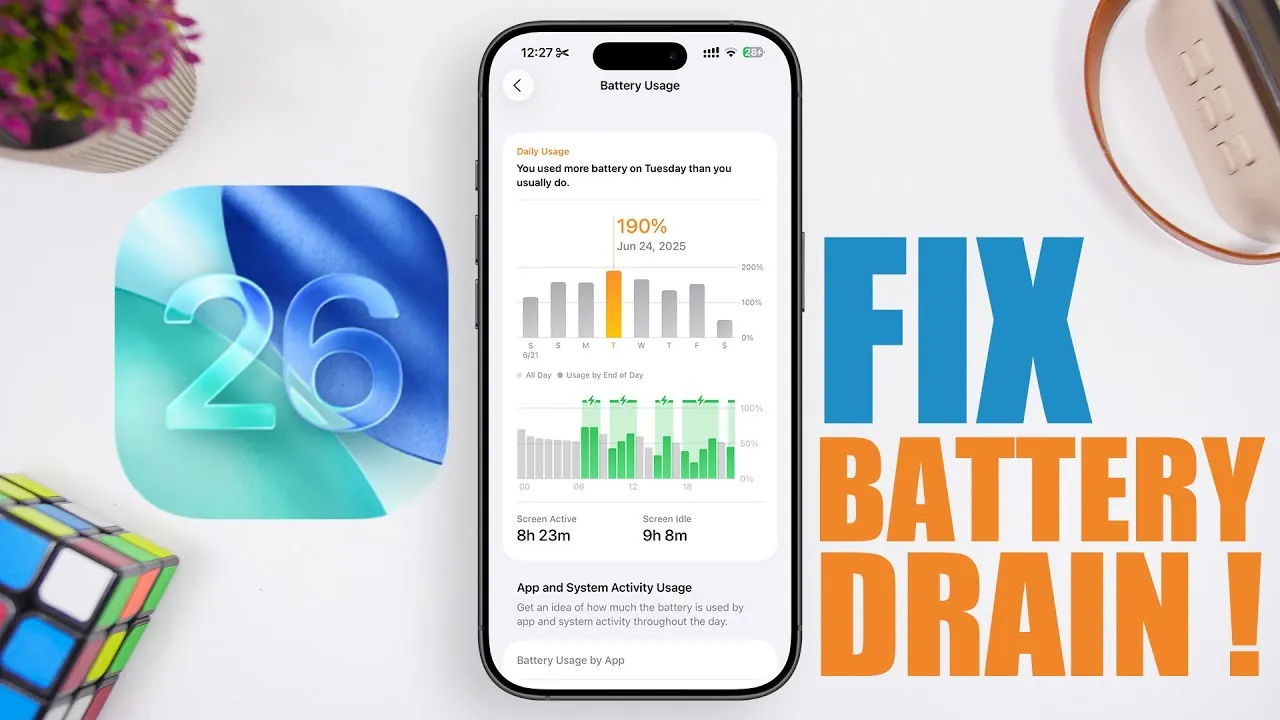
The iOS 26 beta introduces a range of exciting features, but as with any beta software, it comes with its share of challenges. One of the most common issues users face is increased battery drain, which can disrupt daily usage. If you’ve noticed your iPhone’s battery depleting faster than usual, there are several practical strategies you can implement to optimize performance while still enjoying the latest features. In the video below, iReviews provides a detailed guide to help you manage battery consumption effectively.

1. Reduce System Animations
System animations, such as parallax effects and screen transitions, can significantly impact battery life by consuming processing power. To reduce their effect:
- Open Settings and navigate to Accessibility.
- Select Motion and enable the Reduce Motion option.
This adjustment not only conserves battery life but also improves system responsiveness, making your device feel faster and more efficient.
2. Enable Adaptive Power Features
The iOS 26 beta includes an innovative “Adaptive Power” feature that dynamically adjusts your device’s performance based on usage patterns. To activate this feature:
- Go to Settings and select Battery.
- Ensure the Adaptive Power option is enabled.
By intelligently managing power-intensive tasks, this feature helps extend your device’s battery life throughout the day without requiring constant manual adjustments.
3. Choose Static Wallpapers
Dynamic wallpapers and frequently changing lock screens may enhance your device’s appearance but can also drain your battery. To reduce this impact:
- Navigate to Settings > Wallpaper and choose a static wallpaper.
Static wallpapers require less processing power, helping to conserve energy and prevent overheating during prolonged use.
4. Simplify iMessage Backgrounds
The latest iMessage update supports dynamic backgrounds, which, while visually appealing, can strain your device’s battery. To conserve energy:
- Switch to static backgrounds in your iMessage settings.
This adjustment not only reduces battery consumption but also ensures smoother messaging performance, especially during extended conversations.
5. Keep Software and Apps Updated
Beta software often contains bugs that can negatively affect battery efficiency. To address this:
- Regularly update to the latest iOS 26 beta version, as updates often include bug fixes and performance improvements.
- Update your apps to ensure compatibility with the beta software and reduce unnecessary background activity.
Staying current with updates ensures your device operates at its best while minimizing battery drain caused by outdated software.
6. Disable Unnecessary Background Features
Background features like Siri and Apple Intelligence can consume significant battery power. If you don’t frequently use these features:
- Go to Settings > Siri & Search and disable options you don’t need.
- Turn off Apple Intelligence features that are not essential to your daily use.
Reducing background activity in this way can significantly extend your device’s battery life.
7. Adjust Accessibility Features
Certain accessibility features, such as sound recognition, vocal shortcuts, and music haptics, rely on sensors and processing power, which can drain your battery. To optimize battery usage:
- Disable non-essential accessibility features by going to Settings > Accessibility.
This ensures that only the features you actively use are enabled, reducing unnecessary power consumption.
8. Manage Widgets Wisely
Widgets on your home and lock screens frequently update in the background, consuming both battery and data. To minimize their impact:
- Remove unnecessary widgets by long-pressing them and selecting Remove Widget.
This simple step can significantly improve your device’s battery performance while keeping your home screen organized.
9. Monitor App Battery Usage
Some apps are more resource-intensive than others, leading to faster battery drain. To identify and manage these apps:
- Go to Settings > Battery and review the battery usage by app.
- Uninstall or limit the use of apps that consume excessive power but are rarely used.
By monitoring app activity, you can make informed decisions about which apps to keep and which to remove.
10. Turn Off AirDrop When Idle
AirDrop’s “Bring Devices Together” feature is convenient but constantly scans for nearby devices, which can drain your battery. To conserve energy:
- Swipe down to open the Control Center and turn off AirDrop when not in use.
This quick adjustment prevents unnecessary battery usage while maintaining the feature’s availability when needed.
11. Optimize Wireless Connectivity
While 5G offers faster speeds, it can also drain your battery, particularly in areas with weak coverage. To manage this:
- Switch to LTE or 4G in areas with poor 5G reception by navigating to Settings > Cellular > Cellular Data Options.
This adjustment reduces strain on your device and helps maintain a more consistent battery life throughout the day.
12. Use Low Power Mode When Necessary
Low Power Mode is a built-in feature designed to extend battery life by limiting background activity and reducing performance. To enable it:
- Go to Settings > Battery and toggle on Low Power Mode.
This feature is particularly useful when your battery is running low and you need to conserve power for essential tasks.
By implementing these strategies, you can effectively manage your iPhone’s battery performance while exploring the new features of the iOS 26 beta. From reducing animations and managing widgets to optimizing connectivity and app usage, these adjustments allow you to enjoy a smoother, more efficient experience without sacrificing functionality. Stay proactive with updates and settings to make the most of your device and ensure it operates at peak efficiency.
Master iOS 26 Beta with the help of our in-depth articles and helpful guides.
Source & Image Credit: iReviews
Filed Under: Apple, Apple iPhone, Guides, Top News
Latest Geeky Gadgets Deals
Disclosure: Some of our articles include affiliate links. If you buy something through one of these links, Geeky Gadgets may earn an affiliate commission. Learn about our Disclosure Policy.
Credit: Source link