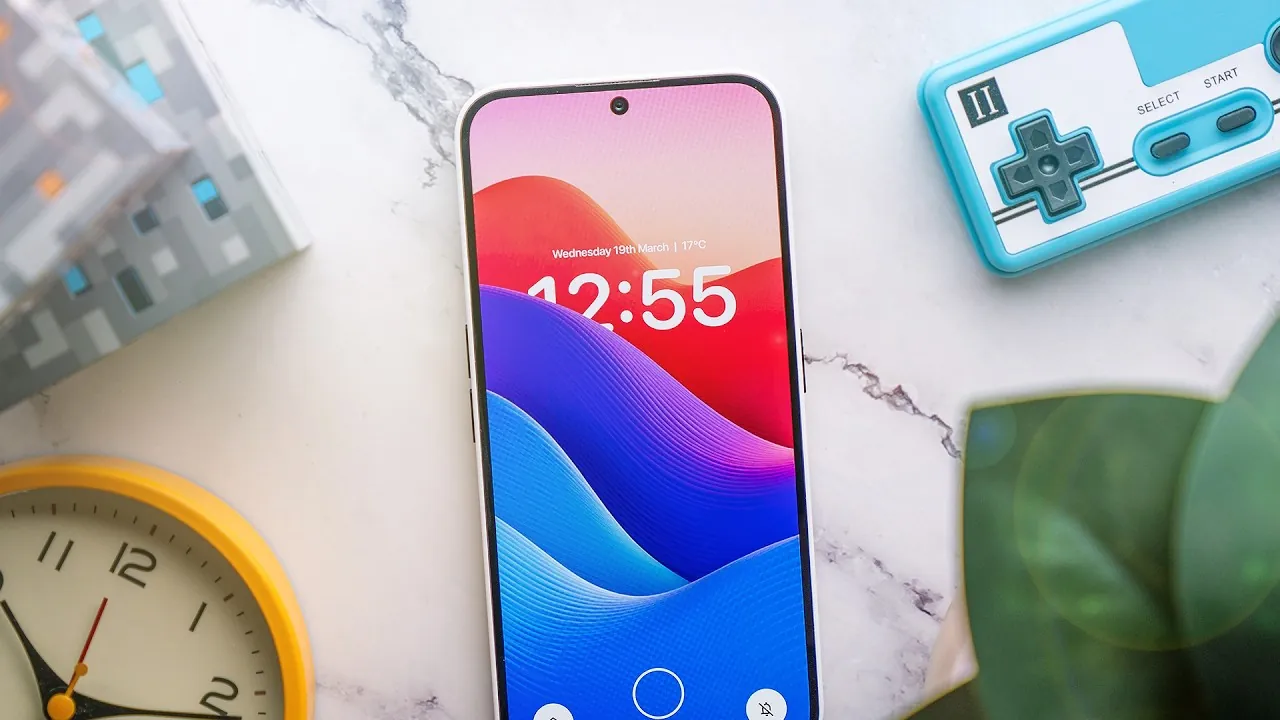
Want to get the iOS lock screen depth effect on your Android phone? The iOS lock screen depth effect, where the clock appears partially obscured by foreground elements in the wallpaper, has become a hallmark of sleek and modern design. While this feature is exclusive to iOS, Android users can replicate it with the help of specific tools and techniques. The video below from Sam Beckman explores two effective methods to achieve this effect, focusing on customization, compatibility, and device-specific requirements.

Understanding the iOS Depth Effect
The iOS depth effect creates a layered visual by dynamically placing the lock screen clock behind foreground elements in the wallpaper. This is achieved by isolating objects, such as a person or an item, and positioning them in front of the clock. The result is a visually engaging lock screen that feels immersive and personalized. By replicating this effect on Android, you can add a unique and modern touch to your device’s interface.
Device Compatibility and Requirements
Not all Android devices natively support this feature, but many can achieve it with the right tools. Before proceeding, ensure your device meets the following requirements:
- Clock adjustment options: Devices like Samsung models with One UI 6.1 or Nothing OS 3.0+ allow users to minimize or hide the lock screen clock.
- Access to third-party apps: You’ll need apps for wallpaper editing and widget customization.
- Android version compatibility: Ensure your device supports advanced lock screen modifications.
Devices without the ability to adjust the lock screen clock may face challenges in fully replicating the effect. However, third-party apps can often provide workarounds.
Method 1: Using the “Depth Effects Wallpaper” App
For Samsung users, the Depth Effects Wallpaper app offers a straightforward way to achieve the depth effect. This method is ideal for those who prefer simplicity and quick results.
- Download and install the Depth Effects Wallpaper app from the Galaxy Store.
- Select a wallpaper with clear foreground elements, such as a person or object.
- Use the app’s tools to isolate the foreground and apply the depth effect.
- Set the edited wallpaper as your lock screen background.
While this method is limited to Samsung devices, it provides a hassle-free solution for users who want a polished look without extensive customization.
Method 2: Universal Approach with Photo Layers, KLWP, and KWGT
For a more customizable and universally applicable solution, you can use a combination of apps like Photo Layers, KLWP (Kustom Live Wallpaper Maker), and KWGT (Kustom Widget Maker). This method works on most Android devices and allows for greater control over the final design.
Step 1: Prepare the Wallpaper
Begin by editing your wallpaper to isolate the foreground elements. The Photo Layers app is a useful tool for this task:
- Import your chosen wallpaper into Photo Layers.
- Manually cut out the foreground object and save it as a separate layer.
- Export the edited image with the isolated foreground.
This step ensures that the foreground element can be positioned dynamically in front of the clock.
Step 2: Set Up the Wallpaper in KLWP
Next, use KLWP to configure the edited wallpaper and create the layered effect.
- Open KLWP and create a new preset.
- Set the edited wallpaper as the background.
- Position the isolated foreground layer to overlap the clock area.
KLWP also allows you to fine-tune the placement and add animations, enhancing the overall aesthetic of your lock screen.
Step 3: Customize the Clock with KWGT
Finally, use KWGT to design a custom clock widget that integrates seamlessly with the depth effect:
- Create a new widget in KWGT and select a clock template.
- Adjust the font, color, and size to match your wallpaper design.
- Position the clock behind the foreground element to achieve the desired depth effect.
You can further enhance the design by exploring third-party widget packs available on the Google Play Store, adding unique touches to your lock screen.
Advantages of Using Third-Party Apps
Third-party apps like KLWP and KWGT provide extensive customization options, allowing you to create a truly personalized lock screen. With these tools, you can:
- Customize fonts, colors, and clock visibility: Tailor the design to match your preferences for both lock and home screens.
- Explore unique clock designs: Use third-party widget packs to add variety and creativity.
- Add animations: Enhance the visual appeal with dynamic foreground or background elements.
These apps empower you to go beyond the default settings of your device, offering a level of customization that rivals iOS.
Challenges and Limitations
While these methods provide significant flexibility, there are some limitations to consider:
- Device compatibility: Some features depend on your Android version or manufacturer-specific software.
- Time investment: Achieving a seamless depth effect requires careful editing and configuration, which may take time and effort.
Despite these challenges, the results are highly rewarding for users who are willing to experiment and refine their designs.
Bring the iOS Depth Effect to Your Android Device
Replicating the iOS lock screen depth effect on Android devices is entirely achievable with the right tools and techniques. Whether you choose the simplicity of the Depth Effects Wallpaper app or the versatility of Photo Layers, KLWP, and KWGT, you can create a visually stunning and personalized lock screen. With creativity and patience, you can bring this sought-after effect to life, regardless of your device’s manufacturer or software version.
Advance your skills in iOS Lock Screen Depth Effect by reading more of our detailed content.
Source & Image Credit: Sam Beckman
Filed Under: Android News, Guides, Mobile Phone News
Latest Geeky Gadgets Deals
Disclosure: Some of our articles include affiliate links. If you buy something through one of these links, Geeky Gadgets may earn an affiliate commission. Learn about our Disclosure Policy.
Credit: Source link