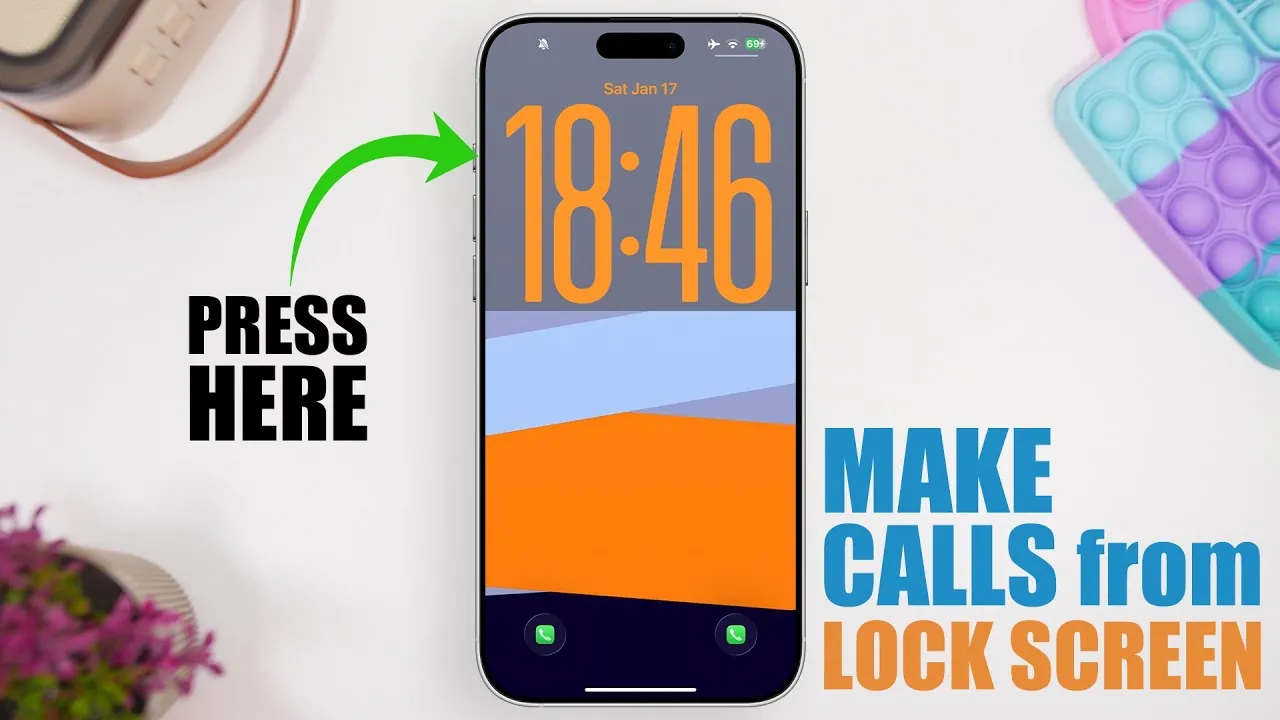
Making a phone call directly from your iPhone’s lock screen is a practical way to save time and streamline communication. With iOS offering a variety of tools and customization options, you can quickly contact important numbers without unlocking your device or navigating through multiple menus. The video below from iReviews explores five effective methods to achieve this, using built-in features, shortcuts, and widgets to enhance your efficiency.

1. Use Siri for Hands-Free Calling
Siri, Apple’s virtual assistant, provides one of the most convenient ways to make calls directly from the lock screen. By activating Siri with a voice command such as “Hey Siri” or by pressing the side button, you can instruct it to call a specific contact. For instance, saying “Hey Siri, call Sarah” will prompt Siri to initiate the call immediately.
This hands-free method is particularly beneficial when your hands are occupied or when you need to make a call quickly. Since Siri is accessible directly from the lock screen, you can use this feature without unlocking your device, making sure both convenience and security. Additionally, Siri’s voice recognition ensures that only your voice can trigger the command, adding an extra layer of protection.
2. Create Custom Shortcuts with the Shortcuts App
The Shortcuts app allows you to design personalized workflows, including shortcuts for making phone calls. This feature is especially useful for frequently contacted individuals. Here’s how you can set it up:
- Open the Shortcuts app and create a new shortcut that dials a specific contact.
- Customize the shortcut’s name and icon for easy identification.
- Add the shortcut to your lock screen through the iOS customization menu.
Once configured, you can tap the shortcut directly from the lock screen to initiate a call. This method eliminates the need to scroll through your contacts or recent call logs, making it a time-saving and efficient option for staying connected with your most important contacts.
3. Use Third-Party Speed Dial Widgets
Third-party apps offer speed dial widgets that simplify calling from the lock screen. These apps allow you to create widgets for specific contacts, which can then be added to your lock screen or the iOS widget page. For example, a widget displaying your top three contacts enables you to make a call with just one tap.
This approach combines ease of use with customization, making it an excellent choice for users who prioritize quick access to their most frequently contacted individuals. Many of these apps also offer additional features, such as grouping contacts or integrating with messaging apps, further enhancing their utility.
4. Add Lock Screen Widgets for Direct Call Access
iOS supports lock screen widgets that can be customized to include direct call options. By adding a widget for a specific contact or group of contacts, you can streamline the process of making calls. These widgets are accessible without unlocking your device, offering a seamless and efficient way to stay connected.
Some widgets even allow you to manage multiple contacts within a single interface, making them particularly useful for users with diverse communication needs. For example, you can set up a widget for family members, colleagues, or emergency contacts, making sure that help or support is always just a tap away.
5. Configure the Action Button for Quick Calls (Supported Devices Only)
For users with supported iPhone models, the action button provides a hardware-based solution for making calls. This button can be configured to trigger a specific shortcut, such as dialing a frequently called contact. Once set up, pressing the action button initiates the call, whether you’re on the lock screen or elsewhere on your device.
This feature is particularly advantageous for users who prefer tactile controls and want a dedicated mechanism for quick communication. The action button’s versatility also allows it to be used for other functions, such as launching apps or activating specific settings, making it a valuable tool for enhancing your device’s functionality.
Enhance Your Communication Efficiency
These five methods provide a variety of options for making phone calls directly from the iPhone lock screen, catering to different preferences and scenarios. Whether you rely on voice commands, custom shortcuts, widgets, or hardware-based solutions, iOS equips you with tools to simplify and enhance your communication. By using these features, you can ensure that your most important contacts are always within easy reach, improving both your productivity and your ability to stay connected in any situation.
Dive deeper into iPhone lock screen phone calls with other articles and guides we have written below.
Source & Image Credit: iReviews
Filed Under: Apple, Apple iPhone, Guides
Latest Geeky Gadgets Deals
Disclosure: Some of our articles include affiliate links. If you buy something through one of these links, Geeky Gadgets may earn an affiliate commission. Learn about our Disclosure Policy.
Credit: Source link