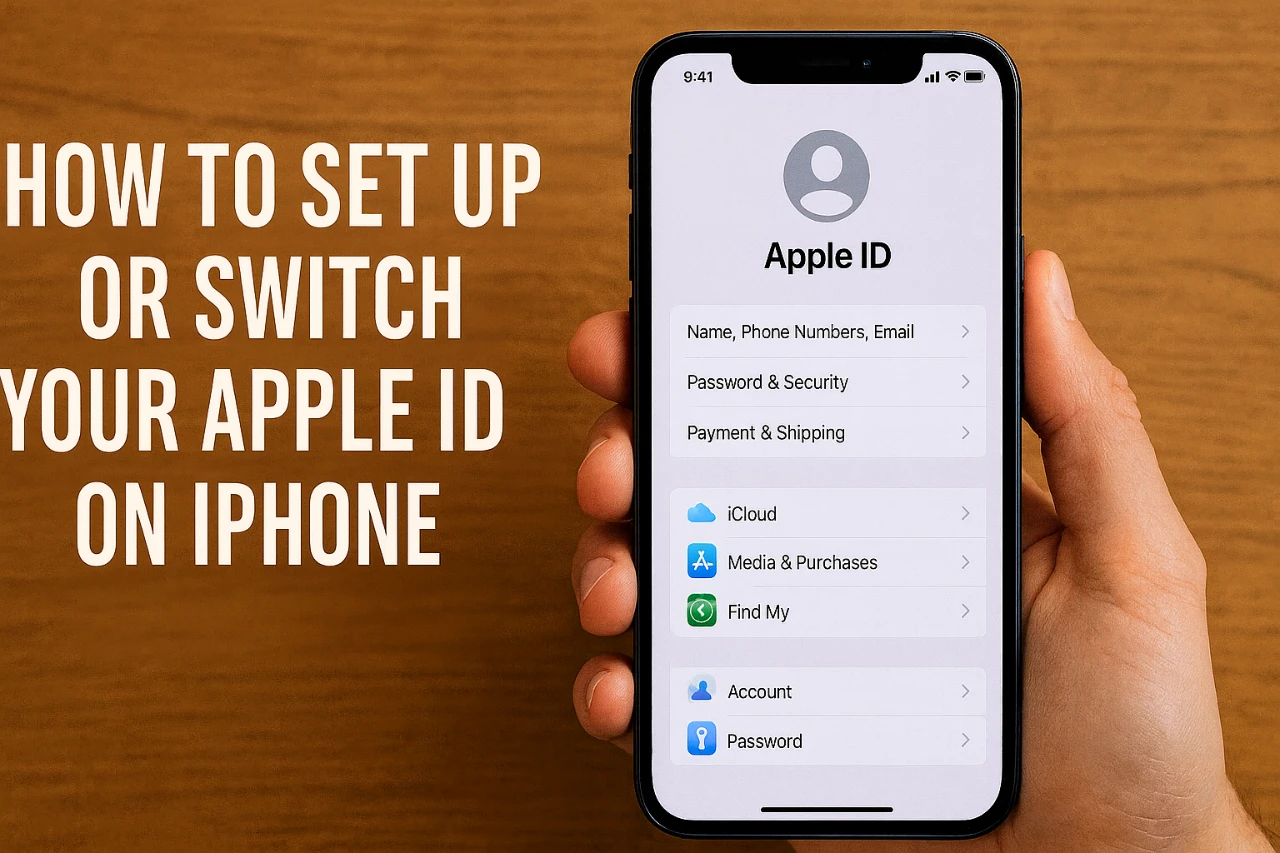
Your Apple ID serves as the gateway to Apple’s ecosystem, granting access to essential services like iCloud, the App Store, Apple Music, and more. Whether you are creating a new Apple ID or switching to a different one, understanding the process is vital for efficient account management. The video below from Howfinity provides a detailed walkthrough to help you navigate the steps securely and effectively.

Accessing Apple ID Settings on Your iPhone
To manage your Apple ID, start by opening the “Settings” app on your iPhone. At the top of the screen, you’ll see your name or the placeholder for signing in. Tap this section to access your Apple ID details. This area serves as the central hub for managing your account and includes key information such as:
- Email addresses associated with your Apple ID
- Payment methods linked to your account
- Active subscriptions
From this menu, you can make changes to your account, update personal information, or sign out if necessary. Familiarizing yourself with this section is essential for maintaining control over your Apple ID and its associated services.
The Importance of a Unique Email Address
Each Apple ID must be linked to a unique email address. This ensures that your account remains distinct and secure, preventing conflicts with other users. If you are creating a new Apple ID, you will need an email address that has not been previously used for another Apple ID. If you do not already have one, you can create a free email account through popular providers such as Gmail, Yahoo, or Outlook.
Using a unique email address also simplifies account recovery and ensures that all Apple-related communications are directed to the correct inbox. This step is critical for maintaining the security and functionality of your Apple ID.
Steps to Create a New Apple ID
If you do not already have an Apple ID, you can create one easily through the Apple ID website or directly on your iPhone. Follow these steps to create a new account:
- Visit the Apple ID website or open the “Settings” app on your iPhone and select “Sign In.”
- Click or tap “Create Your Apple ID.”
- Provide your full name, date of birth, a unique email address, and a secure password.
- Set up security questions to enable account recovery in case you forget your password.
- Verify your email address by entering the code sent to your inbox.
Once these steps are completed, your new Apple ID will be ready to use. Ensure that you remember your login credentials and keep them secure, as they are essential for accessing Apple services.
Signing Out of an Existing Apple ID
Before signing in with a new Apple ID, you must first sign out of the current one on your device. This process ensures that your iPhone is no longer linked to the previous account. Follow these steps to sign out:
- Open the “Settings” app and tap your name at the top of the screen to access Apple ID settings.
- Scroll to the bottom of the page and select “Sign Out.”
- Enter your current Apple ID password to disable features such as Find My iPhone.
Once you have successfully signed out, your device will no longer be associated with the previous Apple ID, allowing you to sign in with a new account.
Signing In with a New Apple ID
After signing out of the existing Apple ID, you can proceed to sign in with a new one. Here’s how to do it:
- Return to the Apple ID section in the “Settings” app and tap “Sign In.”
- Enter the email address and password associated with your new Apple ID.
- Follow the on-screen prompts to enable services such as iCloud, Apple Pay, and personalized settings.
Once the sign-in process is complete, your new Apple ID will be active on your device, granting you access to Apple’s ecosystem and its features.
Managing Your Apple ID for Optimal Security
After setting up or switching your Apple ID, it is important to regularly manage and update your account settings. This ensures that your account remains secure and up to date. Key management tasks include:
- Updating your email address if it changes
- Changing your password periodically to enhance security
- Adding or modifying payment methods for purchases
- Reviewing active subscriptions to avoid unnecessary charges
By staying proactive in managing your Apple ID, you can maintain seamless access to Apple’s services while safeguarding your personal information. Regularly reviewing your account settings is a simple yet effective way to ensure that your Apple ID remains secure and functional.
Below are more guides on Apple ID from our extensive range of articles.
Source & Image Credit: Howfinity
Filed Under: Apple, Apple iPhone, Guides
Latest Geeky Gadgets Deals
Disclosure: Some of our articles include affiliate links. If you buy something through one of these links, Geeky Gadgets may earn an affiliate commission. Learn about our Disclosure Policy.
Credit: Source link