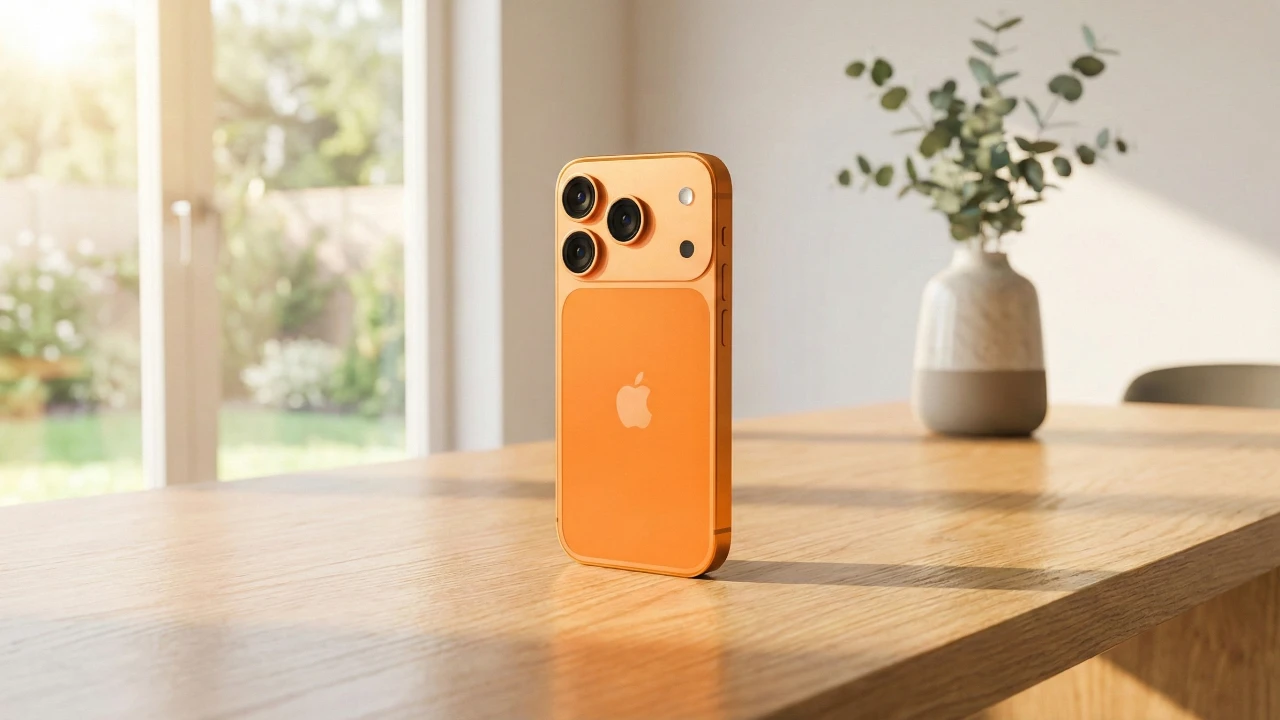
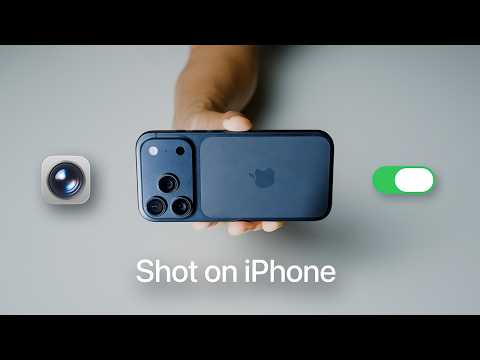
Your iPhone is more than just a communication device—it’s a sophisticated tool for capturing high-quality photographs. To elevate your photography skills, it’s essential to understand and optimize your camera’s features. The detailed video below from Andrew Ethan Zeng provides practical tips on camera settings, editing techniques, and shooting strategies to help you produce professional-grade images. Whether you’re capturing everyday moments or exploring advanced photography, these insights will ensure you maximize the potential of your device.
Essential Camera Settings to Enhance Your Photos
Your iPhone camera is equipped with a variety of settings that can significantly improve the quality of your photos. Adjusting these features allows you to fine-tune your images and streamline your photography process.
- Turn Off Lens Correction: Disabling this feature ensures that ultra-wide shots retain their original frame and details without automatic cropping.
- Disable “Prioritize Faster Shooting”: While this setting is useful for capturing fast-moving subjects, turning it off prioritizes image quality over speed in most scenarios.
- Enable Composition Tools: Activate the grid and level tools to enhance framing and alignment, particularly for landscapes or architectural photography.
- Use Macro Control: For close-up shots, manually allowing macro mode allows you to capture intricate details with precision.
- Preserve Settings: Save your preferred camera configurations, such as filters and exposure adjustments, to maintain consistency across sessions.
For advanced users, allowing ProRAW format on compatible iPhone models unlocks greater editing flexibility by preserving more image data. If storage is a concern, consider using JPEG XL Lossless, which balances efficient storage with high-quality results.
Protecting Privacy and Managing Metadata
When sharing photos, it’s important to be mindful of the metadata embedded in your images. This data can include sensitive information, such as the location where the photo was taken. Taking steps to manage this ensures your privacy while still allowing you to share your work confidently.
- Remove Location Data: Use the Photos app’s privacy settings to strip location information from your images before sharing them.
- Review Metadata: Regularly check and manage the metadata attached to your photos to control what information is shared.
By taking these precautions, you can protect your personal information while maintaining the integrity of your images.
Editing Techniques to Refine Your Photos
Editing is a crucial step in transforming your photos from good to exceptional. By focusing on composition, color, lighting, and detail, you can bring out the best in your images. Here are some effective editing techniques:
- Crop for Better Composition: Adjust the framing of your photo to highlight the subject. Experiment with aspect ratios like 16:9 for a cinematic effect.
- Use Lightroom Tools: Use advanced tools such as subject masking, curves, and the color mixer for precise adjustments. These features allow you to isolate specific areas of the photo for targeted edits.
- Maximize ProRAW Files: If you’ve captured images in ProRAW format, take advantage of the additional data to recover details in shadows or highlights during editing.
- Apply Presets and Fine-Tune: Use presets for consistent color grading, then adjust brightness, contrast, and saturation sliders to refine the final look.
For creative effects, explore the possibilities of Live Photos. For example, you can convert a Live Photo into a long exposure to create stunning motion blur effects, such as flowing waterfalls or bustling city streets.
Shooting Tips for Capturing the Perfect Shot
Achieving great photography goes beyond settings—it also requires thoughtful techniques. By applying these strategies, you can elevate the quality of your shots and capture memorable moments:
- Use Burst Mode: This feature is ideal for action shots, as it captures multiple frames in quick succession, allowing you to select the best image.
- Try Vertical Panoramas: For tall subjects like skyscrapers or trees, switch to panorama mode and shoot vertically to create a high-resolution image.
- Lock AE/AF: Locking the auto-exposure (AE) and auto-focus (AF) ensures consistent results, especially in challenging lighting conditions.
- Adjust Color Settings: Neutralize overly warm or cool tones to achieve more natural-looking photos, particularly in mixed lighting environments.
Additionally, maintaining your iPhone’s lens is essential for optimal image quality. Regularly clean the lens to remove smudges or dust that could degrade your photos.
By mastering these settings, editing techniques, and shooting methods, you can unlock the full potential of your iPhone camera. With practice and attention to detail, your device can become a powerful tool for capturing stunning, professional-quality images.
Gain further expertise in iPhone camera settings by checking out these recommendations.
Source: Andrew Ethan Zeng
Filed Under: Apple, Apple iPhone, Guides
Disclosure: Some of our articles include affiliate links. If you buy something through one of these links, Geeky Gadgets may earn an affiliate commission. Learn about our Disclosure Policy.
Credit: Source link