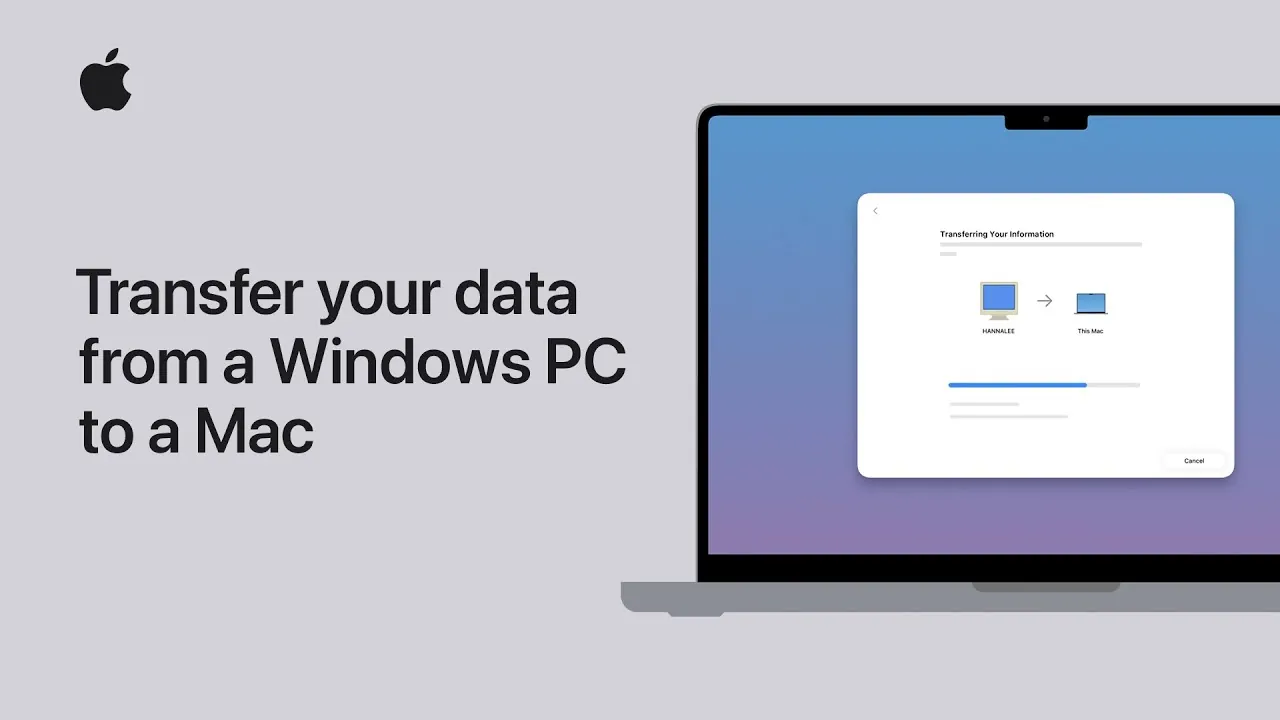
Switching from a Windows PC to a Mac can seem like a daunting task, but Apple’s Migration Assistant simplifies the process significantly. This tool enables you to transfer essential data such as files, browser bookmarks, contacts, calendars, and photos, making sure a seamless transition between platforms. By following a structured, step-by-step approach, you can migrate your data efficiently, securely, and without unnecessary complications. The video below from Apple shows us how this is done easily on your Mac.
Preparation: Laying the Groundwork
Proper preparation is crucial to ensure a smooth and error-free migration. Before initiating the transfer, take the following steps to prepare both your Windows PC and Mac:
- Verify that your PC is running Windows 7 or later and ensure all available software updates are installed.
- Have the administrator account name and password for your PC readily available, as these credentials will be required during the migration process.
- Connect both devices to a stable and reliable power source to prevent interruptions caused by battery depletion.
- Ensure that both your PC and Mac are connected to the same Wi-Fi network, as this is essential for the data transfer to function properly.
- Temporarily disable any antivirus, firewall, or VPN software on your PC to avoid potential conflicts with Migration Assistant.
These preparatory steps help establish a stable environment for the migration, reducing the likelihood of errors or delays during the process.
Setting Up Migration Assistant
Once your devices are prepared, you can proceed to set up Migration Assistant on both your Mac and Windows PC. Follow these steps to initiate the transfer:
- On your Mac, open Migration Assistant. This can be done during the initial setup of your Mac or later by navigating to the Utilities folder.
- Select the option to transfer data from a Windows PC. This ensures that the tool is configured to receive data from your specific source device.
- On your PC, download Migration Assistant from Apple’s official website and install it. This software acts as the bridge between your PC and Mac.
- Launch Migration Assistant on your PC and follow the on-screen instructions to prepare your data for transfer.
- Your Mac will display a six-digit code. Enter this code on your PC to establish a secure and verified connection between the two devices.
This setup process ensures that the data transfer occurs securely and between the correct devices, safeguarding your information throughout the migration.
The Data Transfer Process
After establishing a connection, Migration Assistant will scan your Windows PC for transferable data. This includes user accounts, files, photos, browser bookmarks, contacts, and calendars. Follow these steps to complete the transfer:
- Review the list of available data on your PC and select the items you wish to transfer. This step allows you to prioritize essential files while excluding unnecessary data, optimizing the migration process.
- During this stage, you will also create an administrator password for your Mac. This password will be required to access your new system after the migration is complete.
- Confirm your selections and initiate the transfer. Depending on the volume of data being moved, the process may take several hours. Avoid interrupting the transfer to ensure all data is successfully migrated.
Patience is essential during this phase, as larger data volumes naturally require more time to transfer. Allow the process to complete uninterrupted for the best results.
Finalizing the Setup
Once the data transfer is complete, there are a few final steps to ensure your Mac is fully set up and ready for use:
- Agree to the terms and conditions as prompted by your Mac’s setup process.
- Restart your Mac to ensure that all transferred data is properly integrated into the system.
- Log into your Mac using the administrator password you created during the migration process.
It’s worth noting that the original data on your Windows PC remains intact. This provides a safety net, allowing you to reference or retrieve any files that may not have been included in the migration.
After logging in, take some time to explore your new Mac and verify that all transferred data is accessible and functioning as expected. Finally, re-enable any antivirus, firewall, or VPN software that you had temporarily disabled on your PC to restore its security settings.
Making the Transition Seamless
Apple’s Migration Assistant is a powerful and reliable tool for transferring data from a Windows PC to a Mac. By carefully preparing your devices, following the outlined steps, and completing the post-transfer setup, you can ensure a smooth and efficient transition. Whether you’re migrating files, photos, or browser bookmarks, this process eliminates much of the complexity associated with cross-platform data migration. With your data successfully transferred, you can begin using your Mac with confidence and ease.
Master Migration Assistant with the help of our in-depth articles and helpful guides.
Source & Image Credit: Apple Support
Filed Under: Apple, Guides, Laptops
Latest Geeky Gadgets Deals
Disclosure: Some of our articles include affiliate links. If you buy something through one of these links, Geeky Gadgets may earn an affiliate commission. Learn about our Disclosure Policy.
Credit: Source link