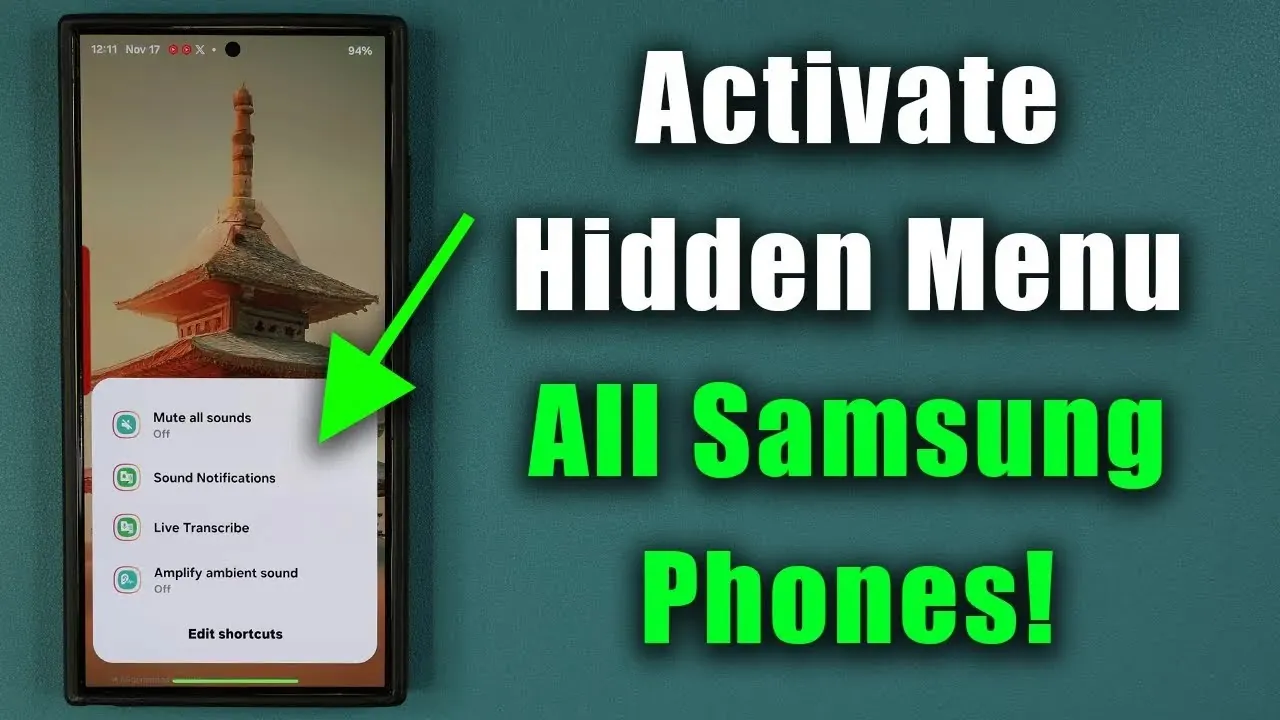
Samsung Galaxy smartphones are renowned for their versatility and feature-rich design. Among these features lies a lesser-known yet highly practical tool: a hidden, customizable menu accessible via the volume buttons. This menu is designed to enhance accessibility and streamline your device usage by providing quick access to essential functions. By activating and personalizing this menu, you can tailor your smartphone experience to better suit your needs, making everyday interactions more efficient and intuitive. The video below from Sakitech gives us more details.

How to Access the Hidden Menu
Activating the hidden menu on your Samsung Galaxy device is a simple process. Follow these steps to enable it:
- Open the Settings app on your Samsung Galaxy smartphone.
- Navigate to the Accessibility section and select Advanced Settings.
- Find the option labeled “Volume up and down button” and toggle it on.
Once enabled, you can access the menu by pressing and holding the volume up and down buttons simultaneously for approximately three seconds. This action unlocks a powerful tool that can be customized to meet your specific requirements, offering a new level of convenience and functionality.
Customizing the Menu to Fit Your Needs
The hidden menu is highly adaptable, allowing you to assign up to 21 shortcuts to various functions. This customization ensures the menu aligns with your unique preferences and frequently used features. Here are some examples of how you can personalize it:
- Accessibility tools: Add features like “Extra Dim” to reduce screen brightness in low-light settings or “Mute All Sounds” for quiet environments such as meetings or libraries.
- Quick settings: Include shortcuts for toggling Wi-Fi, Bluetooth, or activating the flashlight with a single tap.
- Advanced functions: Assign system-level operations such as allowing “Screen Reader” or activating “Magnification” for enhanced usability.
By customizing the menu, you can create a personalized toolset that simplifies your interactions with your device. This flexibility is especially beneficial for users who rely on specific features or accessibility tools in their daily routines.
Single-Action Shortcuts for Instant Access
In addition to supporting multiple shortcuts, the hidden menu can be configured for single-action functionality. This means you can assign a single operation—such as muting all sounds, allowing “Do Not Disturb,” or launching a specific app—for immediate access. This feature is particularly useful in scenarios where speed is critical, such as silencing your phone during an important meeting or quickly activating a tool while multitasking. By setting up single-action shortcuts, you can ensure that essential functions are always just a press away.
Enhancing Efficiency in Everyday Tasks
Once set up, the hidden menu becomes an indispensable tool for managing your device. By simply pressing and holding the volume buttons, you can instantly access your customized shortcuts, eliminating the need to navigate through multiple screens or menus. This streamlined approach not only saves time but also enhances the overall user experience. Whether you’re toggling system settings, accessing accessibility tools, or performing advanced functions, this feature makes your Samsung Galaxy smartphone more intuitive and efficient.
The hidden menu is particularly valuable for users who prioritize convenience and accessibility. It enables you to take full control of your device, making sure that frequently used features are always within reach. By integrating this tool into your daily routine, you can significantly improve your smartphone experience, making it more tailored to your individual needs.
Maximizing the Potential of Your Samsung Galaxy Device
The hidden Samsung Galaxy menu is a feature that deserves attention for its ability to enhance accessibility, convenience, and control. By taking a few minutes to activate and customize it, you can unlock a new level of functionality that is uniquely tailored to your preferences. Whether you need quick access to accessibility tools, advanced settings, or single-action shortcuts, this menu is designed to simplify your interactions and improve your daily experience.
Explore this feature today to make the most of your Samsung Galaxy smartphone. By using the hidden menu, you can transform your device into a more efficient and user-friendly tool, making sure that it adapts to your lifestyle and enhances your productivity.
Here is a selection of other guides from our extensive library of content you may find of interest on the Samsung Galaxy devices.
Source & Image Credit: Sakitech
Filed Under: Android News, Guides
Latest Geeky Gadgets Deals
Disclosure: Some of our articles include affiliate links. If you buy something through one of these links, Geeky Gadgets may earn an affiliate commission. Learn about our Disclosure Policy.
Credit: Source link