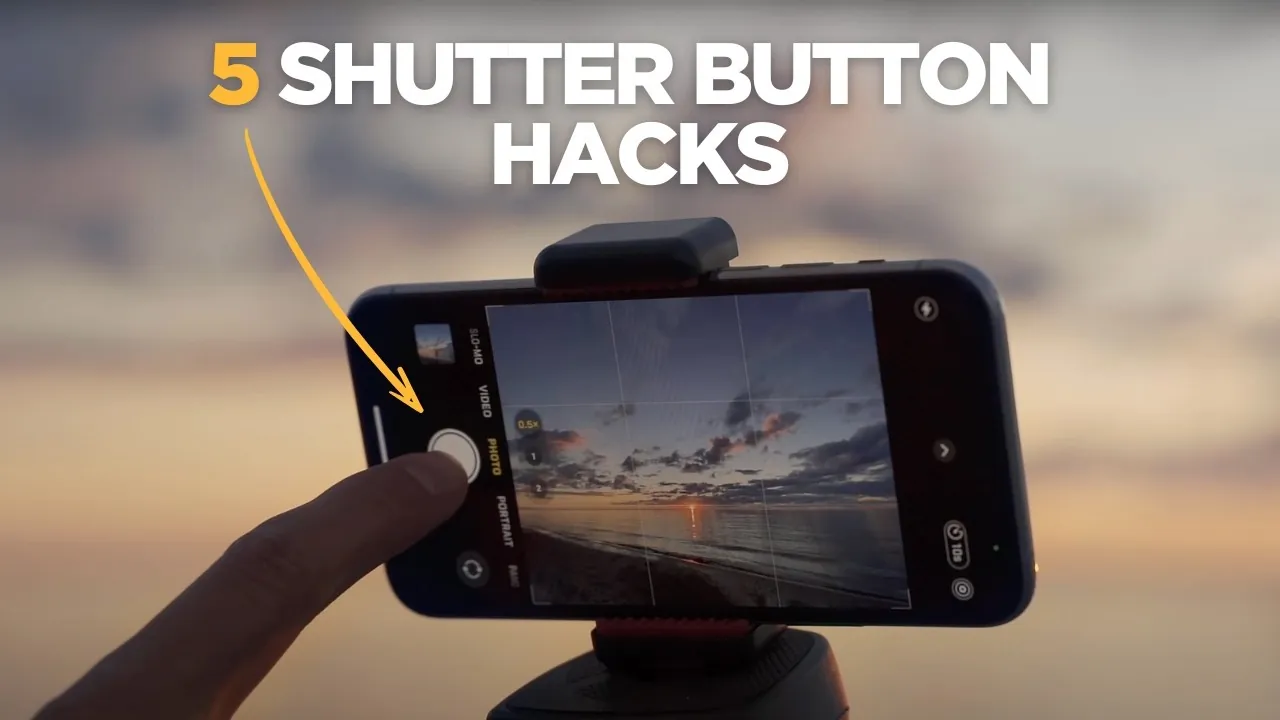
Capturing high-quality photos or videos with your iPhone requires more than just pointing and shooting. It involves understanding the various tools and features available to you. The video below from iPhone Photography School explores five practical methods to release the iPhone shutter, helping you take full advantage of your device’s capabilities. Whether you’re photographing fast-moving subjects or setting up a carefully composed shot, these techniques provide greater precision, flexibility, and control.

1. On-Screen Shutter Button
The on-screen shutter button is the most familiar and straightforward way to take photos or videos. Located within the Camera app, this button is easy to use but requires a steady hand to minimize camera shake. To reduce motion blur, tap the button gently, especially when holding the phone without support. For video recording, press and hold the button to seamlessly switch from photo to video mode.
Additionally, you can activate Burst mode by dragging the shutter button to the left or right. This feature captures a rapid sequence of images, making it ideal for fast-paced scenarios such as sports, wildlife, or action shots. Mastering this method ensures you can quickly adapt to dynamic scenes without missing critical moments.
2. Volume Buttons
Your iPhone’s physical volume buttons offer a tactile alternative to the on-screen shutter. Press either the volume up or down button to snap a photo, mimicking the feel of a traditional camera. This method is particularly useful when you need to stabilize your grip or when touchscreen use is inconvenient, such as in cold weather when wearing gloves.
For added functionality, hold the volume up button to activate Burst mode (if enabled in your settings) or hold the volume down button to record a video. This approach is especially practical for one-handed photography or when you need to maintain a steady frame while capturing the shot.
3. Wired Headphones with Volume Controls
If you have wired headphones with volume buttons, they can double as a remote shutter release. Simply connect the headphones to your iPhone and press the volume controls to take a photo. This method is particularly effective for reducing camera shake, as it allows you to trigger the shutter without physically touching the device.
While this technique does not support Burst mode or video recording, it is ideal for scenarios requiring stability, such as long-exposure shots or carefully composed images. Pairing this method with a tripod can significantly enhance your results, making sure sharp and professional-quality photos.
4. Self-Timer
The self-timer function is a versatile tool for hands-free photography. Accessible within the Camera app, it allows you to set a timer for 3 or 10 seconds before the shutter is released. This feature is perfect for group photos, solo portraits, or any situation where you want to avoid physically pressing the shutter button.
When combined with a tripod, the self-timer ensures stability and precision, making it an excellent choice for low-light photography or creative compositions. It also gives you the flexibility to adjust your position or refine the scene before the photo is captured, resulting in more polished and intentional images.
5. Bluetooth Shutter Release
For maximum convenience and flexibility, consider using a Bluetooth shutter release. By pairing a Bluetooth remote with your iPhone, you can trigger the shutter from a distance, making it ideal for tripod setups, group shots, or candid photography. This method allows you to take multiple photos without returning to the camera, making sure you capture the perfect moment.
Bluetooth remotes are particularly useful for scenarios requiring precise timing, such as wildlife photography, dynamic events, or creative self-portraits. They also eliminate the risk of camera shake, allowing you to achieve sharp and professional results.
Additional Tools and Techniques
To further enhance your iPhone photography, explore these additional tools and techniques:
- Apple Watch Integration: Use the Apple Watch camera app to remotely trigger the iPhone shutter and preview your frame. This is especially useful for group photos or creative compositions where you need to position yourself away from the camera.
- Lens Options: Experiment with your iPhone’s ultra-wide, wide, and telephoto lenses to capture diverse perspectives. Ultra-wide lenses are ideal for landscapes and architecture, while telephoto lenses excel in portraits and distant subjects.
- Aspect Ratio Adjustments: Switch between aspect ratios like 4:3, 16:9, or square to suit your creative vision. For example, 16:9 is great for cinematic shots, while 4:3 offers a more traditional photographic format.
- Tripod Support: Stabilize your iPhone with a tripod for long exposures, low-light photography, or time-lapse videos. Pair it with a remote shutter release or the self-timer for optimal results.
- Lighting Accessories: Consider using external lighting tools, such as ring lights or portable LED panels, to improve your photos in challenging lighting conditions.
Mastering iPhone Photography
To elevate your photography skills, focus on mastering the fundamentals of composition, lighting, and timing. For example, when capturing a sunset, observe how the light interacts with the environment and experiment with different angles and lenses to highlight the scene’s unique beauty. Use tools like a tripod for stability and Burst mode to capture fleeting moments.
By combining these five shutter release methods with additional tools and techniques, you can unlock the full potential of your iPhone camera. Whether you’re a casual photographer or an experienced enthusiast, these strategies provide the control and versatility needed to create stunning images in any situation.
Unlock more potential in iPhone camera shutter release by reading previous articles we have written.
Source & Image Credit: iPhone Photography School
Filed Under: Apple, Apple iPhone, Top News
Latest Geeky Gadgets Deals
Disclosure: Some of our articles include affiliate links. If you buy something through one of these links, Geeky Gadgets may earn an affiliate commission. Learn about our Disclosure Policy.
Credit: Source link