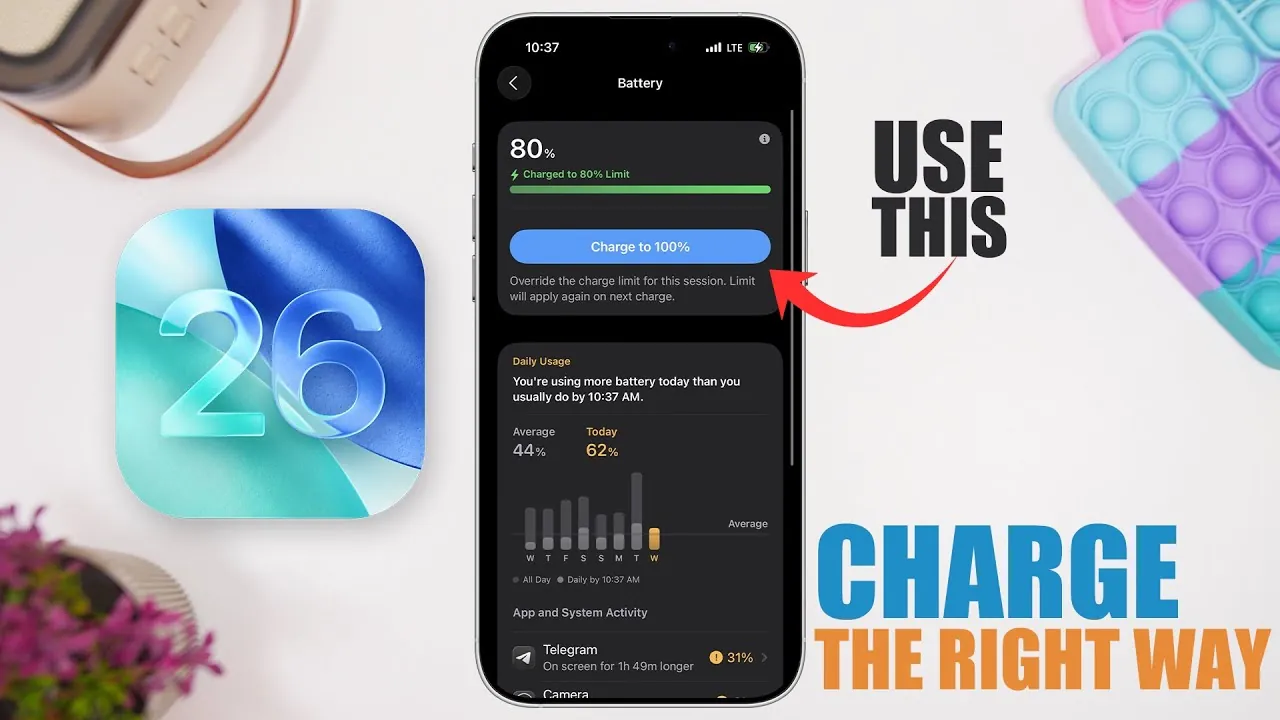
Maintaining your iPhone’s battery health is essential for ensuring its performance and longevity. With the release of iOS 26, Apple has introduced advanced tools and settings to help you optimize your charging habits and extend your battery’s lifespan. By adopting these strategies, you can keep your device running efficiently and reliably for years to come. The video below from iReviews gives us more information on how to get the most out of your iPhone battery.

Monitor Battery Health and Optimize Charging
Your iPhone’s battery health is a key indicator of its overall condition and performance. To check it, navigate to the “Battery Health & Charging” section in the Settings app. Here, you can view the battery’s maximum capacity, which reflects how much charge your battery can hold compared to when it was new. This section also allows you to enable “Optimized Battery Charging,” a feature designed to reduce battery aging by limiting the time your device spends fully charged.
When this feature is activated, your iPhone learns your daily charging habits and delays charging past 80% until just before you typically use the device. This reduces stress on the battery and minimizes wear over time. If your battery health drops below 80%, it may be time to consider a replacement to maintain optimal performance and avoid unexpected shutdowns.
Choose Reliable Charging Accessories
Using high-quality charging accessories is critical for protecting your iPhone’s battery. Always opt for Apple-certified cables and chargers or third-party options with “Made for iPhone” (MFi) certification. These accessories meet Apple’s safety and performance standards, making sure consistent and efficient charging.
In contrast, poor-quality or counterfeit chargers can cause issues such as inconsistent charging, overheating, or even permanent damage to your device. Regularly inspect your charging cables for wear and tear, as damaged cables can pose safety risks and reduce charging efficiency. Investing in reliable accessories not only protects your battery but also ensures your device charges safely and effectively.
Understand the Impact of Wireless Charging
Wireless charging offers convenience, but it can generate excess heat, which accelerates battery degradation. Heat is one of the primary factors that contribute to reduced battery lifespan. To minimize this risk, limit your use of wireless charging, especially in enclosed or poorly ventilated spaces, such as inside a car.
If you do use a wireless charger, ensure your iPhone is placed on a well-ventilated surface to allow heat to dissipate. Additionally, avoid using thick or heat-retaining cases during wireless charging, as they can trap heat and further stress the battery. While wireless charging is a practical option, being mindful of its impact on your device’s temperature can help preserve battery health.
Protect Your Device When Using Public Charging Stations
Public USB charging ports, such as those found in airports or cafes, can expose your iPhone to security risks, including data theft or malware. These risks arise from the potential for compromised ports to transfer malicious software or access your device’s data.
To charge safely in public spaces, avoid plugging your iPhone directly into public USB ports. Instead, carry a portable power bank or use a USB data blocker, which prevents data transfer while allowing safe charging. These precautions ensure your device remains secure while staying powered on the go.
Optimize Overnight Charging with iOS 26
Charging your iPhone overnight is a common practice, and with iOS 26, it is safer and more efficient than ever. The “Optimized Battery Charging” feature intelligently manages your device’s charging process by learning your daily routine. It delays charging beyond 80% until just before you typically wake up, reducing battery stress and prolonging its lifespan.
This feature is particularly useful for users who charge their devices overnight regularly. By allowing your iPhone to manage the charging process, you can ensure it remains ready for use in the morning while minimizing unnecessary wear on the battery.
Use Your iPhone Wisely During Charging
Using your iPhone while it charges is generally safe for light activities such as messaging, browsing, or checking emails. However, avoid engaging in resource-intensive tasks like gaming, video editing, or streaming high-definition content during charging. These activities generate additional heat, which can harm your battery over time.
If you need to perform demanding tasks, consider pausing charging until your device cools down. This practice helps prevent overheating and ensures your battery remains in good condition.
Maximize Charging Efficiency with the Right Tools
To charge your iPhone faster and more efficiently, use a charger that matches your device’s maximum supported power output. For example, newer iPhone models support fast charging with a 20W or higher adapter. Ensure both the charger and cable are compatible with your device to achieve optimal charging speeds without compromising safety.
Fast charging is particularly useful when you need a quick power boost. However, it is important to balance speed with safety by using certified accessories and avoiding excessive heat buildup during the process.
Use iOS 26 Features for Custom Charging
iOS 26 introduces new tools that allow you to customize your charging habits. For instance, you can set charging limits to stop at 80% or 90%, which is beneficial if a full charge isn’t necessary. This feature reduces battery wear and is especially useful for users who frequently charge their devices throughout the day.
Additionally, iOS 26 includes “Clean Energy Charging,” which prioritizes charging during times when your local energy grid uses cleaner energy sources. While this feature is environmentally friendly, you can disable it if it delays charging when you need your device ready quickly. These customizable options give you greater control over your iPhone’s charging process, allowing you to balance convenience, efficiency, and battery health.
Extend Battery Life with Low Power Mode
Low Power Mode is a valuable feature for conserving battery life when your charge is running low. It reduces background activity, such as app refreshes and automatic downloads, to extend usage time. You can activate Low Power Mode manually or automate its activation at specific battery levels using the Shortcuts app.
By allowing Low Power Mode during critical moments, you can ensure your iPhone remains functional when you need it most. This feature is particularly useful for travelers, commuters, or anyone who relies on their device throughout the day.
Adopt Best Practices for Long-Term Battery Health
By following these strategies and using the advanced features in iOS 26, you can optimize your iPhone’s charging habits and maintain its battery health. From monitoring battery performance to using high-quality accessories and customizing settings, these practices will help you extend your device’s lifespan and keep it reliable for years to come.
Stay informed about the latest in iPhone Battery Health by exploring our other resources and articles.
Source & Image Credit: iReviews
Filed Under: Apple, Apple iPhone, Guides, Top News
Latest Geeky Gadgets Deals
Disclosure: Some of our articles include affiliate links. If you buy something through one of these links, Geeky Gadgets may earn an affiliate commission. Learn about our Disclosure Policy.
Credit: Source link