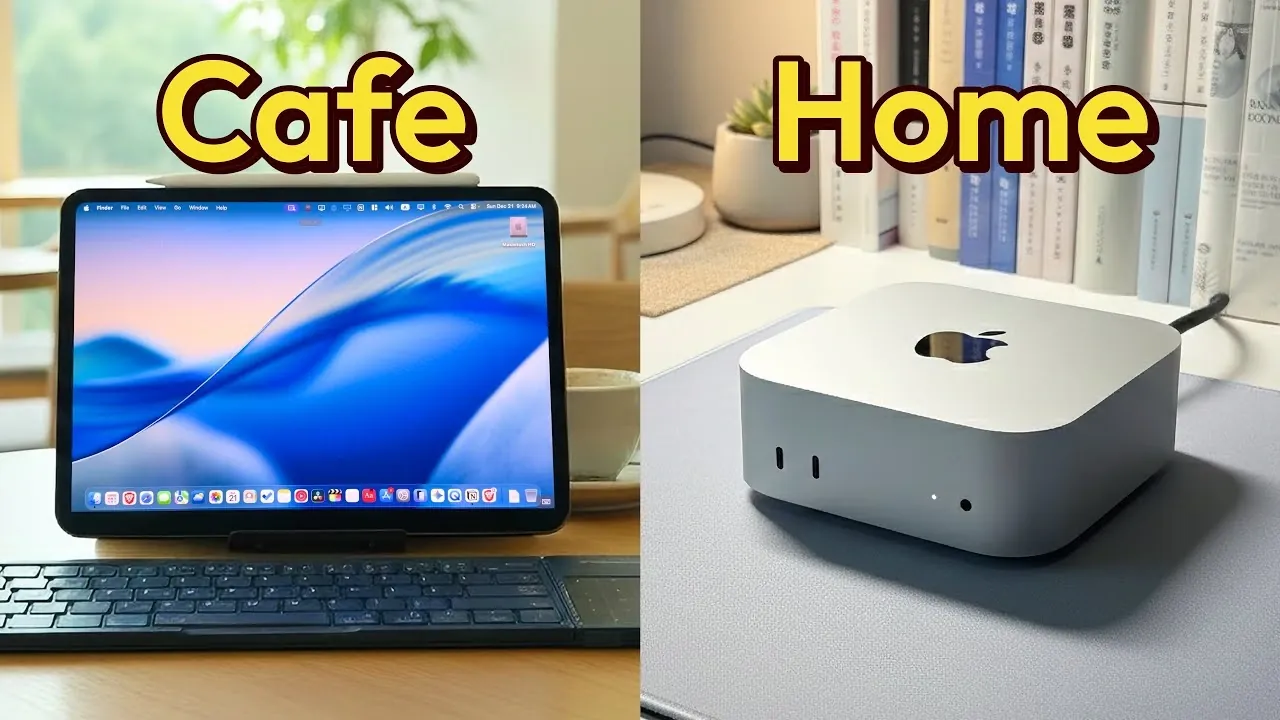
Setting up a headless Mac Mini for use with an iPad enables you to run macOS without a dedicated monitor, making it a versatile option for compact workspaces. Below Leo Ouyang, explains one way to do it with Jump Desktop which allows you to remotely control the Mac Mini directly from your iPad. However, the initial setup may require a temporary connection to a monitor or HDMI capture card to enable remote access before transitioning to a fully headless configuration. There are also many other remote access apps available, such as Splashtop, AnyDesk and many more if Jump Desktop is not for you,
Learn how to configure Jump Desktop for remote operation, adjust display settings with BetterDisplay and secure your sessions by locking the Mac screen. This how-to guide also explains how to prevent interruptions by disabling sleep mode and preparing for potential power outages, making sure reliable performance for your macOS setup.
Headless Mac Mini Setup Guide 2026
TL;DR Key Takeaways :
- Transform your iPad into a macOS workstation by setting up a headless Mac Mini and using the Jump Desktop app for remote access.
- Optimize display quality with tools like BetterDisplay to enhance resolution and scaling for a crisp macOS experience on your iPad.
- Implement security measures such as allowing Jump Desktop’s “Lock Mac Screen” feature and carefully managing FileVault encryption for secure remote access.
- Maintain uninterrupted access by disabling sleep mode, allowing automatic startup after power failures and adding essential apps to login items.
- Boost performance with a wired Ethernet connection and strong internet upload speeds to ensure a smooth and responsive remote working environment.
Preparing Your Devices for Remote Access
To begin, you’ll need to prepare both your Mac Mini and iPad for remote connectivity. This involves installing the necessary software and completing the initial configuration. Follow these steps:
- Download and install the Jump Desktop app on your iPad. This app is available for a one-time purchase of $15 and serves as the primary tool for remote access.
- On your Mac Mini, install Jump Desktop Connect, which enables the remote connection between your devices.
During the initial setup, you may need a physical monitor or an HDMI capture card to configure the Mac Mini. Once this step is complete, the Mac Mini can operate without a monitor, thanks to Jump Desktop’s virtual screen technology. This setup allows you to control your Mac Mini entirely through your iPad, creating a portable and efficient workstation.
Enhancing Display Quality for Optimal Use
When using a headless Mac Mini, optimizing the display settings is crucial for a smooth and visually appealing experience. Jump Desktop’s virtual screen feature eliminates the need for a physical monitor by creating a virtual display. To further improve the display quality:
- Install the BetterDisplay app, which is available in a free version. This tool allows you to adjust resolution settings, eliminate letterboxing and enable retina resolution for sharper visuals.
- Fine-tune the resolution and scaling settings to ensure macOS content is displayed clearly on your iPad. This is particularly important for tasks that require high-quality visuals, such as graphic design or video editing.
These adjustments ensure that your iPad delivers a crisp and responsive macOS experience, making it easier to work efficiently on a smaller screen.
Remote Access Your Mac From Your iPad Using Jump
Learn more about macOS by reading our previous articles, guides and features :
Implementing Security Measures
Remote access introduces potential security vulnerabilities, making it essential to safeguard your setup. Protecting your Mac Mini while maintaining usability requires a few key steps:
- Enable Jump Desktop’s “Lock Mac Screen” feature to prevent unauthorized access during remote sessions. This ensures that your Mac Mini remains secure even when accessed remotely.
- Evaluate whether to disable FileVault encryption. While disabling FileVault can simplify access after restarts, it may reduce the overall security of your system. Consider your specific needs before making this decision.
By implementing these measures, you can create a secure remote desktop environment that balances convenience with protection.
Maintaining Uninterrupted Access
To ensure consistent access to your Mac Mini, you’ll need to prevent it from entering sleep mode and prepare for potential power interruptions. Follow these steps to maintain uninterrupted operation:
- Disable sleep mode in macOS settings or use third-party tools like Amphetamine. This app provides advanced options to keep your Mac Mini awake during remote sessions, even under specific conditions.
- Enable the “Startup Automatically After a Power Failure” option in system settings. This ensures that your Mac Mini restarts automatically after a power outage, minimizing downtime.
- Add essential apps, such as Jump Desktop Connect, BetterDisplay and Amphetamine, to your login items. This ensures these tools launch automatically after restarts, maintaining your setup’s functionality.
These steps help you avoid disruptions and ensure that your Mac Mini remains accessible whenever you need it.
Optimizing Performance for a Smooth Experience
For the best remote experience, it’s important to focus on optimizing performance. A few key adjustments can significantly improve the responsiveness and reliability of your setup:
- Use a wired Ethernet connection instead of Wi-Fi. A wired connection provides greater stability and reduces latency, which is especially beneficial for tasks like video editing or coding that require real-time responsiveness.
- Ensure your internet connection has a strong upload speed. A higher upload speed directly impacts the quality of the remote session, reducing lag and improving image clarity.
By prioritizing these performance enhancements, you can create a seamless and efficient remote working environment, even for demanding tasks.
Maximizing the Potential of Your Setup
Setting up a headless Mac Mini for remote access via your iPad is a practical and innovative way to harness the power of macOS on a portable device. By following this guide, you can configure Jump Desktop, optimize display settings, secure your setup and maintain peak performance. With the right tools and adjustments, your iPad becomes a versatile workstation, allowing productivity and flexibility wherever you go.
Media Credit: Leo Ouyang
Filed Under: Apple, Guides
Disclosure: Some of our articles include affiliate links. If you buy something through one of these links, Geeky Gadgets may earn an affiliate commission. Learn about our Disclosure Policy.
Credit: Source link