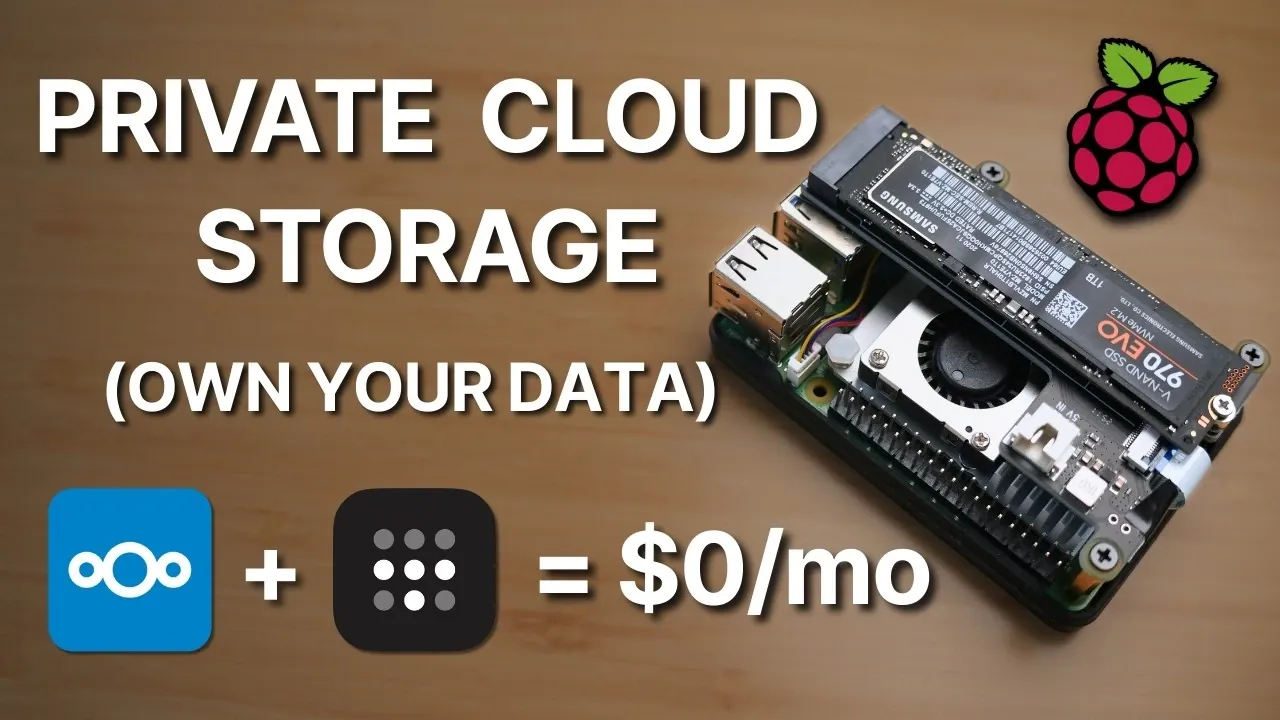
What if you could access all your files from anywhere in the world, without relying on third-party services or paying endless subscription fees? Below, Enrique Neyra takes you through how a Raspberry Pi 5, paired with NextCloud and TailScale, can transform into your very own private cloud storage system. Imagine having complete control over your data, no longer worrying about privacy breaches or service outages. This setup isn’t just about convenience, it’s about reclaiming ownership of your digital life in a way that’s secure, cost-effective, and surprisingly easy to achieve.
In this deep dive, you’ll discover how to assemble and configure a Raspberry Pi 5 to serve as the backbone of your personal cloud. From integrating blazing-fast NVMe storage to allowing secure remote access with TailScale, every step is designed to ensure seamless performance and peace of mind. Whether you’re a tech enthusiast or someone simply tired of the limitations of commercial cloud services, this guide offers a flexible and customizable solution. By the end, you’ll not only have a powerful system at your fingertips but also a newfound appreciation for what’s possible with a little ingenuity and the right setup.
DIY Private Cloud Storage
TL;DR Key Takeaways :
- Build a private cloud storage system using Raspberry Pi 5, NextCloud, and TailScale for secure, subscription-free access to your data.
- Key hardware components include a Raspberry Pi 5, NVMe drive, cooling fan, and power supply, making sure optimal performance and reliability.
- NextCloud enables file synchronization, sharing, and management across devices, while maintaining full data ownership and privacy.
- TailScale provides secure, encrypted remote access to your cloud storage without exposing it to the public internet.
- This setup is cost-effective, customizable, and ensures privacy by storing data locally, avoiding third-party servers.
Building your own cloud storage system offers significant advantages over commercial services. By using a Raspberry Pi 5, you gain complete control over your data, eliminating the need for recurring subscription fees. This setup ensures your files remain private and secure, as they are stored locally rather than on third-party servers. Additionally, the system supports file synchronization across multiple devices, allowing you to access your data through a web dashboard or directly within your device’s file system. Whether for personal or professional use, this solution provides flexibility, security, and cost savings.
What You’ll Need
To get started, gather the following hardware components for your Raspberry Pi 5 cloud storage setup:
- Raspberry Pi 5: The 4GB model is recommended for optimal performance, but higher RAM models can be used for more demanding tasks.
- Active cooling fan: Keeps the Raspberry Pi at a safe operating temperature during intensive operations.
- Micro SD card: Used for the initial operating system installation.
- M.2 NVMe drive: Provides fast and reliable storage for your cloud system.
- Pi 5 NVMe hat: Connects the NVMe drive to the Raspberry Pi for seamless integration.
- Bumper case (optional): Protects the Raspberry Pi from physical damage.
- 27W USB-C power supply: Ensures stable power delivery for consistent performance.
Build Your Own Private Pi 5 Cloud Storage
Here are additional guides from our expansive article library that you may find useful on Raspberry Pi 5.
1: Assemble the Hardware
Begin by assembling the hardware components to prepare your Raspberry Pi 5 for cloud storage tasks:
- Attach the active cooling fan to the Raspberry Pi to prevent overheating during operation.
- Optionally, install the bumper case to protect the board from physical damage.
- Connect the NVMe hat to the Raspberry Pi using the included ribbon cable.
- Secure the NVMe drive to the hat, making sure a stable and reliable connection.
This assembly process ensures your Raspberry Pi is ready for high-performance tasks, such as file synchronization and remote access.
2: Prepare the Software
Once the hardware is assembled, set up the Raspberry Pi’s operating system:
- Download and install Raspberry Pi imaging software on your computer.
- Use the imaging software to install the Raspberry Pi OS onto the micro SD card.
- During the setup process, configure the hostname, time zone, Wi-Fi credentials, and enable SSH for remote access.
- Insert the micro SD card into the Raspberry Pi, power it on, and connect to it via SSH from your computer.
This step establishes the foundation for your private cloud storage system, allowing further customization and configuration.
3: Migrate to NVMe Storage
To enhance performance and reliability, transfer the operating system from the micro SD card to the NVMe drive:
- Install the RPI Clone tool on your Raspberry Pi to copy the OS to the NVMe drive.
- Update the boot order in the Raspberry Pi’s configuration to prioritize the NVMe drive.
Migrating to NVMe storage significantly improves the speed and durability of your setup, making sure smooth operation even during intensive tasks.
4: Install NextCloud
NextCloud serves as the backbone of your private cloud storage system:
- Install NextCloud using Snap package management for a streamlined setup process.
- Access the NextCloud web dashboard through your browser to configure file management, user accounts, and synchronization settings.
With NextCloud, you can organize, share, and synchronize files across your devices while maintaining full ownership and control over your data.
5: Enable Secure Remote Access with TailScale
TailScale ensures secure and encrypted remote access to your cloud storage system:
- Install TailScale on your Raspberry Pi to create a private, encrypted network between your devices.
- Authenticate the Raspberry Pi with your TailScale account and configure it for seamless connectivity.
This step allows you to access your cloud storage securely from anywhere, without exposing it to the public internet.
6: Test and Integrate
After completing the setup, test and integrate your system to ensure it functions as intended:
- Link NextCloud with TailScale to enable secure file access and synchronization.
- Install the NextCloud and TailScale apps on your devices, including Windows, macOS, Android, and iOS.
- Test file synchronization to confirm that all devices can access and share files seamlessly.
Testing ensures your private cloud storage system is fully operational and ready for everyday use.
Key Benefits of This Setup
This Raspberry Pi 5-based cloud storage solution offers several compelling benefits:
- Data Ownership: You retain full control over your files, making sure they remain private and secure.
- Cost-Effective: Avoid recurring subscription fees, making it an affordable long-term solution.
- Privacy and Security: Your data is stored locally and accessed only by you, reducing the risk of breaches.
- Device Integration: Synchronize and manage files across all your devices effortlessly.
- Customizability: Tailor the system to your specific needs, from storage capacity to user permissions.
Media Credit: Enrique Neyra
Filed Under: Guides
Disclosure: Some of our articles include affiliate links. If you buy something through one of these links, Geeky Gadgets may earn an affiliate commission. Learn about our Disclosure Policy.
Credit: Source link