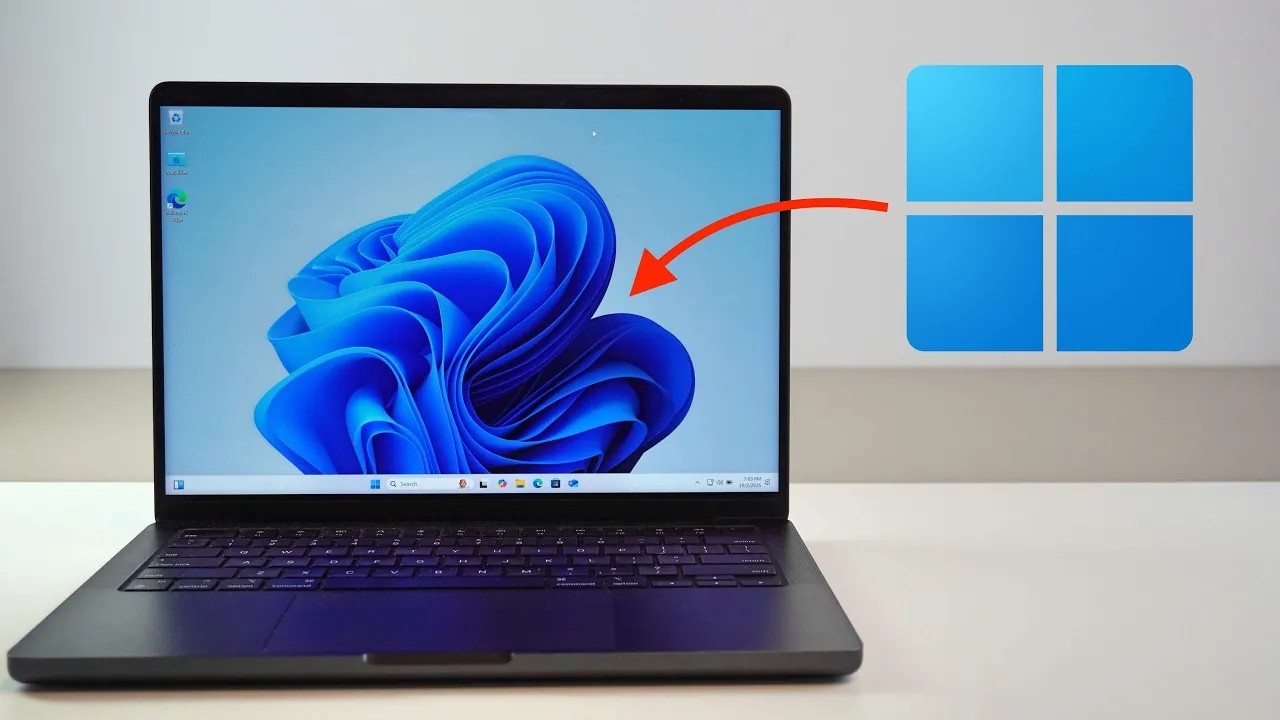
Running Windows 11 on a Mac equipped with Apple Silicon has become a practical and accessible solution, thanks to advanced virtualization tools like Parallels Desktop. Whether your Mac features an M1, M2, or newer chip, this guide provides a clear pathway to installing and operating Windows 11 alongside macOS, including the latest macOS Tahoe. By following the steps in the video below from Daniel About Tech, you can unlock the flexibility of dual operating systems on a single device, enhancing productivity and versatility.

Why Apple Silicon Requires Virtualization
Apple’s transition to its custom Silicon chips has transformed Mac performance, delivering faster processing speeds and improved energy efficiency. However, this shift has also introduced a significant limitation: the inability to run Windows natively. Unlike Intel-based Macs, Apple Silicon devices no longer support Boot Camp, which previously allowed users to install Windows directly on their machines.
Virtualization has emerged as the most effective solution to this challenge. Tools like Parallels Desktop enable you to create a virtual machine (VM) that operates independently of macOS. This approach ensures that you can run Windows 11 on ARM-based Macs without sacrificing performance or functionality. By using the power of Apple Silicon, virtualization offers a seamless and efficient way to access Windows-exclusive applications while maintaining the benefits of macOS.
What Makes Parallels Desktop the Best Option?
Parallels Desktop stands out as the leading virtualization software for running Windows 11 on Apple Silicon Macs. Its design prioritizes ease of use, performance optimization, and compatibility with the latest technologies. Unlike older methods such as Boot Camp, Parallels Desktop eliminates the need to reboot your system, allowing you to switch effortlessly between macOS and Windows environments.
Key advantages of using Parallels Desktop include:
- Seamless integration: Switch between macOS and Windows 11 without restarting your Mac.
- Optimized performance: Fully uses the power of Apple Silicon’s ARM-based architecture for smooth operation.
- Compatibility: Supports the latest macOS versions, including macOS Tahoe, ensuring a consistent user experience.
These features make Parallels Desktop an ideal choice for professionals, students, and casual users who need access to both operating systems on a single device.
Step-by-Step Guide to Installing Windows 11
Setting up Windows 11 on your Mac using Parallels Desktop is a straightforward process. Follow these steps to get started:
- Download Parallels Desktop: Visit the official Parallels website and download the software. Install it on your Mac by following the on-screen instructions.
- Create a Virtual Machine: Open Parallels Desktop and select the option to create a new virtual machine. The software will guide you through the setup process.
- Install Windows 11: Parallels Desktop simplifies this step by automatically downloading a licensed version of Windows 11 optimized for ARM-based processors.
- Configure Settings: Complete the installation by adjusting settings such as resource allocation and performance preferences. Parallels Desktop includes automatic optimizations to ensure a smooth experience.
This user-friendly process requires minimal technical expertise, making it accessible to a wide range of users.
Performance and Usability
Windows 11 performs exceptionally well on Apple Silicon Macs, thanks to the efficiency of Parallels Desktop and the advanced capabilities of M-series chips. Users can expect a high level of performance, including:
- Fast boot times: Windows 11 launches quickly, ensuring minimal delays when switching between operating systems.
- Responsive applications: Run Windows-only software with the same fluidity as native macOS applications.
- Seamless multitasking: Work across macOS and Windows environments without interruptions or slowdowns.
This makes Parallels Desktop an excellent solution for professionals who rely on Windows-exclusive tools, such as developers, designers, and business users, while still benefiting from the macOS ecosystem.
Licensing and Free Trial Options
Parallels Desktop offers a 14-day free trial, allowing you to explore its features and evaluate its performance before making a purchase. After the trial period, you can choose from several licensing plans tailored to different needs, including personal, professional, and business use.
Additionally, Windows 11 is officially supported on Parallels Desktop, ensuring compliance with Microsoft’s licensing requirements. This guarantees a secure and reliable experience, whether you’re using Windows for work, study, or personal projects.
Power and Resource Management
Running a virtual machine can be resource-intensive, so it’s important to manage your Mac’s power and system resources effectively. While Apple Silicon chips are known for their energy efficiency, the following tips can help optimize your experience:
- Keep your Mac charged: Connect your device to a power source during extended use to prevent battery drain.
- Monitor system performance: Close unnecessary applications to free up memory and processing power for the virtual machine.
- Adjust resource allocation: Use Parallels Desktop’s settings to allocate CPU and RAM based on your usage needs.
By following these recommendations, you can ensure a smooth and efficient experience when running Windows 11 on your Mac.
Maximizing Productivity with Dual Operating Systems
Parallels Desktop transforms your Apple Silicon Mac into a versatile tool capable of running both macOS and Windows 11. This dual-operating system setup is particularly beneficial for users who need access to Windows-exclusive applications while maintaining the familiarity and functionality of macOS. Whether you’re a developer testing cross-platform software, a designer using Windows-based tools, or a student accessing specialized programs, this solution offers unparalleled flexibility.
With its seamless integration, optimized performance, and user-friendly installation process, Parallels Desktop enables you to work across platforms without compromise. By using the power of Apple Silicon and the capabilities of Windows 11, you can maximize productivity and achieve more with your Mac.
Uncover more insights about Apple Silicon in the previous articles we have written.
Source & Image Credit: Daniel About Tech
Filed Under: Apple, Guides, Laptops
Latest Geeky Gadgets Deals
Disclosure: Some of our articles include affiliate links. If you buy something through one of these links, Geeky Gadgets may earn an affiliate commission. Learn about our Disclosure Policy.
Credit: Source link