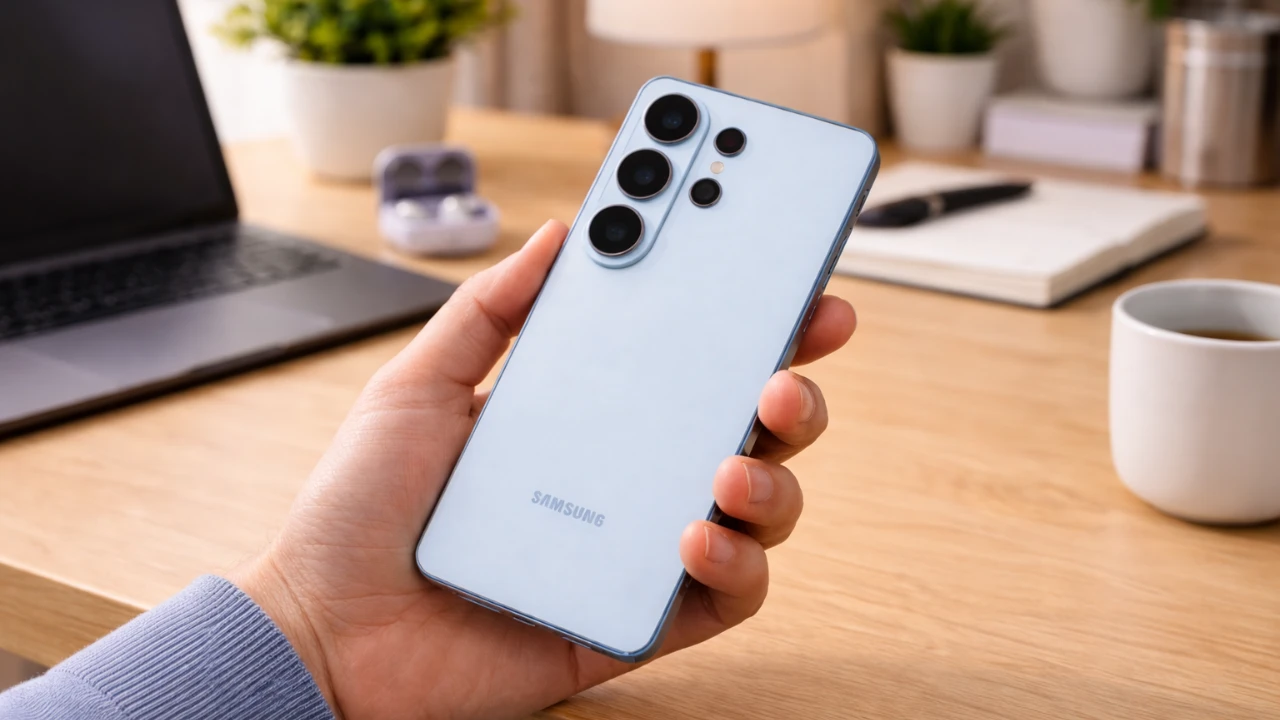
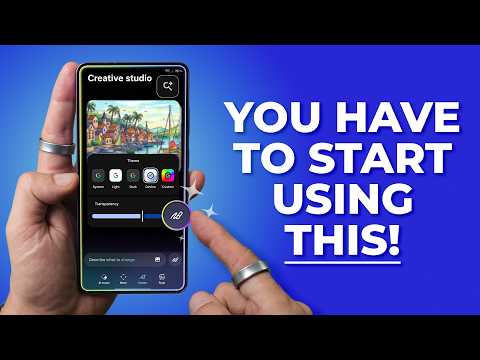
Customizing your Samsung Galaxy S26 is more than just a way to personalize your device; it’s an opportunity to enhance its functionality and make it uniquely yours. Samsung provides a wide range of tools and features that allow you to tailor your smartphone to your preferences. From visual upgrades to practical optimizations, here are 17 detailed tips to help you unlock the full potential of your Galaxy S26. The video below from WhatGear gives us a range of tips for the new Samsung Galaxy S26 series.
1. Transform Your Wallpaper
Your wallpaper sets the tone for your device’s overall aesthetic. With the Creative Studio app, you can create or remix wallpapers using AI-powered tools. Experiment with effects like blur, grayscale, or vibrant color overlays to suit your style.
For a more dynamic experience, opt for wallpapers that change throughout the day based on the time or weather. These interactive backgrounds not only enhance the visual appeal of your phone but also keep it engaging and fresh.
2. Personalize Your Lock Screen
The lock screen is one of the first things you see, making it a prime area for customization. Adjust the clock style, size and position to complement your chosen wallpaper. Add up to four widgets, such as weather updates, a voice recorder, or calendar events, for quick access to essential tools.
Replace default shortcuts like the phone or camera with apps you use more frequently. For added flair, enable dynamic weather effects to reflect real-time conditions, bringing a touch of realism to your lock screen.
3. Optimize Your Home Screen
A well-organized home screen improves both usability and aesthetics. Adjust the grid layout to fit more apps and widgets without overcrowding. For a minimalist look, hide app labels to reduce visual clutter.
Take advantage of widget stacks, which allow you to layer multiple widgets in the same space. Swipe through them as needed to access key information while maintaining a clean and organized layout.
4. Customize Your Color Palette and App Icons
Samsung’s color palette feature enables you to create a cohesive theme across your device. Match the palette to your wallpaper or experiment with two-tone and solid color options for app icons. This ensures a polished and unified appearance for your home screen.
5. Enhance Folder Organization
Folders are essential for keeping your apps organized. Samsung allows you to resize folders, making them larger for easier access. Rename folders for clarity and use color-coding to quickly identify categories. These small adjustments can significantly streamline navigation and improve efficiency.
6. Manage Notifications Effectively
Notifications can easily become overwhelming if not managed properly. Use the snooze feature to temporarily mute alerts for up to two hours, helping you stay focused during work or important tasks.
Additionally, customize notification settings for individual apps to prioritize what matters most and minimize distractions.
7. Use Edge Panels
Edge panels are a powerful multitasking tool that can be tailored to your needs. Add frequently used apps, clipboard history, or functional tools like a compass, surface level, or SOS flashlight. With a simple swipe, you can access these features without navigating through multiple menus.
8. Tailor the Google Search Bar
The Google search bar on your home screen is more than just a utility, it’s another opportunity for customization. Adjust its color, transparency and shortcuts to align with your overall theme. For added functionality, include an AI mode shortcut for quick access to smart features.
9. Customize Call Displays and Backgrounds
Incoming calls don’t have to be dull. Choose between small pop-up, mini pop-up, or full-screen layouts for call notifications. You can also set custom call backgrounds using images or videos, adding a personal touch to every call.
10. Unlock Advanced Features
The Galaxy S26 is equipped with advanced tools to enhance your experience. Remap the side button to launch apps like Wallet or the camera instantly. Enable the “Now Bar” on your lock screen for live updates on sports, news, or other interests.
For seamless sharing, customize contact profile cards with QR codes. You can also adjust widget opacity and background shapes to refine your home screen’s appearance.
11. Experiment with Stylish Widgets
Widgets are a great way to combine style and functionality. Try modern-looking widgets like Google Clock or Samsung Weather, which not only provide useful information but also elevate your phone’s design.
12. Save Space with Widget Stacks
Widget stacks allow you to layer multiple widgets in the same space. Swipe through them to access different tools or information without cluttering your home screen. This feature is especially useful for maintaining a clean and organized layout.
13. Use Advanced Edge Panel Tools
Beyond basic apps, edge panels can house advanced tools like a compass, surface level, or SOS flashlight. These features add versatility to your phone, making it more practical for everyday use.
14. Adjust Lock Screen Shortcuts
Replace default lock screen shortcuts with apps that better suit your needs. For example, swap out the camera shortcut for a note-taking app or music player, depending on your preferences.
15. Enable Dynamic Weather Effects
Dynamic weather effects bring your lock screen to life by reflecting real-time conditions. Whether it’s sunny, rainy, or snowy, your phone’s display will mirror the environment, adding a touch of realism and interactivity.
16. Refine Contact Sharing
Simplify the process of sharing contact information by customizing profile cards with QR codes. This feature allows others to scan your code and instantly save your details, making it a convenient and efficient option.
17. Explore Advanced Call Backgrounds
Set unique call backgrounds using images or videos to make incoming calls more visually appealing. This feature adds a personal touch and ensures your phone stands out from the crowd.
Elevate Your Galaxy S26 Experience
By implementing these 17 tips, you can transform your Samsung Galaxy S26 into a device that is both functional and stylish. Whether you prioritize aesthetics, productivity, or a combination of both, these customization options allow you to create a smartphone experience that truly reflects your personality. With just a few adjustments, your Galaxy S26 will not only look polished but also operate at peak efficiency, making it a device that works seamlessly for you.
Source & Image Credit: WhatGear
Filed Under: Android News, Mobile Phone News, Top News
Disclosure: Some of our articles include affiliate links. If you buy something through one of these links, Geeky Gadgets may earn an affiliate commission. Learn about our Disclosure Policy.
Credit: Source link