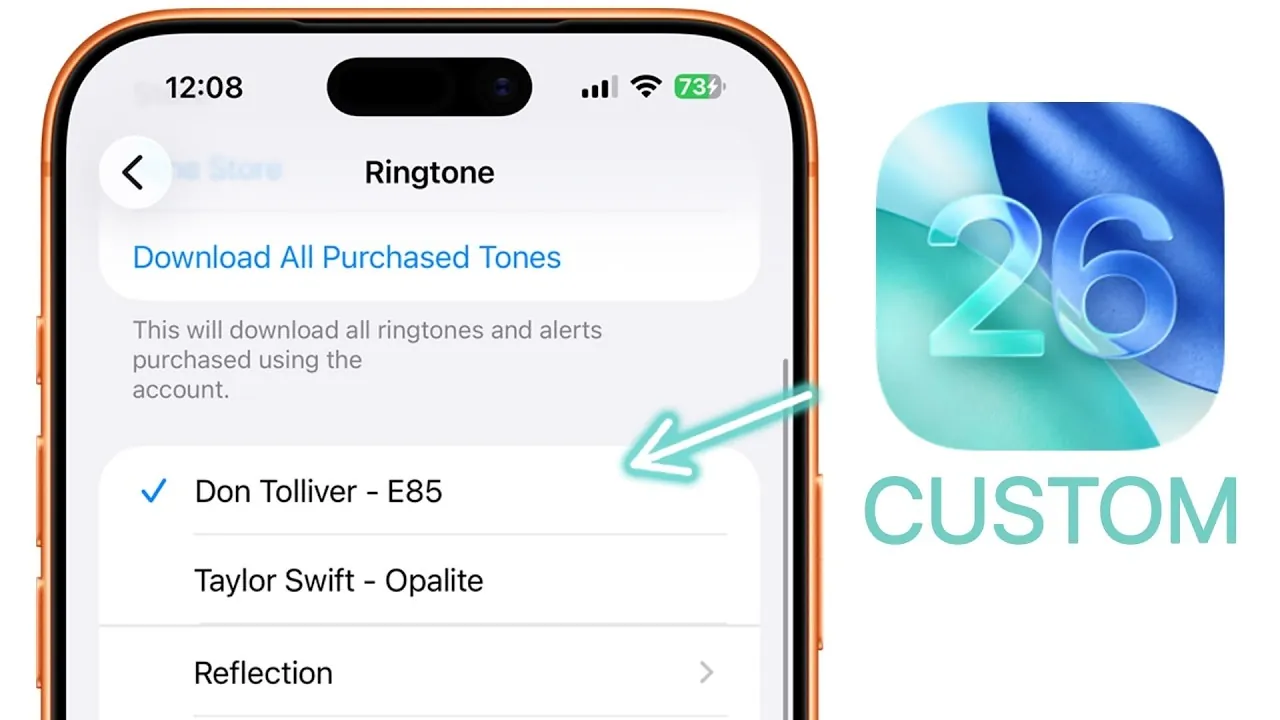
With the release of iOS 26, Apple has introduced a highly anticipated feature that simplifies the process of creating custom ringtones directly on your iPhone. By using the enhanced functionality of the Shortcuts app and the Files app, you can now transform audio files or screen recordings into personalized ringtones without relying on third-party apps or GarageBand. This guide provides a detailed walkthrough to help you customize your ringtone effortlessly. The video below from Brandon Butch shows us how this is done.

What’s New in iOS 26: Simplified Ringtone Creation
The latest iOS update introduces a more intuitive way to set custom ringtones. The Files app now includes a built-in “Use as Ringtone” option, eliminating the need for complex tools or external software. Previously, creating a custom ringtone required navigating through GarageBand or downloading third-party apps, which could be time-consuming and cumbersome. With iOS 26, the process has been streamlined, making it accessible to all users, regardless of technical expertise.
Step-by-Step Guide to Creating a Custom Ringtone
Setting a custom ringtone is now easier than ever. Follow these steps to turn any song or sound into your iPhone ringtone:
- Download or Record the Audio: Identify the audio you want to use as your ringtone. You can download the file directly or use the screen recording feature to capture audio from platforms like YouTube or streaming services.
- Extract the Audio: Open the Shortcuts app and create a shortcut to extract the audio from your screen recording. This converts the video into an audio file that can be used as a ringtone.
- Save and Rename the File: Save the extracted audio file to the Files app. Rename it to make it easier to locate, especially if you plan to create multiple ringtones.
- Set as Ringtone: In the Files app, use the “Use as Ringtone” option to assign the audio file as your ringtone. This completes the process, and your custom ringtone will now be available in your iPhone’s sound settings.
This straightforward method eliminates the need for advanced editing tools, allowing you to personalize your ringtone with minimal effort.
Trimming Audio for a Perfect Ringtone
If you want to use only a specific section of a song or sound, trimming the audio is essential. iOS imposes a 30-second limit for ringtones, so selecting the right segment ensures your ringtone fits within this restriction. You can trim the audio during the screen recording process or after extracting it using the Shortcuts app. This allows you to refine your ringtone to highlight the exact portion of the audio you prefer.
Organizing and Managing Files in the Files App
The Files app serves as the central hub for managing your audio files. After saving your ringtone, you can rename it for better organization and delete any unnecessary files to keep your library clutter-free. This ensures that your custom ringtones are easy to locate and manage, especially if you create multiple tones for different contacts or notifications.
Advanced Editing with GarageBand
For users who require more precise control over their ringtone creation, GarageBand remains a powerful alternative. It offers advanced editing tools, such as the ability to fine-tune audio files, trim recordings with precision, and even add effects. While the new iOS 26 feature simplifies the process for most users, GarageBand provides additional flexibility for those who want to customize their ringtones further. This option is particularly useful if you need to adjust audio quality or create more complex tones.
Considerations and Limitations
While the new iOS 26 feature is highly convenient, there are a few limitations to keep in mind:
- Ringtone Length: Custom ringtones are restricted to a maximum duration of 30 seconds. This limitation ensures compatibility with iOS’s ringtone format but may require trimming longer audio files.
- Audio Quality: Screen recordings may not always provide the highest audio quality. While sufficient for most ringtone purposes, users seeking professional-grade sound may need to source higher-quality audio files.
These limitations are relatively minor compared to the ease and efficiency of the updated process. However, they are worth considering if you have specific requirements for your custom ringtone.
Enhancing Your iPhone Experience
The introduction of direct ringtone creation in iOS 26 marks a significant improvement in user convenience. By using the Shortcuts app and the Files app, you can now create personalized ringtones quickly and efficiently. Whether you want to highlight a favorite song, capture a memorable sound, or assign unique tones to specific contacts, this feature offers a seamless solution. For users who desire more advanced customization, GarageBand remains a valuable tool, but the new iOS 26 functionality ensures that most users can achieve their desired results with minimal effort.
Gain further expertise in iOS 26 ringtone feature by checking out these recommendations.
Source & Image Credit: Brandon Butch
Filed Under: Apple, Apple iPhone, Guides
Disclosure: Some of our articles include affiliate links. If you buy something through one of these links, Geeky Gadgets may earn an affiliate commission. Learn about our Disclosure Policy.
Credit: Source link