Need to access Windows-only software, test apps, or connect to Windows networks remotely? No problem! Easily connect to any Windows system from your Mac with the Windows app for a seamless, secure, and productive experience.
RDP is optimized for smooth connections, but using it between Windows and Mac can cause issues like poor image quality, and high latency. An RDP server from a trusted provider is the solution for a seamless, high-performance Mac to Windows remote experience.
RDP plans, powered by modern hardware, unlimited bandwidth, and root access, offer the perfect solution for seamless Windows Remote Desktop on Mac. With see more details, you can explore RDP servers designed to eliminate performance and connectivity limits, helping you achieve optimal remote access.
In this manner, you can use the Windows app or tools like AnyDesk as a secure, seamless Windows remote desktop client for Mac anytime, anywhere.
Set Up Windows Remote Desktop For Mac
Here’s a quick guide to set up and use Microsoft Remote Desktop on your Mac:
Requirements for remote desktop from Mac to Windows:
- Microsoft Remote Desktop or Windows app
- macOS 10.10+ on Mac
- RDP is enabled on both the Mac and the remote server
- Windows 10/11 Pro/Enterprise or Windows Server 2016-2025 on the RDP server
(Windows Home versions can connect via RDP using tools like RDP Wrapper.)
- Stable internet connection for smooth remote access
- The Windows firewall must allow Mac access to the RDP port
With a reputable RDP provider, just ensure your macOS is compatible and let their team handle the rest for a seamless, secure remote connection.
Setting up Windows RDP for Mac
1. Download and Install Microsoft Remote Desktop on Mac
- Download “Windows” (Microsoft Remote Desktop) from the Mac App Store.
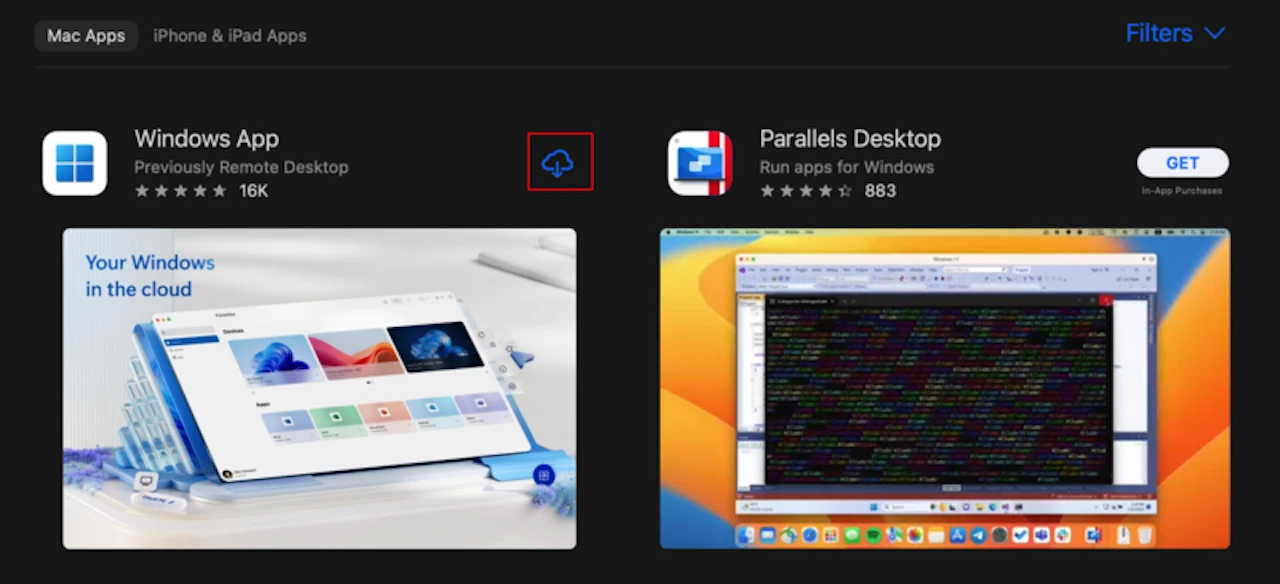
- Install by verifying with your fingerprint or password.
- Open the app, follow the prompts, and complete the setup.

2. Enable remote access
To remotely connect, enable Remote Desktop on Windows:
- Open Settings, click on System, and select Remote Desktop.
- Turn on the Enable Remote Desktop switch and confirm when prompted.
- Ensure the firewall allows remote connections by checking this section:

Settings > Update & Security > Windows Security > Firewall & network protection > Allow an app through firewall

- Ensure the Windows PC is on and connected to the internet. To prevent sleep mode, go to Settings > System > Power & Battery, then adjust the idle settings.

An RDP server is always on and ready, with no need for you to handle setup or configurations.
3. Add the Windows server to the Mac’s Windows app

- Now you need to enter the Windows IP address and login credentials:
To connect remotely:
Run “ipconfig /all” command to get your IPv4 Address.
If using an RDP provider, your connection details are provided.
- Enter the server address in the PC name.
- Select “Add credentials” to save time by entering your username and password once, or choose “Ask when required” for extra security.
- To improve your remote experience, consider customizing settings in the following tabs:

General: Set a friendly name for easier identification
Display: Adjust resolution to fit your screen size.
Devices & Audio: Choose whether to hear Windows sounds on your Mac.
Folders: Select Mac folders for file sharing in the remote session.
- Click “Add” to add a new connection in Remote Desktop Windows for Mac.
4. Connect to the Windows server
- Click the three dots next to the saved desktop and select Connect.
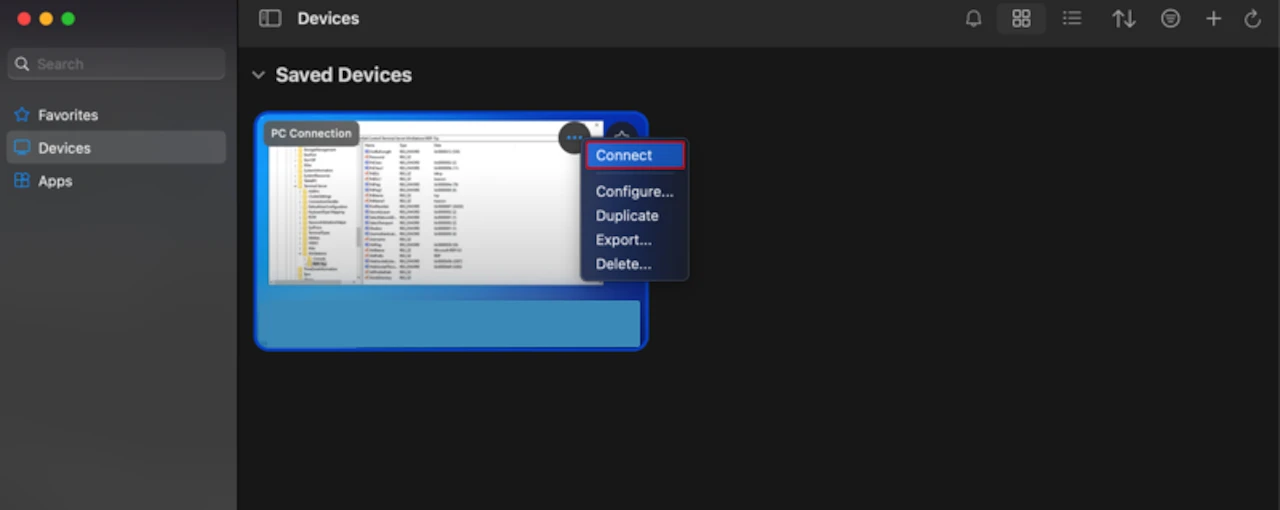
- Enter the account credentials to connect, if required.
Once connected, the Windows desktop will appear on your Mac for full control.
Small Tips for Advanced Users
RDP is secure by default with NLA and strong encryption, but to protect against growing brute-force attacks, enable MFA, use PoLP for user access, and implement a VPN— essential for businesses.
Key Tips to Optimize Windows RDP For Mac
- Choose an optimized RDP server with powerful hardware, unlimited bandwidth, root access, and advanced security (DDoS protection/external firewall) for a smooth, lag-free remote experience.
- For personal Windows, disable Sleep Mode—RDP stays on automatically.
- Always keep the Windows app up to date to enjoy new features and avoid security risks.
- Disable “Start session in full screen” to manually adjust the screen size, optimizing performance and resolution based on your Mac’s capabilities.
- Check “Fit session to window” in the Display settings to prevent image stretching or clipping and ensure optimal clarity.
- Add frequently used Mac folders to the Windows app’s Folders for quick access in File Explorer without repeated transfers.
- Wired Ethernet offers a faster, more stable connection with lower latency.
- Use a 5GHz Wi-Fi network instead of 2.4GHz to reduce interference and improve performance.
- Enable “Use all monitors” in Display settings to extend the Windows desktop across all your Mac’s monitors for smoother multitasking.
- Add the Gateway in the General section using your admin’s details to connect to virtual desktops.
- Keep your Mac and Windows server updated for security and optimal performance.
Alternatives to Windows RDP Client For Mac

AnyDesk
- Easy file transfer
- Low-latency DeskRT codec
- Customizable for any IT admin
- Collaboration tools: session invites, screen recording, chat, whiteboard
- Security features: privacy mode, 2FA, permissions, whitelist
AnyDesk users cite poor performance, security risks, and lack of transparency. The free version offers just the basics, pushing users to more reliable solutions like RDP.
TeamViewer
- Troubleshoot remote support with CoPilot AI
- Automate routine tasks using predefined scripts
- Collaborate in multi-user support sessions
- Secure unattended access
- Security features: 2FA, biometric protection, brute-force protection
The complexity of TeamViewer’s latest version has led many users to favor simpler, more user-friendly options, such as Windows Remote Desktop.
HelpWire
- Free and lightweight
- On-demand & unattended remote access
- Simultaneous multi-workstation access
- Seamless chat synchronization
- Security features: AWS infrastructure, TLS/SSL/AES encryption, trusted authentication
HelpWire lacks strong, continuous support, while RDP offers Microsoft’s robust support for greater stability and security.
User Reviews of Remote Desktop Windows For Mac
Rated 4.7/5 from 16k reviews on the App Store:
✔️Users are satisfied with Microsoft’s Remote Desktop app for Mac due to its ease of use, free availability, and consistent performance, backed by regular updates from a professional team.
❌Dissatisfaction stems from stability issues and random disconnections, especially during long and heavy tasks. Users also note that the new interface makes account switching more difficult, leading to file errors and disconnects.
To address issues such as slow connections, weak security, and unstable performance, opt for an RDP server from a reputable provider. This ensures an excellent Windows Remote Desktop for Mac with expert support and regular updates.
Conclusion
With the Windows RDP client for Mac, effortlessly connect to your desired Windows server and access Windows-only applications or corporate networks—securely and smoothly. Installing the Windows app is simple, but optimization is needed for a personalized experience. If you’re facing OS issues, customization challenges, or an unreliable server, an optimized RDP server will keep your work smooth and focused.
Filed Under: Guides
Latest Geeky Gadgets Deals
Disclosure: Some of our articles include affiliate links. If you buy something through one of these links, Geeky Gadgets may earn an affiliate commission. Learn about our Disclosure Policy.
Credit: Source link