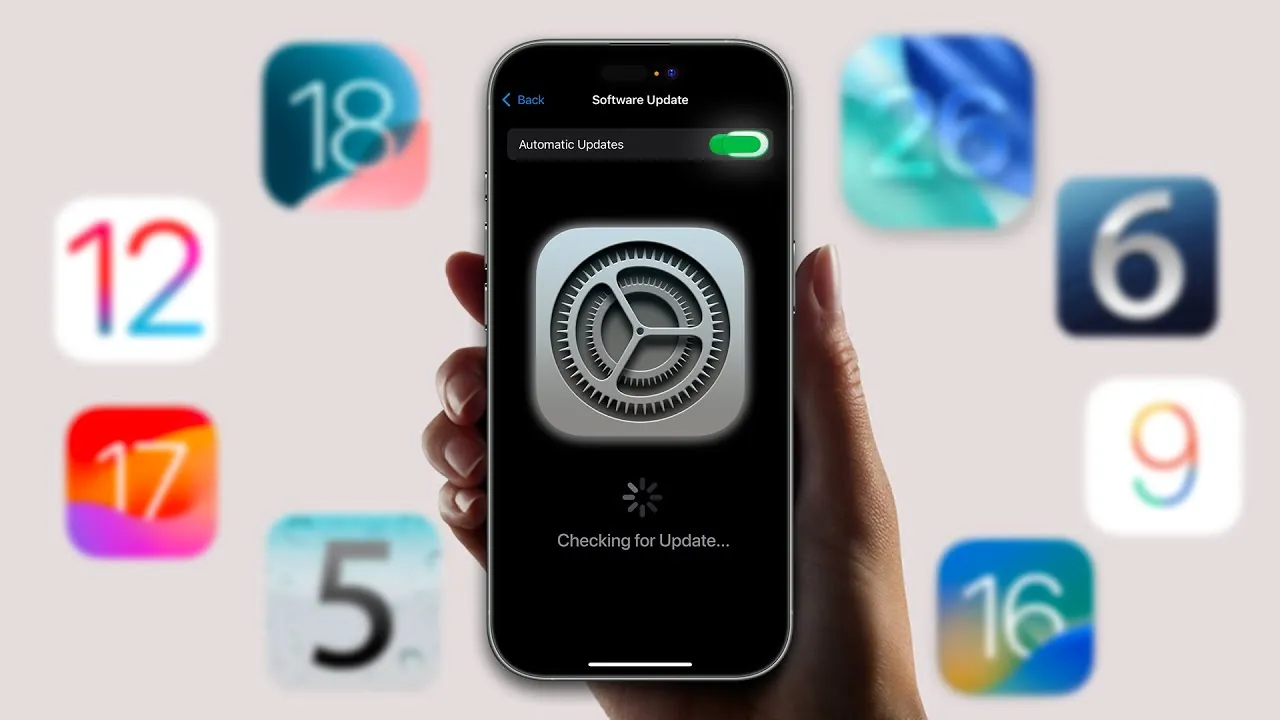
Updating your iPhone to the latest iOS version can provide access to new features, improve security, and enhance overall performance. However, jumping into an update without adequate preparation can lead to issues such as data loss, installation errors, or reduced device functionality. To ensure a smooth and trouble-free update process, follow these seven essential steps in the video below from AppleDsign.

1. Verify Device Compatibility
Before initiating an iOS update, it is crucial to confirm that your iPhone is compatible with the latest version. Apple releases a list of supported devices with every iOS update, which can be found on their official website. If your device is not included in the list, the update will not be available. Skipping this step could lead to unnecessary frustration or wasted time. Making sure compatibility helps you avoid potential disappointment and allows you to plan accordingly.
2. Free Up Storage Space
iOS updates often require a significant amount of free storage space to install successfully. To prevent installation errors, check your device’s available storage by navigating to “Settings > General > iPhone Storage.” If space is limited, take steps to clear unnecessary files.
- Delete unused apps: Identify and remove apps you no longer use.
- Organize media files: Delete duplicate photos, large videos, or files you no longer need.
- Enable Offload Unused Apps: This feature temporarily removes unused apps while retaining their data, freeing up space without losing important information.
By making sure adequate storage, you can avoid interruptions during the update process and maintain your device’s performance.
3. Check Battery Health
The condition of your iPhone’s battery plays a significant role in its performance after an update. To check your battery’s health, go to “Settings > Battery > Battery Health.” If the maximum capacity is below 80-75%, it may be time to replace the battery. A degraded battery can lead to unexpected shutdowns or sluggish performance when running the new iOS. Addressing battery health issues beforehand ensures your device operates smoothly after the update.
4. Update All Apps
Outdated apps can cause compatibility issues with the latest iOS version. To avoid app crashes or limited functionality, open the App Store and update all installed apps to their latest versions. Developers frequently release updates to align with new iOS features and ensure optimal performance. Taking this step ensures that your apps work seamlessly with the updated operating system, allowing you to enjoy a consistent user experience.
5. Back Up Your Data
Backing up your iPhone is a critical step to safeguard your data in case something goes wrong during the update process. You have two primary backup options:
- iCloud Backup: Enable automatic backups by navigating to “Settings > [Your Name] > iCloud > iCloud Backup.” Ensure your device is connected to Wi-Fi for this process.
- Manual Backup: Connect your iPhone to a Mac or PC and use Finder (macOS) or iTunes (Windows) to create a full backup of your device.
This precaution ensures that your photos, messages, and app data remain secure, even if unexpected issues arise during the update.
6. Remove Unused Profiles
Outdated configuration profiles, beta profiles, or VPN settings can interfere with the iOS update process. To prevent potential complications, go to “Settings > General > VPN & Device Management” and delete any profiles you no longer use. Removing these profiles ensures a smoother installation process and reduces the risk of errors during the update.
7. Choose the Right Time for the Update
Timing is an important factor when updating your iPhone. Plan to perform the update during a period when you do not need your device for a few hours, as the process can take time. Ensure your phone is connected to a stable Wi-Fi network and has at least 50% battery life. For added security, keep your device plugged into a charger throughout the update. By choosing the right time, you can minimize disruptions and ensure the update completes without interruptions.
Final Thoughts
Preparing for an iOS update requires careful planning and attention to detail. By verifying compatibility, freeing up storage, checking battery health, updating apps, and backing up your data, you can avoid common pitfalls and ensure a seamless transition to the latest iOS version. Additionally, removing unused profiles and selecting the right time for the update further enhances the process. These steps not only protect your data but also optimize your device’s performance, allowing you to fully enjoy the benefits of the new iOS without unnecessary disruptions.
Here are additional guides from our expansive article library that you may find useful on iOS Update Preparation.
Source & Image Credit: AppleDsign
Filed Under: Apple, Apple iPhone, Guides, Top News
Latest Geeky Gadgets Deals
Disclosure: Some of our articles include affiliate links. If you buy something through one of these links, Geeky Gadgets may earn an affiliate commission. Learn about our Disclosure Policy.
Credit: Source link