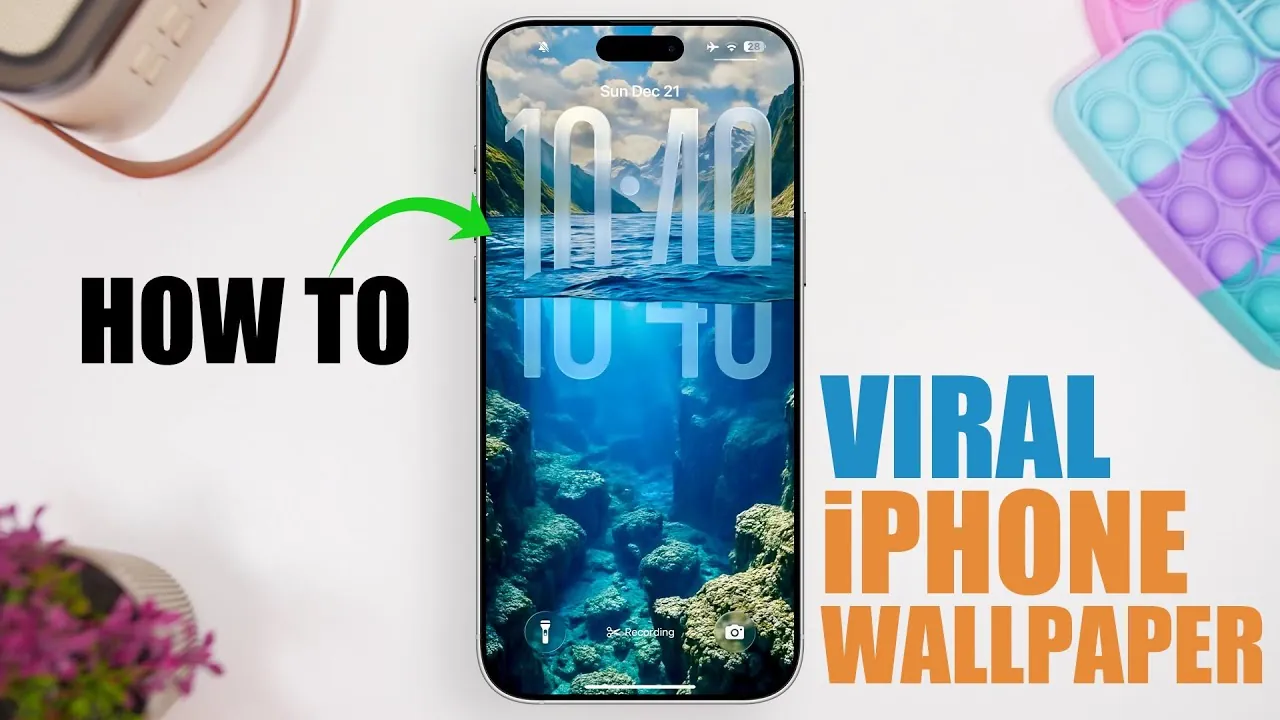
The release of iOS 26 has introduced a new level of lock screen customization, captivating users with its innovative features. Among these, the depth effect and underwater clock design have gained significant popularity, creating a visually striking and dynamic lock screen experience. The video below from iReviews will walk you through the steps to recreate this viral look, showcasing the advanced customization options available on iOS 26. By following these instructions, you can design a lock screen that not only reflects your personal style but also highlights the full potential of your iPhone.

What Makes the Viral Lock Screen Stand Out?
The viral lock screen owes its appeal to a combination of innovative visual effects and creative design elements. The depth effect is a standout feature, creating a layered appearance where the clock and other elements appear to interact seamlessly with the wallpaper. This effect adds a sense of realism and dimension, making your lock screen feel alive.
When paired with the spatial scene feature, the depth effect becomes even more dynamic, introducing subtle motion and perspective shifts as you interact with your device. The underwater clock design further enhances the aesthetic by mimicking the effect of viewing a clock through rippling water, adding an artistic and immersive touch. Together, these features create a lock screen that is both functional and visually captivating.
Step-by-Step Guide to Recreating the Viral Look
To achieve the viral lock screen design, you’ll need to adjust several settings and customize your device. Follow these steps to bring the look to life:
- Enable the Depth Effect: Start by selecting a wallpaper that supports the depth effect. Images with distinct foreground and background elements, such as portraits, landscapes, or abstract designs, work best. Once chosen, activate the depth effect in your lock screen settings to create the layered appearance.
- Turn On the Spatial Scene Feature: Navigate to the spatial scene settings and enable this option. This feature enhances the depth effect by adding motion and perspective, making your lock screen feel more dynamic as you tilt or move your device.
- Customize the Clock: Adjust the clock’s size, color, and position to complement your chosen wallpaper. For the underwater clock effect, select a glass-style clock with a translucent finish to amplify the depth illusion. Alternatively, a bold, solid-color clock can provide a modern and striking contrast.
Choosing the Perfect Clock Style
iOS 26 offers a variety of clock styles, allowing you to tailor your lock screen to your preferences. The glass-style clock is ideal for achieving the underwater effect, as its transparency enhances the layered visuals and creates a sense of depth. On the other hand, the solid-color clock offers a clean and contemporary look, making it a versatile option for a wide range of wallpapers. Experiment with these styles to find the one that best suits your design and enhances the overall aesthetic of your lock screen.
Enhancing Your Lock Screen with the Right Wallpaper
The wallpaper you choose plays a pivotal role in achieving the viral lock screen effect. To maximize the impact of the depth effect, select images with strong contrasts and clearly defined layers. Nature scenes, underwater photographs, and abstract designs are particularly effective choices. Once you’ve selected your wallpaper, align it carefully with the clock and other lock screen elements to create a cohesive and polished design. This attention to detail ensures that your lock screen looks intentional and visually harmonious.
Tips for Achieving the Best Results
To fully realize the viral lock screen design, it’s essential to enable both the depth effect and spatial scene features. These settings work together to create the immersive visuals that have captured the attention of iPhone users worldwide. Additionally, take the time to experiment with different combinations of wallpapers, clock styles, and settings. This process allows you to personalize your lock screen while maintaining the viral aesthetic.
For optimal results, consider the following tips:
- Choose wallpapers with distinct foreground and background elements to enhance the depth effect.
- Test different clock styles and positions to find the perfect balance between functionality and aesthetics.
- Enable motion effects in the spatial scene settings to add subtle, dynamic shifts to your lock screen.
- Regularly update your wallpaper to keep your lock screen fresh and engaging.
By following these tips, you can create a lock screen that not only stands out but also reflects your unique style and creativity.
Unlocking the Full Potential of iOS 26
The viral iPhone lock screen on iOS 26 is more than just a trend—it’s a testament to the platform’s advanced customization capabilities. By combining features like the depth effect, spatial scenes, and clock customization, you can transform your lock screen into a visually stunning and highly personalized display. With the right wallpaper, settings, and attention to detail, your iPhone can become a canvas for creative expression, showcasing the best of what iOS 26 has to offer.
Here is a selection of other guides from our extensive library of content you may find of interest on iOS 26 lock screen customization.
Source & Image Credit: iReviews
Filed Under: Apple, Apple iPhone, Guides
Latest Geeky Gadgets Deals
Disclosure: Some of our articles include affiliate links. If you buy something through one of these links, Geeky Gadgets may earn an affiliate commission. Learn about our Disclosure Policy.
Credit: Source link