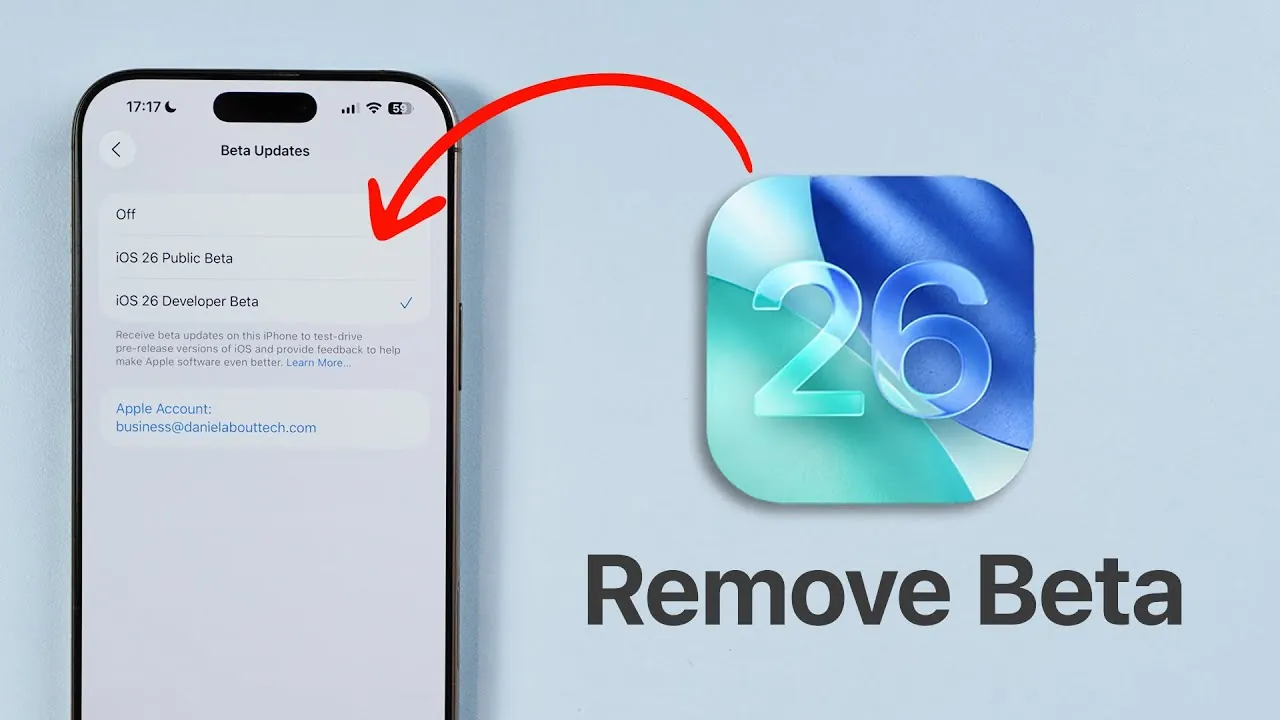
Transitioning from the iOS beta program to the official release of iOS 26 involves a series of essential steps. By disabling beta updates and preparing your device, you can ensure a smooth upgrade to the stable version. The video below from Daniel About Tech provides a detailed walkthrough to help you exit the beta cycle and get ready for iOS 26, making sure your device operates at its best.

Why Exiting the Beta Program Is Important
Participating in the iOS beta program offers early access to upcoming features and updates. However, remaining in the beta cycle after the official release of iOS 26 can lead to several challenges. Beta versions are designed for testing and often include bugs, incomplete features, or performance issues that can disrupt your device’s functionality. By switching to the stable release, you gain access to a more reliable and secure operating system, making sure compatibility with apps and improved overall performance. This transition is particularly important for users who rely on their devices for daily tasks and need consistent performance.
Steps to Disable Beta Updates
To exit the beta program and prepare for iOS 26, follow these steps carefully:
- Open the Settings app on your iPhone or iPad.
- Navigate to General > Software Update.
- Select the Beta Updates option.
- Turn off beta updates, whether you are enrolled in the developer beta or public beta program.
Disabling beta updates ensures your device stops receiving pre-release software. This step is critical to avoid the “beta loop,” a situation where your device continues downloading beta versions instead of transitioning to the stable release. Once beta updates are disabled, your device will automatically detect the official version of iOS 26 when it becomes available.
Preparing Your Device for iOS 26
After disabling beta updates, additional preparation steps can help ensure a seamless transition to the stable release of iOS 26. These steps are designed to minimize disruptions and safeguard your data:
- Check available storage: Ensure your device has sufficient free space for the update. iOS updates often require several gigabytes of storage, so delete unnecessary files or apps if needed.
- Back up your data: Use iCloud or a computer to create a full backup of your device. This precaution protects your data in case of unexpected issues during the update process.
- Ensure a stable internet connection: Connect to a reliable Wi-Fi network to download the update efficiently. Additionally, make sure your device is fully charged or connected to a power source to prevent interruptions.
These measures not only streamline the update process but also reduce the risk of encountering errors or delays. By taking these precautions, you can enjoy the new features and improvements of iOS 26 without unnecessary complications.
What to Expect After Updating
Once your device is updated to the stable release of iOS 26, it will rejoin Apple’s regular update cycle. This means you will receive periodic software updates that include new features, security patches, and performance enhancements. Transitioning to the stable release eliminates the risks associated with beta software, such as instability or app compatibility issues. Additionally, your device will benefit from the latest optimizations, ensuring a smoother and more reliable user experience.
Avoiding the “Beta Loop”
Remaining enrolled in the beta program after the official release of iOS 26 can result in a “beta loop.” In this scenario, your device continues to receive beta updates instead of transitioning to the stable version. To avoid this, it is essential to disable beta updates before the official release date. Once the stable version is available, it will appear in the Software Update section of your device’s settings, ready for installation. Taking this step ensures you can enjoy the full benefits of iOS 26 without being stuck in the beta cycle.
Final Steps to Transition Smoothly
Exiting the iOS beta program and preparing for iOS 26 is a straightforward yet crucial process. By disabling beta updates, checking your device’s storage, backing up your data, and ensuring a stable connection, you can transition seamlessly to the official release. These steps not only enhance your device’s stability and security but also allow you to fully experience the improvements and features of iOS 26 as soon as they are available. Take action now to avoid complications and ensure your device is ready for the next chapter in Apple’s software evolution.
Explore further guides and articles from our vast library that you may find relevant to your interests in iOS 26.
Source & Image Credit: Daniel About Tech
Filed Under: Apple, Apple iPhone, Guides, Top News
Latest Geeky Gadgets Deals
Disclosure: Some of our articles include affiliate links. If you buy something through one of these links, Geeky Gadgets may earn an affiliate commission. Learn about our Disclosure Policy.
Credit: Source link