Your iPhone is more than just a smartphone—it is a versatile and powerful tool designed to enhance your daily life, improve productivity, and offer seamless convenience. With the release of iOS 26, Apple has introduced a range of innovative features that elevate customization, functionality, and ease of use. Whether you are a tech-savvy enthusiast or a casual user, these features can help you maximize the capabilities of your device and streamline your everyday tasks. The video below from Proper Honest Tech gives us more details on these features.
1. Harness AI Tools with ChatGPT and Google Lens
The integration of advanced AI tools like ChatGPT and Google Lens into iOS 26 brings a new level of intelligence to your iPhone. After taking a screenshot, you can instantly analyze text, identify objects, or perform reverse image searches directly from the screenshot interface. This eliminates the need to switch between apps, saving time and effort. For users with older iPhone models, these features remain accessible by sharing screenshots to the respective apps. These tools are particularly useful for research, quick information retrieval, or enhancing productivity in your daily workflow.
2. Reply to Messages Directly from the Lock Screen
Communication becomes more efficient with the ability to reply to messages directly from your lock screen. By long-pressing a message notification, you can respond without unlocking your phone or navigating to the Messages app. This feature is designed to save time and ensure that your conversations remain uninterrupted. Whether you are multitasking or on the go, this functionality keeps your communication seamless and hassle-free.
3. Pin Favorites in Apple Music
Organizing your music library has been simplified with the new pinning feature in Apple Music. iOS 26 allows you to pin your favorite songs, albums, playlists, or artists to the top of your library. This ensures that your most-loved tracks are always easily accessible, enhancing your listening experience. Whether you are curating a playlist for a workout or revisiting a favorite album, this feature makes navigating your music collection more intuitive and enjoyable.
4. Take Control of File Management
File management on your iPhone has been significantly improved with iOS 26. The “Open With” option lets you select specific apps to open files, while the “Always Open With” setting allows you to set default apps for particular file types. These enhancements provide greater control over how you interact with your files, making it easier to manage documents, images, and other content. Whether you are working on a project or organizing personal files, these tools streamline the process and improve efficiency.
5. Navigate Messages with Ease
The Messages app has been enhanced with shortcuts that simplify how you interact with conversations. By tapping a contact’s name, you can access shared links, photos, or other content through dedicated tabs. Additionally, the “Show in Conversation” option allows you to long-press a link or photo and jump back to the original message. This eliminates the need for endless scrolling, making it easier to find specific content within a conversation. These updates are designed to save time and improve the overall messaging experience.
6. View and Share Wi-Fi Passwords
Accessing and sharing Wi-Fi passwords is now more convenient than ever. With iOS 26, you can view saved Wi-Fi passwords directly in the Passwords app. For added clarity, the “Show Enlarge Type” feature displays passwords in a larger, color-coded format, making them easier to read. This functionality is particularly helpful when sharing network access with friends or troubleshooting connectivity issues, making sure a smoother and more user-friendly experience.
7. Turn Emails into Reminders
Staying organized is easier with the ability to turn emails into actionable reminders. By sharing selected email text to the Reminders app, you can create a task that includes a direct link to the original email. This feature ensures that important tasks are tracked and easily accessible, helping you stay on top of your responsibilities. Whether you are managing work assignments or personal errands, this integration bridges the gap between communication and task management.
8. Customize Your Lock Screen with Dynamic Wallpapers
Personalizing your lock screen has been taken to the next level with dynamic photo shuffle wallpapers. By selecting a collection of images in the Photos app, your iPhone will automatically rotate them, giving your device a fresh and unique look every time you unlock it. This feature allows you to showcase your favorite memories or artistic photos, adding a touch of individuality to your device.
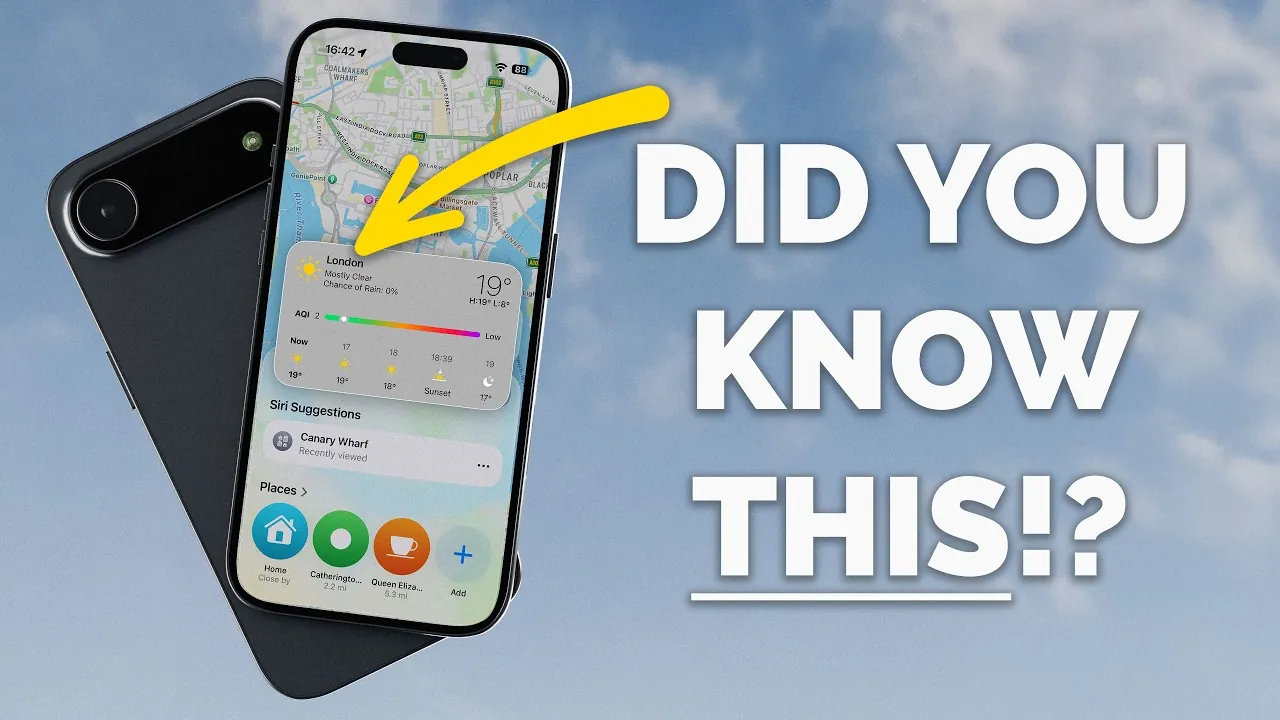
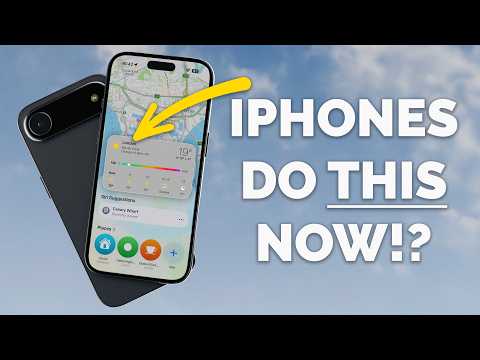
9. Access Weather and Air Quality Data in Maps
Planning your day is more informed with the enhanced weather and air quality integration in the Maps app. By long-pressing the temperature or air quality tile, you can view detailed forecasts and air quality data for your current location. This feature helps you stay prepared for outdoor activities, making sure that you are aware of environmental conditions that may impact your plans.
10. Simplify Your Camera App
The Camera app in iOS 26 offers greater customization to suit your photography preferences. You can enable or disable on-screen indicators for features such as flash, live photo, or action mode, creating a cleaner and more focused viewfinder. This allows you to concentrate on capturing the perfect shot without unnecessary distractions. Whether you are a professional photographer or a casual user, these updates enhance the overall photography experience.
Explore the Possibilities of iOS 26
These 10 features demonstrate the versatility and power of your iPhone with iOS 26. From AI integration to enhanced customization options, these tools are designed to improve your experience and make your device more intuitive. By exploring these features, you can unlock new levels of productivity, personalization, and convenience, making sure that your iPhone adapts to your needs and works smarter for you.
Unlock more potential in iOS 26 features by reading the previous articles we have written.
Source & Image Credit: Proper Honest Tech
Filed Under: Apple, Apple iPhone, Guides
Latest Geeky Gadgets Deals
Disclosure: Some of our articles include affiliate links. If you buy something through one of these links, Geeky Gadgets may earn an affiliate commission. Learn about our Disclosure Policy.
Credit: Source link