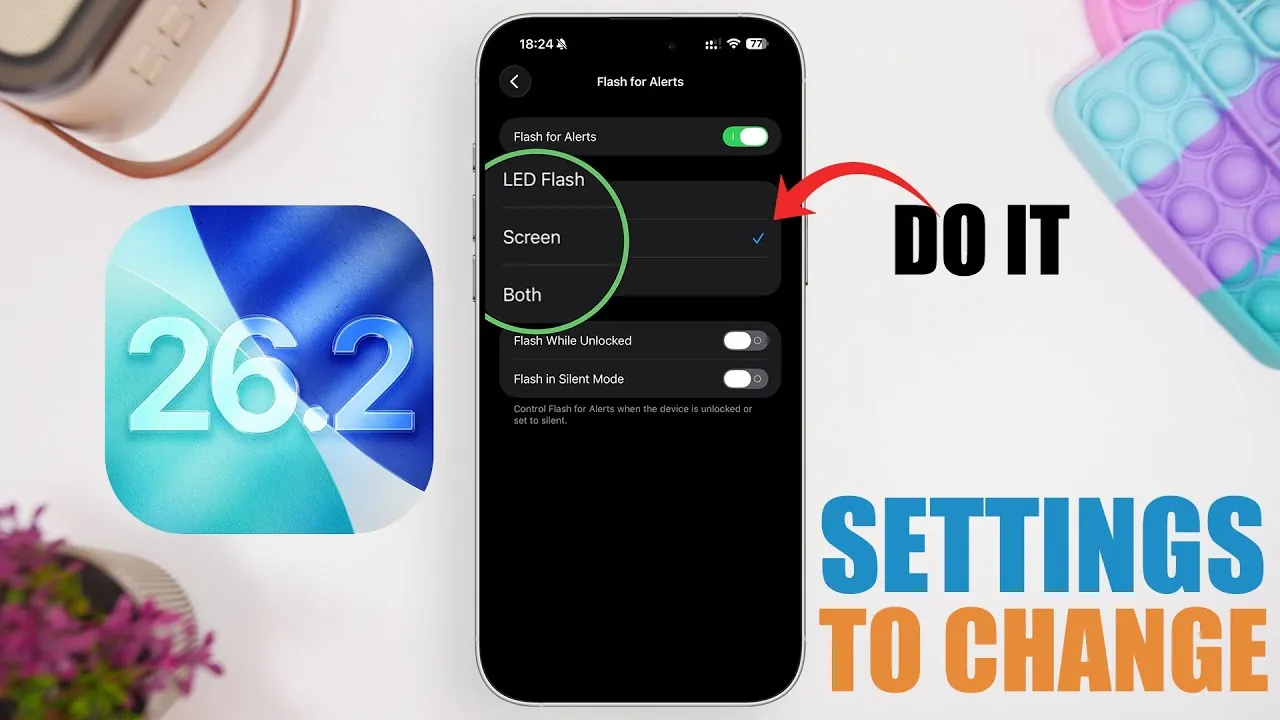
The iOS 26.2 update brings a host of new features and improvements aimed at enhancing your device’s performance, security, and overall usability. However, to fully use these advancements, it’s important to review and adjust specific settings. The video below from iReviews outlines 12 essential settings you should modify immediately to optimize your device, extend battery life, and safeguard your privacy.

1. Automatic Updates: Stay Up-to-Date Effortlessly
Keeping your device updated is critical for accessing the latest features, bug fixes, and security patches. Allowing automatic updates ensures your device remains protected and performs at its best without requiring manual checks. To activate this feature:
- Go to Settings > General > Software Update.
- Toggle on Automatic Updates.
This simple adjustment helps minimize vulnerabilities and ensures your device is always running the most current software.
2. Reminders App: Simplify Task Management
The updated Reminders app now includes a “Complete from Alarm” feature, which allows you to mark tasks as completed directly from an alarm notification. This integration streamlines task management and reduces the chances of forgetting important responsibilities. To enable this feature:
- Open the Reminders app.
- Navigate to Settings and turn on Complete from Alarm.
This setting ensures your tasks and reminders are seamlessly integrated into your daily routine.
3. Flash for Alerts: Improve Visual Notifications
For those who prefer visual cues over sound, the “Flash for Alerts” feature is a useful addition. Instead of using the flashlight, your screen will flash for incoming notifications, making it particularly effective when your phone is placed screen-up. To enable this feature:
- Go to Settings > Accessibility > Audio/Visual.
- Toggle on Flash for Alerts.
This setting enhances accessibility and ensures you never miss an important notification.
4. Enhanced Safety Alerts: Stay Informed During Emergencies
iOS 26.2 introduces region-specific safety alerts, such as earthquake warnings and imminent threat notifications. These alerts can be lifesaving in critical situations. To activate them:
- Navigate to Settings > Notifications > Emergency Alerts.
- Ensure relevant options are toggled on.
By allowing these alerts, you can stay prepared and informed during emergencies.
5. AirPods Live Translation: Break Language Barriers
The new live translation feature for AirPods provides real-time language assistance, making it an invaluable tool for travelers and multilingual professionals. To use this feature:
- Go to Settings > Translation.
- Download the languages you need for offline use.
This feature enhances communication and ensures you’re ready for cross-language interactions.
6. Background Security Updates: Maintain Continuous Protection
Automatic security updates work silently in the background to address vulnerabilities between major iOS releases. This ensures your device remains secure without requiring manual intervention. To enable this feature:
- Go to Settings > General > Security Updates.
- Turn on Automatic Updates.
This setting strengthens your device’s defenses against potential threats.
7. Haptics for Phone Calls: Conserve Battery Life
Haptic feedback during phone calls can be a subtle enhancement, but it also consumes battery power. If this feature isn’t essential for you, consider disabling it:
- Go to Settings > Sounds & Haptics.
- Turn off Haptic Feedback for Calls.
This adjustment helps conserve battery life without compromising your call experience.
8. Location Services: Strengthen Privacy and Save Power
Reviewing app permissions for location services can significantly improve your privacy and battery efficiency. To adjust these settings:
- Go to Settings > Privacy & Security > Location Services.
- Disable Precise Location for apps that don’t require it.
- Set location access to While Using the App for others.
This ensures that apps only access your location when absolutely necessary.
9. Notification Management: Reduce Distractions
Excessive notifications can disrupt your focus and drain your battery. Managing them effectively can improve your overall experience. To do this:
- Go to Settings > Notifications.
- Turn off notifications for non-essential apps.
- Enable Scheduled Summaries to receive updates at specific times.
This setting helps you stay focused while keeping you informed about what matters most.
10. “Hey Siri” Always Listening: Optimize Energy Usage
The “Always Listen for Hey Siri” feature is convenient but can consume significant battery power. If you rarely use voice commands, disabling this option can save energy:
- Go to Settings > Siri & Search.
- Turn off Listen for ‘Hey Siri’.
This adjustment ensures your device uses power more efficiently.
11. Siri Suggestions: Reduce Background Activity
While Siri Suggestions offer personalized recommendations, they also increase background activity, which can impact battery life. To minimize this:
- Go to Settings > Siri & Search.
- Turn off unnecessary suggestions for specific apps.
This setting helps balance personalization with performance.
12. Haptics Settings: Customize Feedback to Your Needs
Haptic feedback enhances the tactile experience of using your device, but excessive use can drain your battery. To customize your preferences:
- Go to Settings > Sounds & Haptics.
- Reduce or disable unnecessary haptic feedback.
This ensures your device’s feedback aligns with your usage habits while conserving energy.
Maximize Your iOS 26.2 Experience
By adjusting these 12 settings, you can tailor iOS 26.2 to suit your needs, enhancing performance, security, and battery efficiency. These changes not only improve your device’s functionality but also provide a more seamless and secure user experience. Take a few moments to review these settings and unlock the full potential of iOS 26.2.
Dive deeper into iOS 26.2 update with other articles and guides we have written below.
Source & Image Credit: iReviews
Filed Under: Apple, Apple iPhone, Guides
Latest Geeky Gadgets Deals
Disclosure: Some of our articles include affiliate links. If you buy something through one of these links, Geeky Gadgets may earn an affiliate commission. Learn about our Disclosure Policy.
Credit: Source link