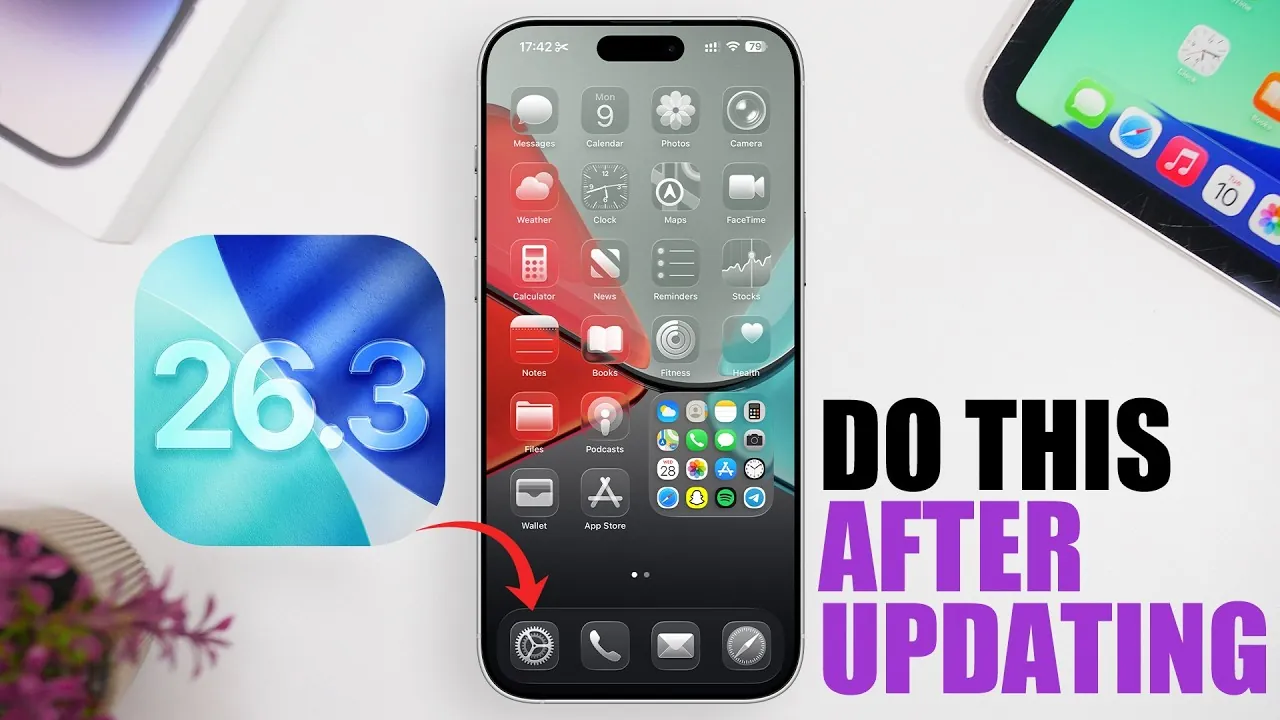
Apple has officially launched iOS 26.3, following an extensive beta testing phase. This update delivers performance enhancements, improved battery life, and minor feature updates. However, simply installing the update is not enough to ensure your device operates at its peak. To fully optimize your experience, you should take specific steps to configure settings, review permissions, and fine-tune functionality immediately after updating. The video below from iReviews gives us more information on what to do after you update to iOS 26.3.
1. Adjust Update Settings
After installing iOS 26.3, your first priority should be to adjust your update settings. If you participated in the beta program, it is important to disable beta updates unless you plan to continue testing experimental software. To do this:
- Navigate to Settings > General > Software Update.
- Toggle off beta updates if they are enabled.
Additionally, enable automatic updates to ensure your device stays current with future iOS releases. This feature allows updates to download and install overnight, reducing the need for manual intervention. Keeping your device updated ensures you benefit from the latest features and security patches.
2. Strengthen Privacy and Security
iOS 26.3 introduces “Background Security Improvements”, a feature that applies critical security patches automatically without requiring a full system update. To activate this feature:
- Go to Settings > General > Software Update.
- Toggle on “Background Security Improvements.”
Beyond this, it is essential to review your privacy settings to safeguard sensitive information. Start by auditing location services:
- Open Settings > Privacy & Security > Location Services.
- Restrict location access for apps that do not require it.
Similarly, review permissions for your contacts, photos, microphone, and camera. Adjust these settings to align with your privacy preferences. For additional control, manage app tracking permissions under Settings > Privacy & Security > Tracking. This feature allows you to decide which apps can monitor your activity across other apps and websites, enhancing your privacy.
3. Check for Carrier Updates
To ensure optimal cellular performance, it is important to check for carrier updates after installing iOS 26.3. These updates can improve call quality, data speeds, and overall network reliability. Follow these steps:
- Open Settings > General > About.
- If a carrier update is available, a prompt will appear to install it.
Carrier updates are typically quick to install and can significantly enhance your device’s connectivity, making sure a smoother experience for calls, messaging, and internet usage.
4. Update Your Apps
App compatibility is critical after a major iOS update. Outdated apps may not function properly or could pose security risks. To ensure your apps are up-to-date:
- Open the App Store and navigate to the “Updates” tab.
- Tap Update All to install the latest versions of your apps.
For added convenience, enable automatic app updates by going to Settings > App Store and toggling on “App Updates.” This ensures your apps remain compatible with the latest iOS version without requiring manual updates.
5. Monitor Battery Health and Performance
iOS 26.3 includes improvements to battery health monitoring, providing more accurate readings. After updating, it is a good idea to check your battery health to ensure your device is performing optimally. To do this:
- Go to Settings > Battery > Battery Health & Charging.
- Review the “Maximum Capacity” percentage displayed.
If your battery health has dropped below 80%, it may be time to consider a replacement. A degraded battery can lead to reduced performance and unexpected shutdowns. Apple provides detailed guidelines for battery replacement through its support channels, making sure your device remains reliable.
6. Perform a Comprehensive Privacy Review
Privacy settings should be reviewed regularly, especially after a major update like iOS 26.3. Conducting a thorough audit of app permissions ensures that only necessary access is granted. For example:
- Apps requesting access to your microphone, camera, or photos should only have permissions enabled if required for functionality.
- Revoke permissions for apps you no longer use or trust.
This proactive approach minimizes privacy risks and helps protect your personal data. Regularly reviewing these settings ensures that your device remains secure and aligned with your privacy preferences.
Maximizing Your iOS 26.3 Experience
Updating to iOS 26.3 offers a range of benefits, but taking the time to optimize your device post-update is essential for a seamless experience. By adjusting update settings, allowing security features, reviewing privacy permissions, checking for carrier updates, updating apps, and monitoring battery health, you can ensure your device operates at its best. These steps not only enhance performance but also improve security and usability, allowing you to fully enjoy the latest features and improvements that iOS 26.3 has to offer.
Expand your understanding of iOS 26.3 Update with additional resources from our extensive library of articles.
Source & Image Credit: iReviews
Filed Under: Apple, Apple iPhone, Top News
Disclosure: Some of our articles include affiliate links. If you buy something through one of these links, Geeky Gadgets may earn an affiliate commission. Learn about our Disclosure Policy.
Credit: Source link