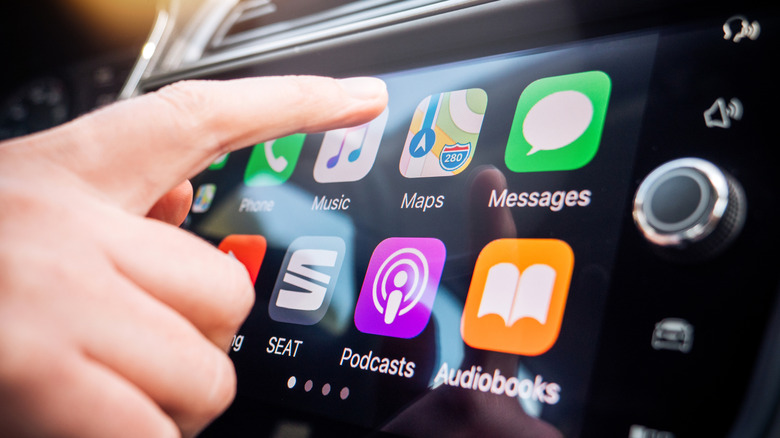
Don’t let Siri become a hassle instead of an assistant; keep it quiet in the car to reduce distractions.
Even though CarPlay makes it safer to use your phone’s features while driving, it can still become distracting, like when group chat messages pop up and grab your attention. One of the worst forms of this is Siri audibly interrupting what you’re doing.
Hearing the assistant constantly talk over your music, podcast, or in-car conversation with announcements is annoying and potentially dangerous. You might also have issues with it not properly hearing you as you’re speaking to it in the car. Thankfully, you can adjust a few settings, particularly how you interact with Siri, in an effort to avoiding wasting time.
You can’t completely disable Siri, since CarPlay won’t work without the feature enabled. However, you can make your CarPlay drives smoother by turning off some of the assistant’s most obnoxious tendencies. When every distracted second on the road could lead to an accident, tweaking Siri to your liking is an overlooked way to stay safe.
The most important toggle: Driving Focus
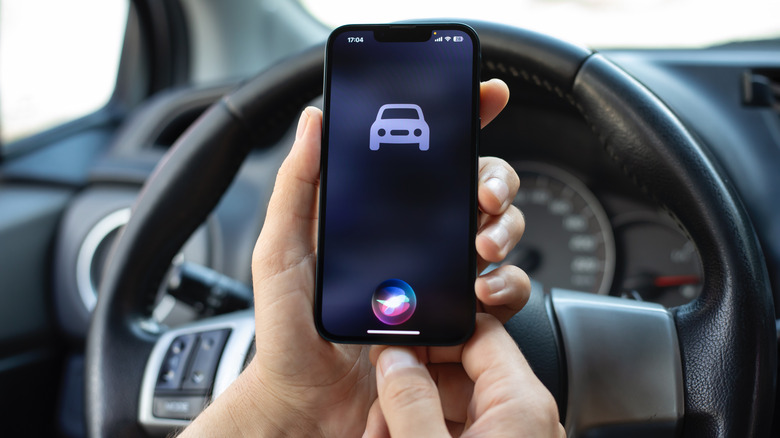
The best way to hush Siri while you’re driving is to use the applicable Focus mode. Focus modes are an extension of Do Not Disturb that suppress notifications depending on your situation, and the Driving mode has special toggles to enable automatically in the car. With this enabled, you’ll only see alerts from people you choose, cutting down on interruptions.
To set it up, open Settings and go to Focus. If you don’t see Driving, tap the Plus (+) icon at the top-right and add it. Inside the Driving focus, choose People. For driving, it makes more sense to Allow a short list of people to alert you. When they contact you from any app, including Messages and WhatsApp, alerts will show as you drive. The toggles below let you control which phone calls notify you in your vehicle. Contacts Only silences spam calls while driving, or you can limit it to your chosen list with Allowed People Only.
Use the Auto-Reply section to set a short message that goes to the group you select if they text you when you’re using CarPlay. People will know you’re busy without you dictating a message as you drive.
Finally, scroll down to tap While Driving and make sure Activate With CarPlay is on. The options above this are for cars that don’t support CarPlay. Now, while in wired or wireless CarPlay, you’ll see a small car icon underneath the clock, letting you know this Focus is on.
Keep Siri quiet in the car
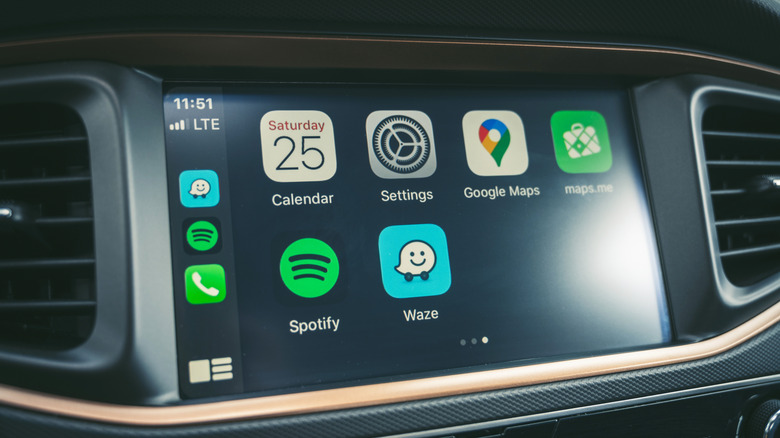
Siri’s ability to speak notifications is great in the right circumstances, but if it won’t shut up about incoming alerts in the car, you can turn this off. Back in Settings on your phone, choose Notifications > Announce Notifications. If you want to use this feature outside of CarPlay, keep the top toggle on and select the CarPlay menu. There, disable Announce Messages and Siri won’t read anything that comes in during a trip.
Back on the Announce Notifications page, you might also want to turn on Reply Without Confirmation. By default, when you speak a reply, the assistant will read what you said back to you for confirmation before sending. While this helps avoid misspoken messages, it also creates extra steps behind the wheel. Turn this toggle on and sending a reply becomes a single step.
Another way to prevent stoppages with Siri is hidden under Settings > Accessibility > Siri > Require “Siri” for Interruptions on your phone. Normally, Siri will stop what it’s saying when it detects you talking back. If your phone is doing this in error because of road noise or other people in the car, enable this option. Then, Siri won’t stop what it’s saying unless you say “Siri” to prompt it again. Similarly, if it tends to stop listening because you take too long to think, change Siri Pause Time to Longer or Longest to give yourself more time.
Although Siri is required for CarPlay, you can still turn off some forms of its activation. Go to Settings > Apple Intelligence & Siri > Talk to Siri on your phone and choose Off in the top menu. After doing this, you’ll only be able to summon Siri by hitting the voice command button on your steering wheel or holding the Side button on your phone. And in some cars, using the volume knob (or your phone’s volume buttons) when it’s talking will adjust the volume for Siri only, while not affecting music or other playback. This depends on your vehicle, but is another trick worth a try if you want more control.
Disable navigation guidance
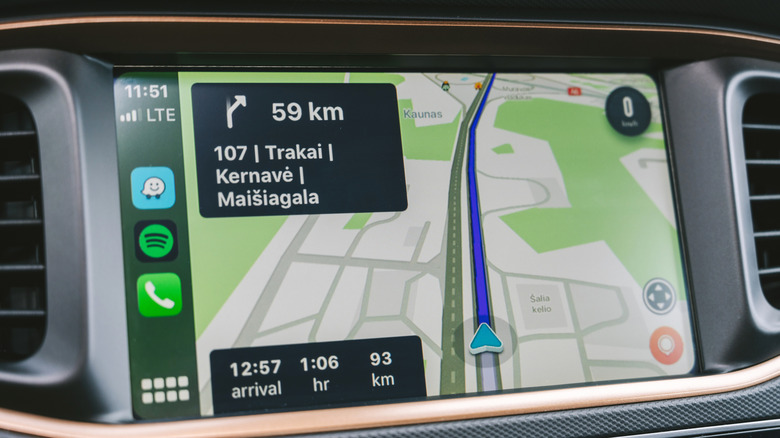
Spoken directions in navigation apps help you avoid missing turns but also constantly interrupt what you’re listening to. Thankfully, it’s easy to disable audio guidance in major GPS apps while using CarPlay, letting you customize this per-trip.
Apple Maps and Waze offer this control in the same way. Tap the screen during navigation to show buttons, then hit the speaker icon, which gives the choice between full guidance, alerts only, and complete silence. Hearing alerts only is a good balance, since faster routes or upcoming slowdowns are important and happen far less often than turns.
For Google Maps, you’ll need to open the app on your phone, tap your profile picture at the top-right, and choose Settings > Navigation. Enable Play alerts even while muted. On the same menu, consider adjusting the Guidance volume of alerts if they annoy you. For a similar option in Apple Maps, visit Settings > Apps > Maps > Spoken Directions to soften the Voice Volume. You might also wish to turn off Directions Pause Spoken Audio; this keeps podcasts and audiobooks playing even as directions are read aloud.
Hopefully, Siri’s upcoming AI overhaul makes the assistant smarter so we don’t have to put up with these hassles.
Credit: Source link