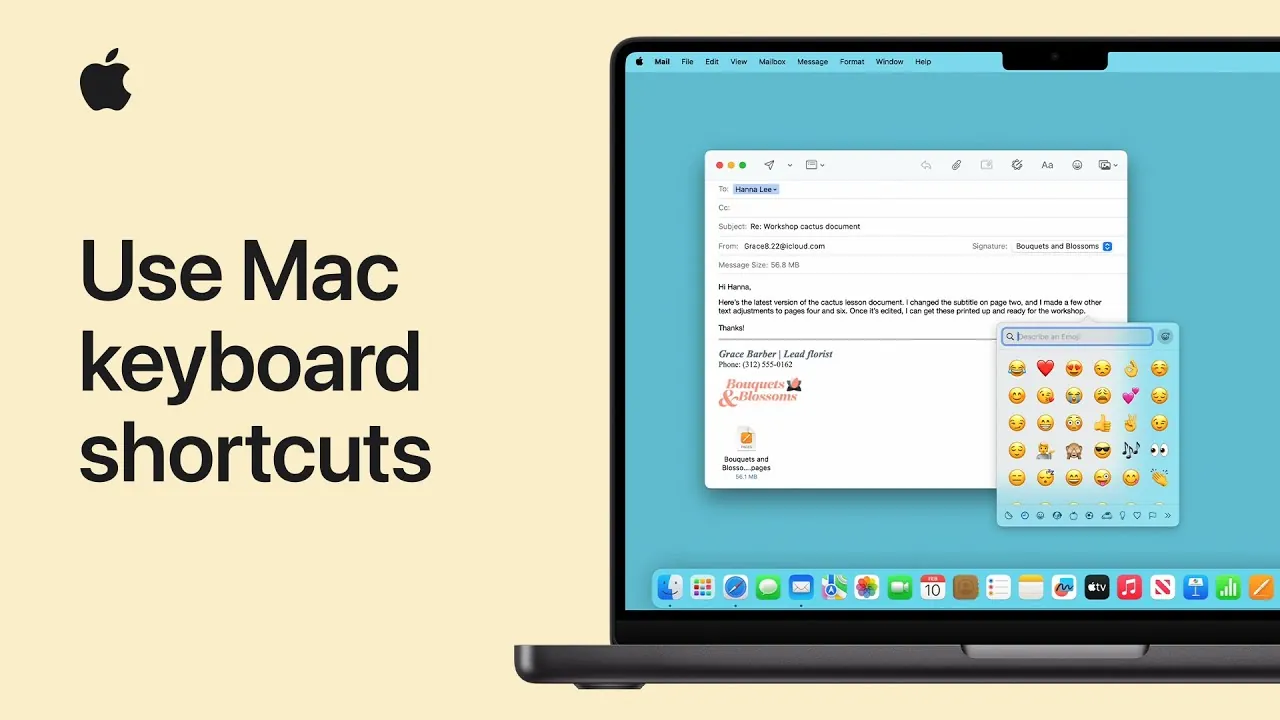
Mac keyboard shortcuts are indispensable tools that can significantly enhance your productivity and accessibility. By integrating these shortcuts into your daily routine, you can perform tasks more quickly, navigate your system seamlessly, and access features without depending heavily on a mouse or trackpad. Whether you’re managing files, editing text, or using accessibility features, these shortcuts are designed to streamline your workflow and improve your overall user experience. The video below from Apple shows us how to use Mac keyboard shortcuts.

The Importance of Keyboard Shortcuts
Keyboard shortcuts are more than just convenient—they are essential for efficient navigation and task management. They allow you to bypass repetitive actions, minimize clicks, and focus on what truly matters. For instance, instead of manually selecting “Copy” or “Paste” from a menu, a quick combination of keys can accomplish the task instantly. This efficiency is particularly valuable when working on complex projects, multitasking across multiple applications, or managing tight deadlines. By reducing the time spent on routine actions, shortcuts help you maintain focus and momentum.
Discovering and Learning Shortcuts
Learning Mac keyboard shortcuts is straightforward, thanks to the intuitive design of macOS. In most applications, you can find shortcuts displayed next to menu items, making it easy to identify and adopt them. For example, in text editing programs, shortcuts for actions like copying, pasting, and undoing changes are prominently displayed. This built-in feature encourages users to integrate shortcuts into their workflow naturally. Additionally, Apple provides comprehensive online resources and guides to help users explore and master shortcuts tailored to specific applications or tasks.
Essential Keyboard Shortcuts for Everyday Use
Certain shortcuts are universally applicable across most Mac applications, forming the foundation of efficient Mac usage. These commands can save time and simplify repetitive tasks:
- Copy: Command + C
- Paste: Command + V
- Undo: Command + Z
- Redo: Shift + Command + Z
- Quit an app: Command + Q
These shortcuts are simple yet powerful, allowing you to perform common actions with minimal effort.
Optimizing the Finder and System Navigation
Navigating your Mac’s system and managing files becomes significantly faster with Finder and system shortcuts. These commands allow you to multitask efficiently and locate files or applications without unnecessary clicks:
- Switch between open apps: Command + Tab
- Open the Screenshot app: Shift + Command + 5
- Hide active app windows: Command + H
- Activate Spotlight Search: Command + Spacebar
- Preview a file with Quick Look: Spacebar
By mastering these shortcuts, you can navigate your system with ease, improving both speed and efficiency.
Enhancing Text Editing and Document Management
For users who frequently work with text or documents, Mac shortcuts can simplify even the most detailed tasks. These commands are particularly useful for writers, editors, and professionals handling text-based projects:
- Look up word definitions: Control + Command + D
- Open the Character Viewer for emojis and symbols: Control + Command + Spacebar
- Select all text: Command + A
- Find specific text: Command + F
- Access the Help menu: Shift + Command + ?
These shortcuts not only save time but also enhance precision and accuracy when working with text.
Efficient Web Browsing with Safari
Safari users can benefit greatly from keyboard shortcuts that make web navigation smoother and more efficient. These commands are designed to help you manage tabs, windows, and browsing sessions effortlessly:
- Open a new tab: Command + T
- Close a tab or window: Command + W
- Reopen the last closed tab: Shift + Command + T
- Switch between tabs: Control + Tab
- Open the Downloads folder: Option + Command + L
By incorporating these shortcuts into your browsing habits, you can navigate the web more effectively and focus on the content that matters.
Accessibility Shortcuts for Inclusive Use
Mac’s accessibility shortcuts are designed to ensure that the system is usable for everyone, regardless of ability. These commands provide additional support for users who may require enhanced accessibility features:
- Enable VoiceOver (screen reader): Command + F5
- Zoom in: Command + Plus (+)
- Zoom out: Command + Minus (-)
- Invert display colors: Control + Option + Command + 8
- Open the Accessibility Shortcuts panel: Option + Command + F5
These features are invaluable for creating an inclusive and user-friendly experience, making sure that macOS remains accessible to all users.
Unlocking the Full Potential of Your Mac
Mastering Mac keyboard shortcuts is a practical and effective way to enhance your productivity and accessibility. By incorporating these commands into your daily workflow, you can save time, reduce reliance on the mouse, and unlock the full potential of your Mac. Whether you’re navigating applications, managing files, editing text, or exploring accessibility features, these shortcuts are designed to make your experience smoother and more efficient. Start practicing today to take full advantage of the tools at your fingertips.
Unlock more potential in Mac keyboard shortcuts by reading previous articles we have written.
Source & Image Credit: Apple Support
Filed Under: Apple, Guides, Top News
Latest Geeky Gadgets Deals
Disclosure: Some of our articles include affiliate links. If you buy something through one of these links, Geeky Gadgets may earn an affiliate commission. Learn about our Disclosure Policy.
Credit: Source link