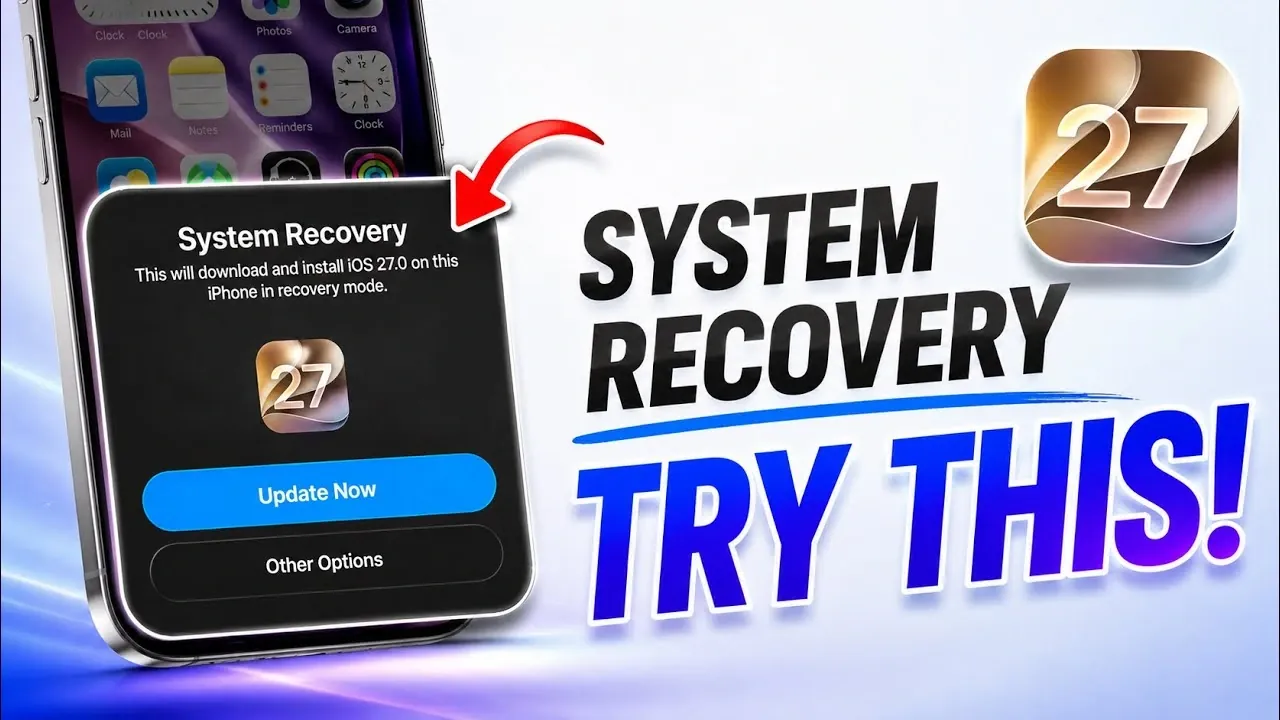
The release of iOS 27 introduces a new system recovery feature that redefines how users restore their devices. For the first time, you can recover your iPhone or iPad wirelessly without needing a computer, all while keeping your data intact. This feature is particularly beneficial for beta testers who frequently encounter issues such as overheating, app crashes, or freezing. By using a second device running iOS 26 or iOS 27, you can efficiently restore your operating system and resolve software problems with minimal disruption. The video below from iDeviceHelp gives us more details.

Key Features of the iOS 27 Recovery Process
The iOS 27 recovery feature stands out due to its simplicity and focus on user convenience. Unlike traditional recovery methods that require a computer and often result in data loss, this wireless recovery process is designed to be seamless and secure. It ensures that your apps, settings and personal data remain intact, making it an ideal solution for developers and testers who rely on their devices for critical tasks. Whether you’re addressing beta-related glitches or troubleshooting freezing issues, this feature offers a reliable and efficient way to restore your device.
Essential Requirements for Wireless Recovery
Before initiating the recovery process, ensure you have the following:
- A second iPhone or iPad running iOS 26 or iOS 27 to act as the recovery device.
- Both devices must have Wi-Fi and Bluetooth enabled to establish a secure connection.
- The device being restored should remain connected to a power source throughout the process to prevent interruptions.
These prerequisites are critical to making sure a smooth and uninterrupted recovery experience.
Steps to Enter Recovery Mode
Activating recovery mode on your device is a straightforward process. Follow these steps carefully:
- Press the volume up button, then the volume down button and hold the side button until the recovery screen appears.
- Ensure no cables are connected to your device during this process to avoid interference.
Once in recovery mode, you’ll gain access to a variety of tools designed to address different software issues.
Exploring the Recovery Screen Options
The recovery screen provides several options to help you resolve your device’s problems effectively:
- Restart: Quickly reboot your device to resolve minor glitches or performance issues.
- Language Settings: Adjust language preferences if needed during the recovery process.
- Diagnostics Mode: Run tests to identify and troubleshoot underlying software or hardware issues.
- Software Update: Restore your operating system to the latest beta version available.
These tools allow you to customize the recovery process based on your specific needs, making sure a targeted and efficient approach to problem-solving.
Wireless Restoration: A Step-by-Step Guide
Once your device is in recovery mode, follow these steps to restore it wirelessly:
- On your second device, open the recovery tool and initiate the restoration process.
- Enter the unique code displayed on the device in recovery mode to securely link the two devices.
- Select “System Recovery” on the second device and follow the on-screen prompts to update the operating system.
This process is designed to be intuitive and user-friendly, typically taking 20-30 minutes depending on your network speed and device performance.
Post-Recovery: What to Expect
After completing the recovery process, your device will be restored to the latest iOS 27 beta version. All your data, apps and settings will remain intact, making sure a seamless transition back to normal usage. This feature is particularly advantageous for developers and beta testers who need a dependable way to address software issues without compromising their work or personal data.
The Importance of the iOS 27 Recovery Feature
The iOS 27 wireless recovery feature marks a significant advancement in system restoration technology. By eliminating the dependency on computers and prioritizing data preservation, it offers a practical and efficient solution for addressing beta-related challenges. Whether you’re troubleshooting crashes, resolving freezing problems, or simply updating your operating system, this feature ensures a smooth and hassle-free recovery experience.
This innovation not only simplifies the recovery process but also sets a new benchmark for user-centric design in mobile operating systems. With its focus on ease of use, data integrity and wireless connectivity, the iOS 27 recovery feature is a valuable tool for anyone navigating the complexities of beta testing.
Browse through more resources below from our in-depth content covering more areas on iOS 27.
Source & Image Credit: iDeviceHelp
Filed Under: Apple, Apple iPhone, Guides, Top News
Disclosure: Some of our articles include affiliate links. If you buy something through one of these links, Geeky Gadgets may earn an affiliate commission. Learn about our Disclosure Policy.
Credit: Source link