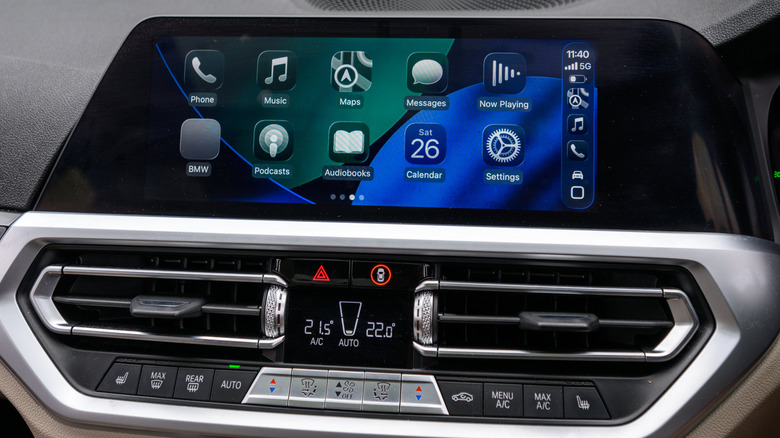
If you want your car to greet you every morning, the Shortcuts app can make it happen.
Adding an intro to Apple CarPlay isn’t complicated, and it can add a nice little touch of personalization to your morning commute. “Intro” meaning Siri greeting you with a cheerful good morning as you climb in, a main theme clip from Back to the Future blaring through your speakers or Siri telling you to get your coffee mug off the car roof and don’t forget your wallet. It’s not exactly tech that’ll blow your socks off, but it can liven up your trip all the same.
To get the ball rolling, all you need to do is set up a CarPlay automation that runs the moment your iPhone connects. Of course, this won’t replace your vehicle’s factory startup chime, infotainment welcomes and animations or the super-annoying seat belt chime. It’s just an iPhone-triggered action that plays through the audio system. Since it depends on your iPhone, results can vary a bit with wired versus wireless connections and the speed of connection with your car.
For the best result, keep the custom startup sound short and sweet. A two- to five-second clip is enough to convey what you want without interfering with navigation instructions or other important details. All you will need for this setup is an iPhone, the Shortcuts app and an audio file saved in your Files.
Set up your CarPlay Automation
Before you do anything, you need to download the audio file for the sound or clip you want to play. Create a folder in the Files app on your iPhone (not in iCloud Drive) with a name that’s easy to locate from the Shortcuts app and save your file to that folder.
-
Open the Shortcuts app.
-
Tap the “Automation” icon at the bottom center of the screen.
-
If you have no previous automations, select “New Automation” or tap the + icon at the top right of the screen.
-
Tap CarPlay (usually in the middle of the list, but you can search for it in the search box).
-
Tap “Is Connected” if it’s not already highlighted and select “Run Immediately,” followed by “Next.”
-
Tap “Create New Shortcut.”
-
Scroll down and tap “Files.”
-
There are several options here, but just select the tab labeled “File.”
-
Now, you’ll see a faded blue File button next to the file symbol at the top. Tap the File button.
-
Browse through your folders until you find the one you created and open it.
-
Select the sound effect within the folder.
-
Tap the blue checkmark at the top right, and you’re all set.
Keep in mind that these steps can vary slightly depending on your iPhone model and iOS version. Shortcuts support goes all the way back to the iPhone 5s, so older compatible models may display Shortcuts options in a different order or with slightly different labels.
Now there’s nothing left but to test it out on your car. Connect to CarPlay and listen for your clip. If it plays too loudly or too softly, make adjustments on your iPhone accordingly. Your iPhone may use the original volume levels from the recording when the action runs.
Edit, delete and improve it
If you want to change your CarPlay automation, simply return to Shortcuts, tap Automation, and select the one you made. You can then tap the selected file and swap it out for another greeting, reorder actions or remove an action. If the sound gets old after a while, you don’t have to delete it. Go back to the automation you created, select it and change “Run Immediately” to “Don’t Run.” That way you can rotate new sounds in or just give yourself a break from the current one.
Of course, Shortcuts and CarPlay don’t stop at sound alone. You can add some useful actions that follow the greeting. The initial greeting could be followed by opening the navigation app, kicking off a commute playlist or a display of morning routine reminders. You can also create disconnect automations that pause media or launch walking directions when you cut the car off and get out. In short, your CarPlay setup is yours to customize, whether you prefer a simple driving interface or a few automations that make each trip a little more stylish or convenient.
Credit: Source link